Why Marta stopped exporting spreadsheets
Meet Marta, who runs a knitwear shop like many we talk to. Her catalogue, sweaters in several sizes and colours, beanies and totes, and her wholesale customers such as Emma Schmidt in Berlin, lived in Odoo.
Her accountant works in ERPNext, so the shop is moving there. The hard part was the data: an export flattens the Merino Crew Sweater into separate rows, splits addresses from customers, and drops the tags her team uses.
This guide follows that move with StoreCopy. Every screenshot is from one real run, from opening the wizard to finding the sweater in ERPNext as an Item template with its Size and Color variants, and Emma with her address and phone.
You will need
- Odoo 17, 18 or 19 with the CRM app and the free StoreCopy Migration app from Odoo Apps
- An ERPNext site and the API key and secret of a user with the Item Manager, Stock Manager, Sales Manager, Sales Master Manager and Accounts User roles
- About 20 minutes, plus run time for large databases
You will get
- Odoo connected with one click on Allow, no password or API key to copy from Odoo
- ERPNext connected with your site address and an API key and secret
- A free estimate of every record type in Odoo, with the price of the full migration
- A free demo with up to 20 records of each type, checked in ERPNext before you pay
1
click on Allow to connect Odoo
20
records of each type in the free demo
0
spreadsheets to clean up
How to migrate from Odoo to ERPNext
Open the migration wizard
Sign in at StoreCopy and open the wizard. It starts on Platforms with Select Source Platform.
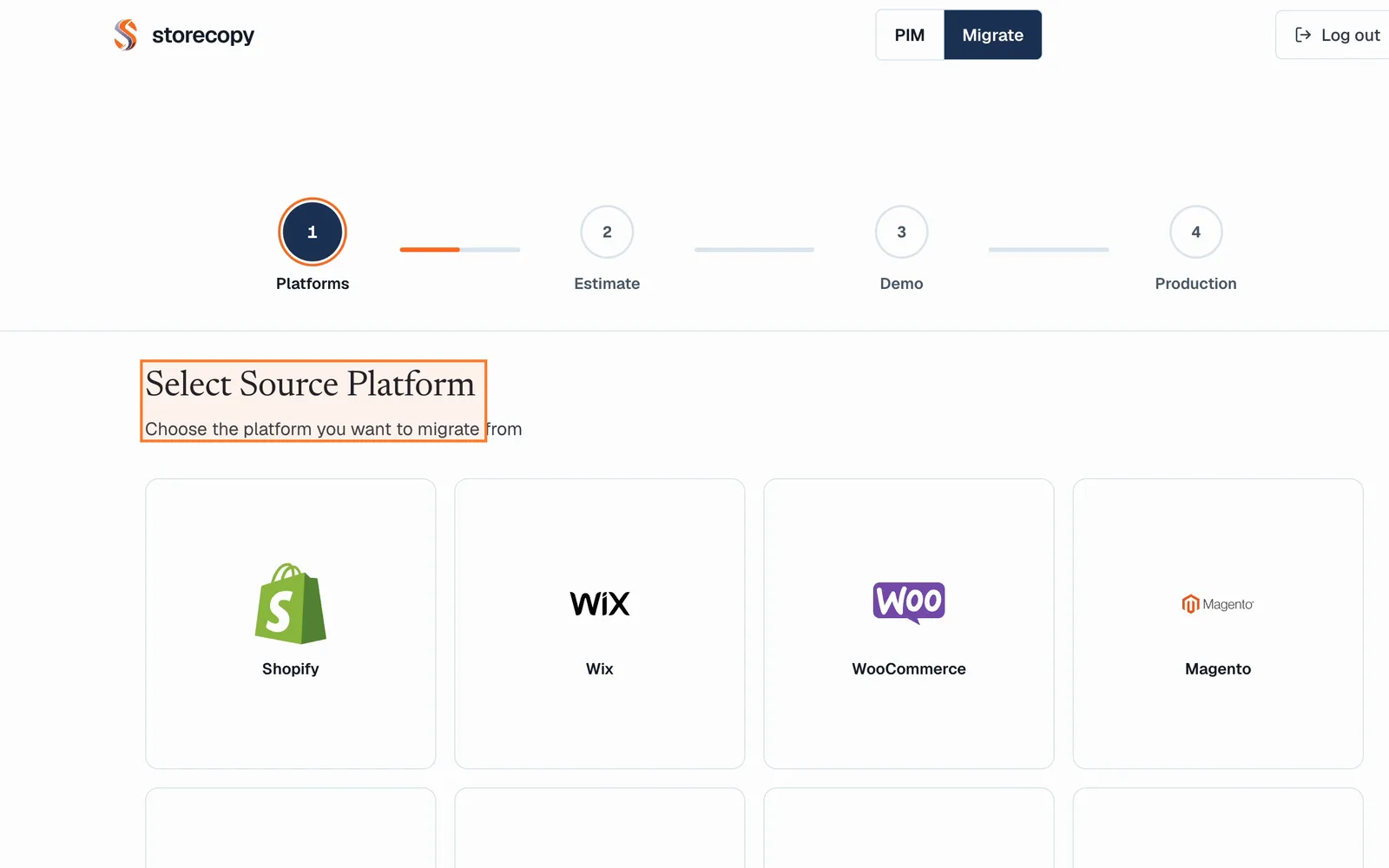
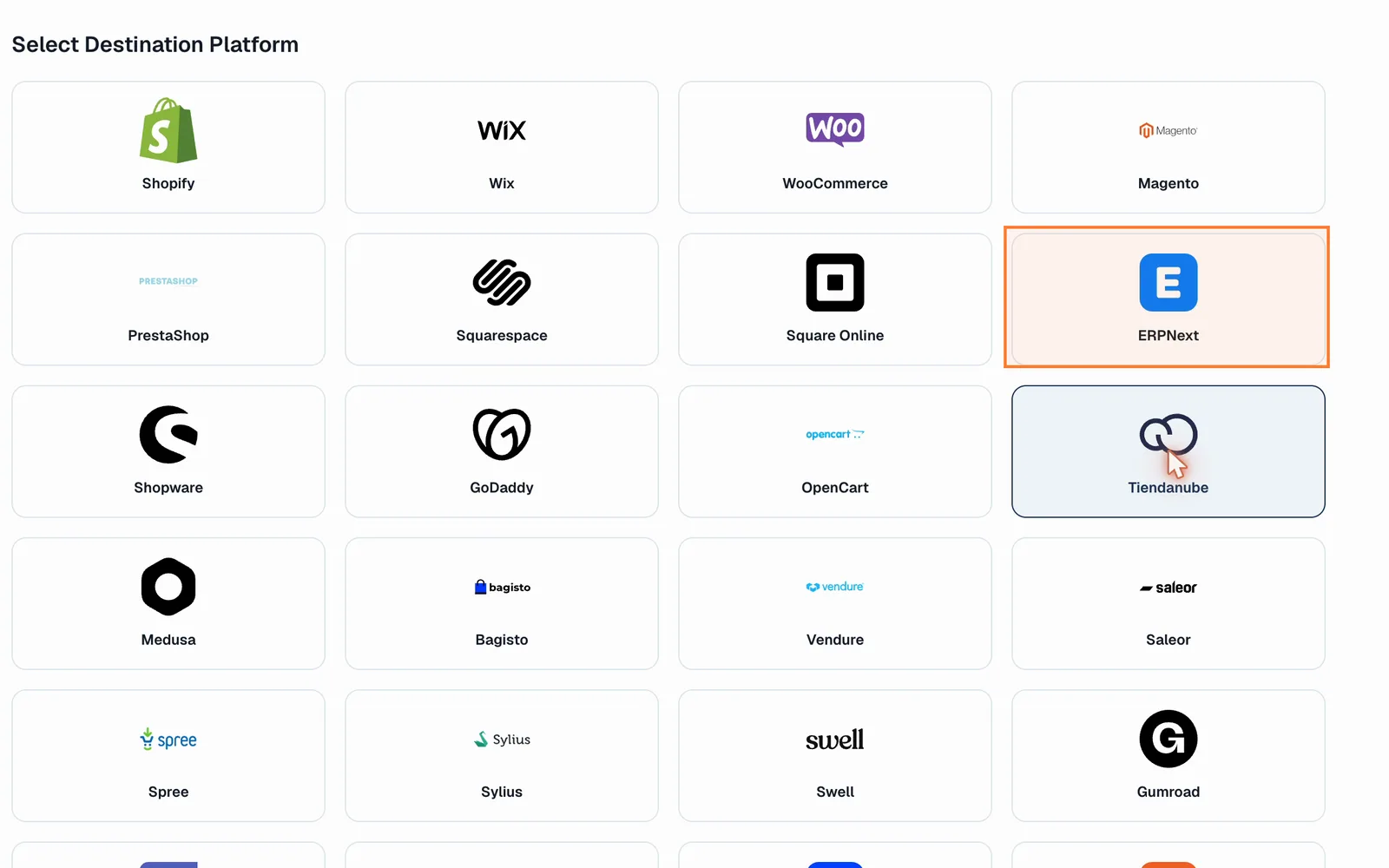
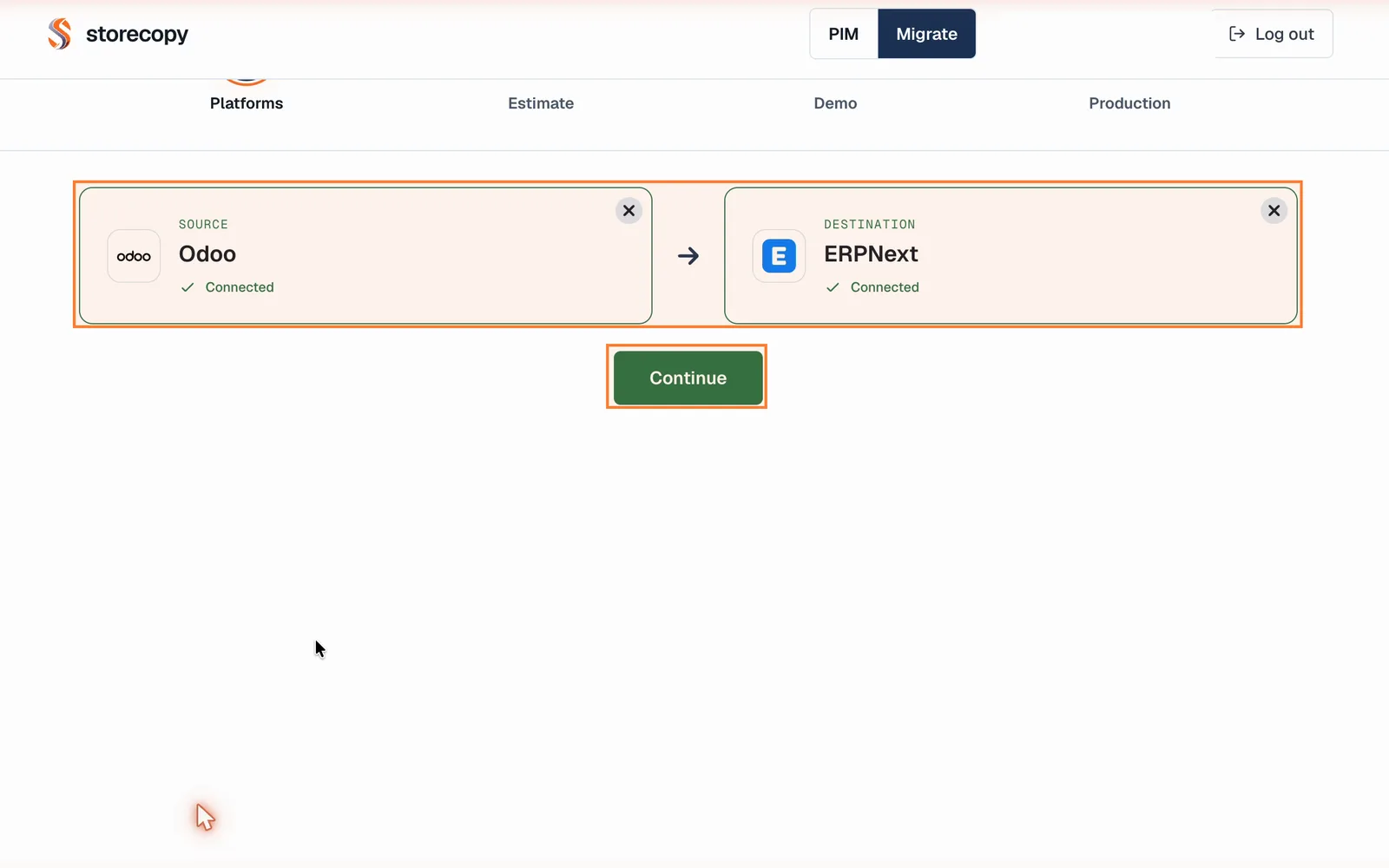
Pick Odoo as the source and ERPNext as the destination
Under Select Source Platform, click Odoo. The list changes to Select Destination Platform: click ERPNext.
Each side now has its own connect form, Odoo first.
Connect Odoo with one Allow
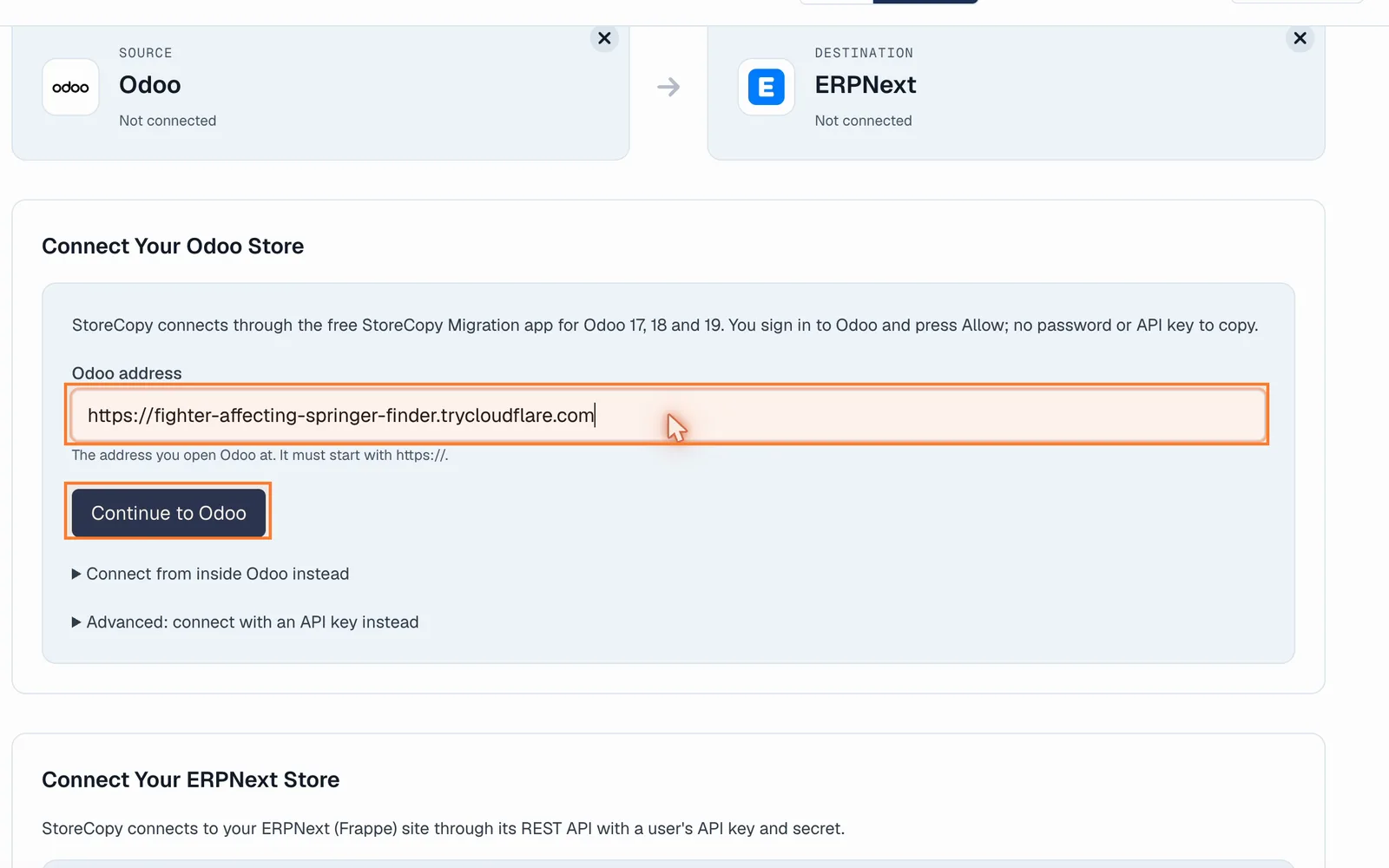
Under Connect Your Odoo Store, type the address you open Odoo at, for example https://mycompany.odoo.com, and click Continue to Odoo.
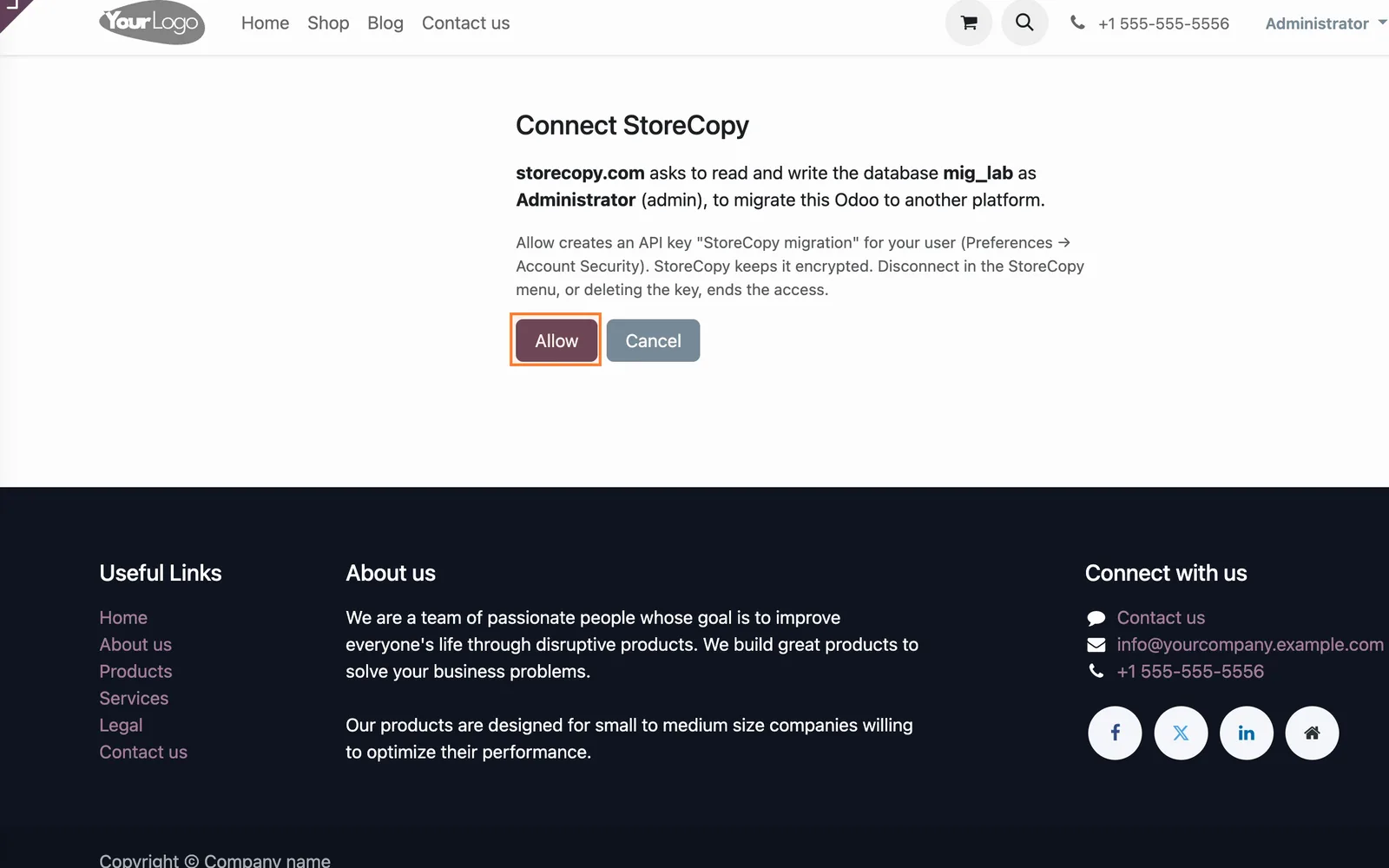
Odoo shows Connect StoreCopy: which database StoreCopy asks to read and write, and as which user. Click Allow. Odoo creates an API key named StoreCopy migration for your user and sends you back to the wizard with Odoo connected.
TipOdoo → ERPNext also needs the CRM app in Odoo. If it is missing, the wizard says so after connecting: install it under Apps and press Check again.
Connect ERPNext with its site address and API key
In ERPNext, open your avatar, My Settings, API Access, and click Generate Keys. Copy the API key and the API secret, which ERPNext shows only once.
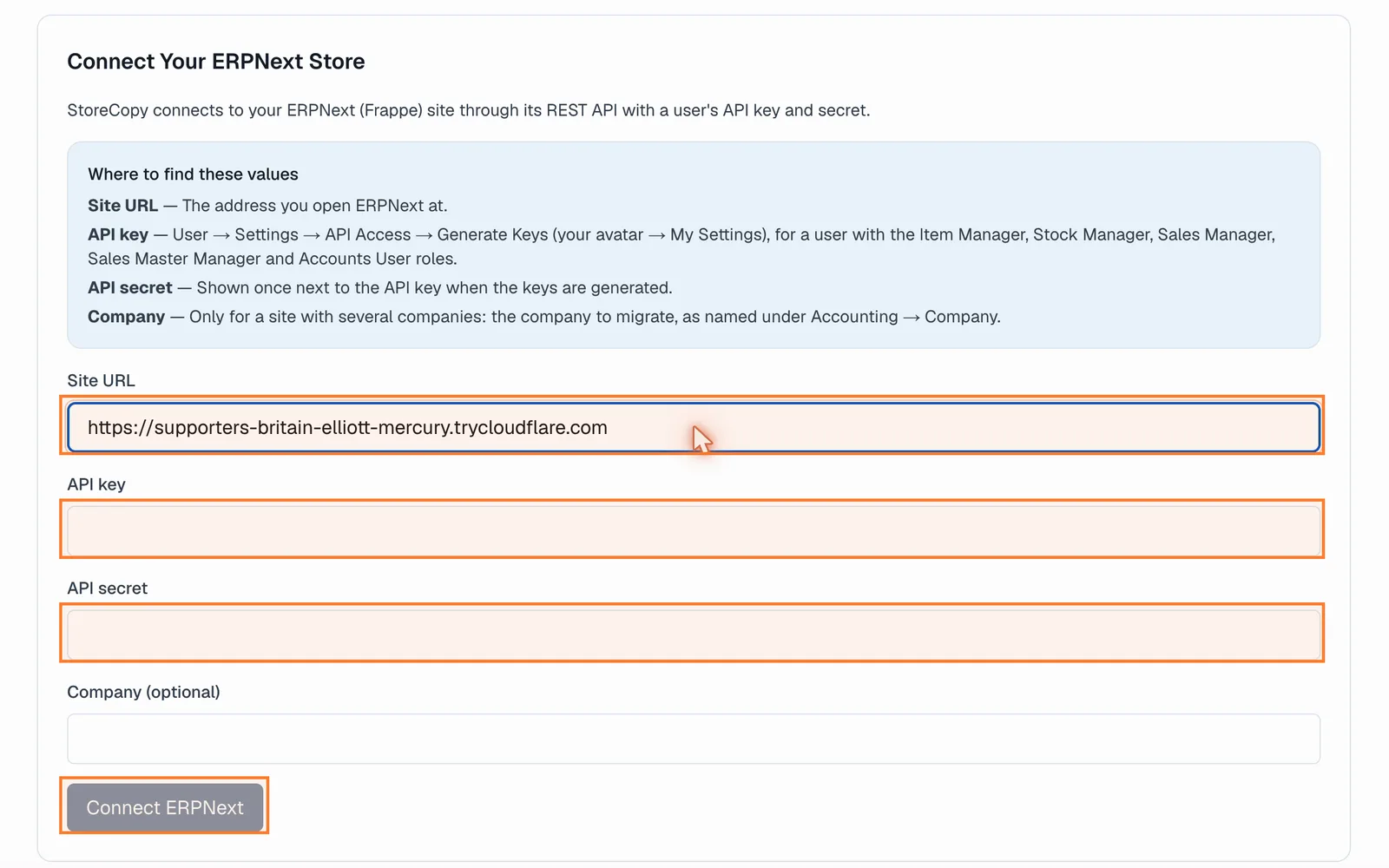
Back in the wizard, under Connect Your ERPNext Store, enter the Site URL, API key and API secret, then click Connect ERPNext. Fill in Company only if the site has several companies.
TipGenerate the keys for a user with the Item Manager, Stock Manager, Sales Manager, Sales Master Manager and Accounts User roles, so StoreCopy can create items, customers and orders.
The estimate and the demo are free. Try it on your own Odoo data before you decide.
Open the wizardCheck the free estimate
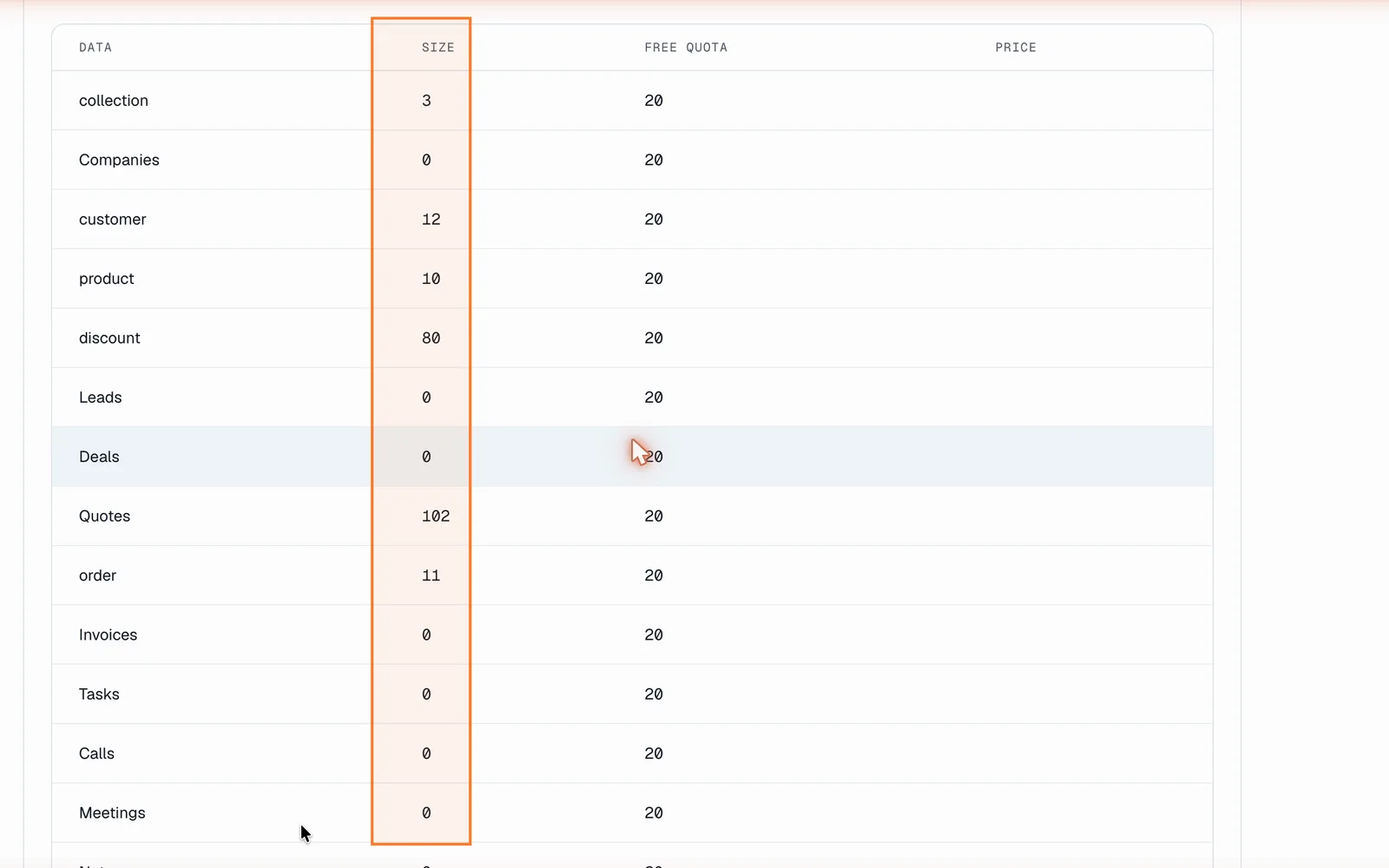
Click Continue, then Estimate Full Migration. StoreCopy counts what your Odoo database holds: collections, customers, products, discounts, quotes, orders and the CRM records.
The table shows each count next to its free quota, and the price of the full migration in the totals row. Nothing is charged at this step.
Run the free demo migration
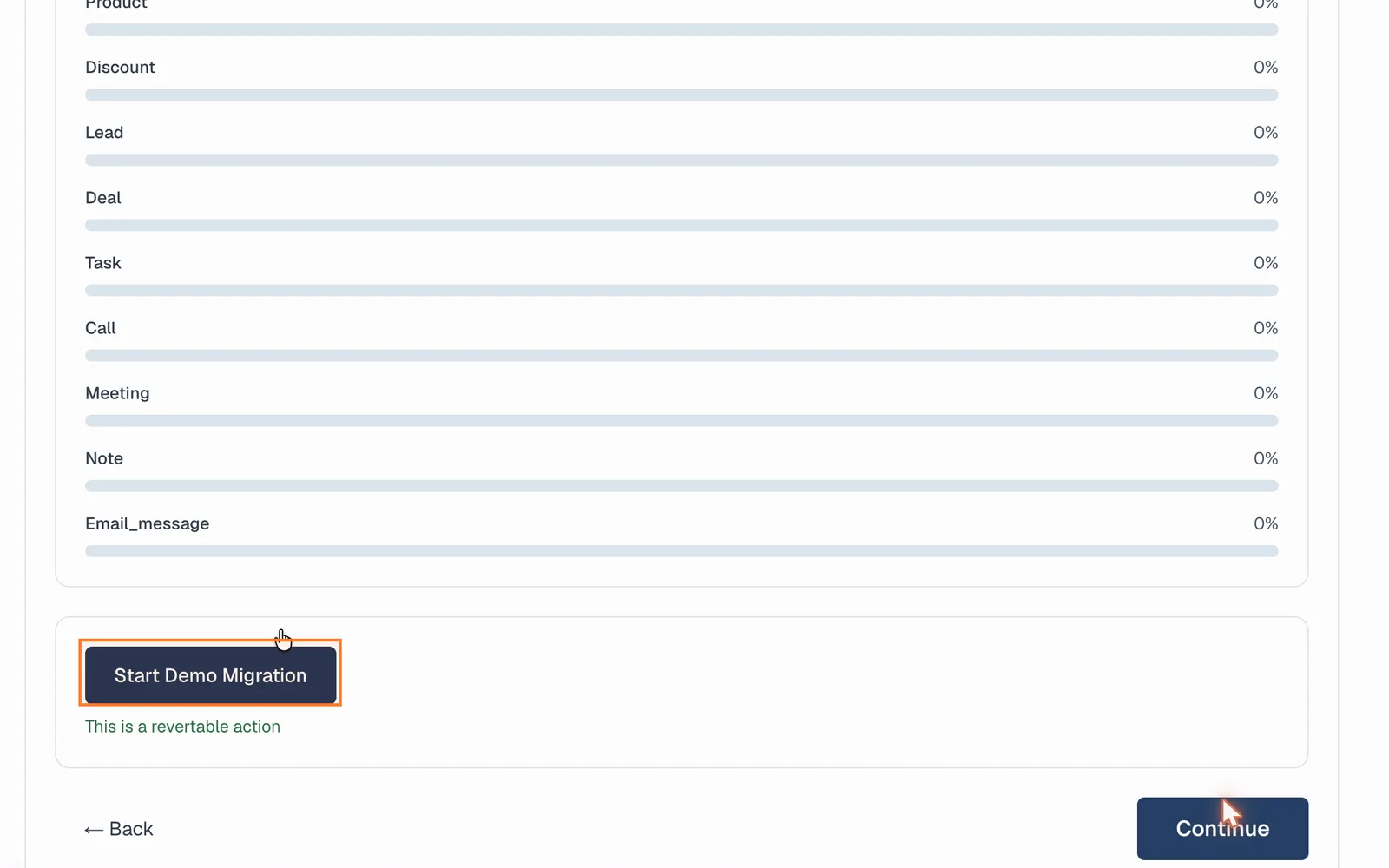
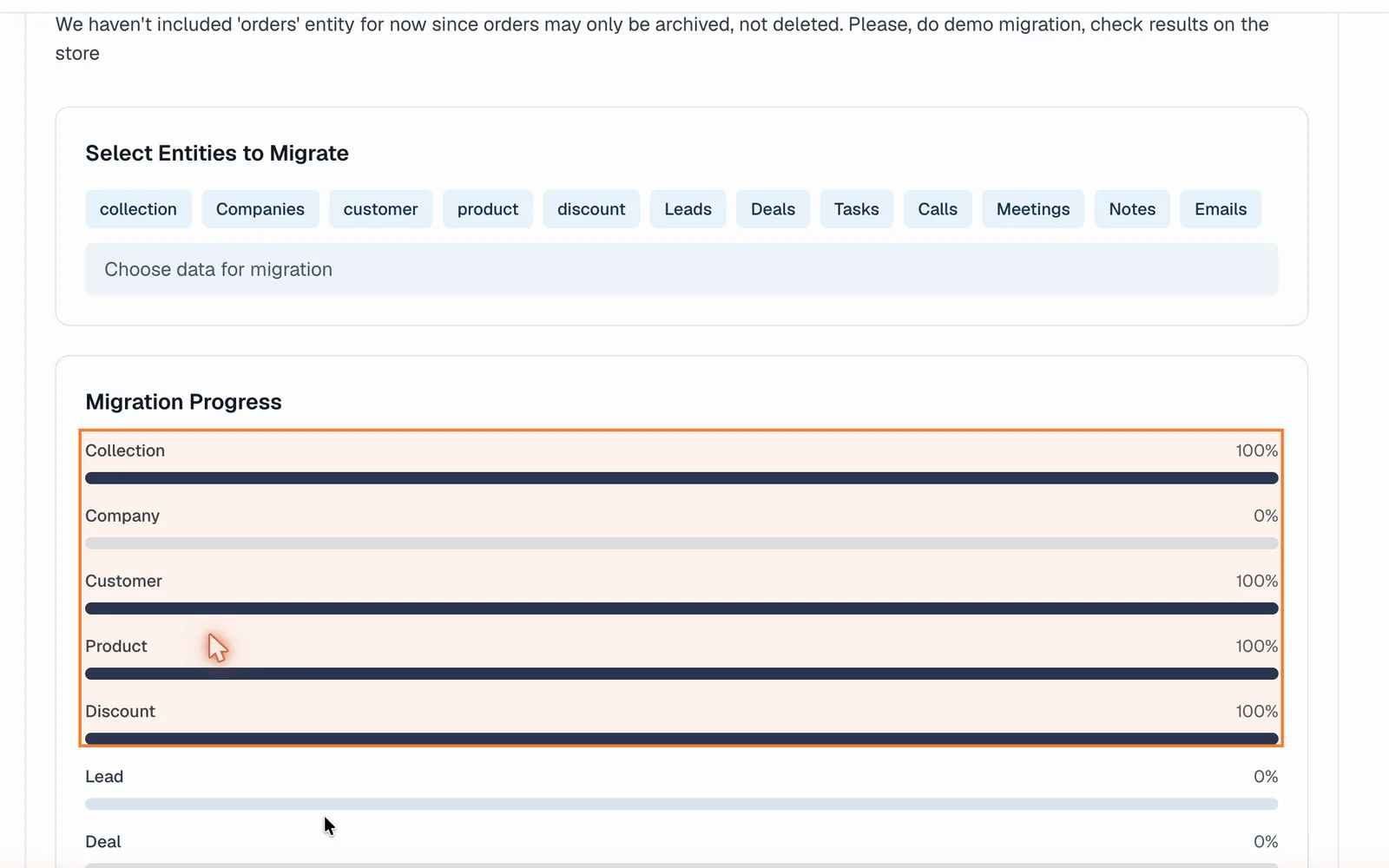
Click Continue and Start Demo Migration. Up to 20 records of each type are created in ERPNext. Orders wait for the full migration, because an order can only be archived, not deleted.
Each bar fills as its records are created. When Demo Migration completed successfully! appears, open ERPNext and look.
Check your data in ERPNext
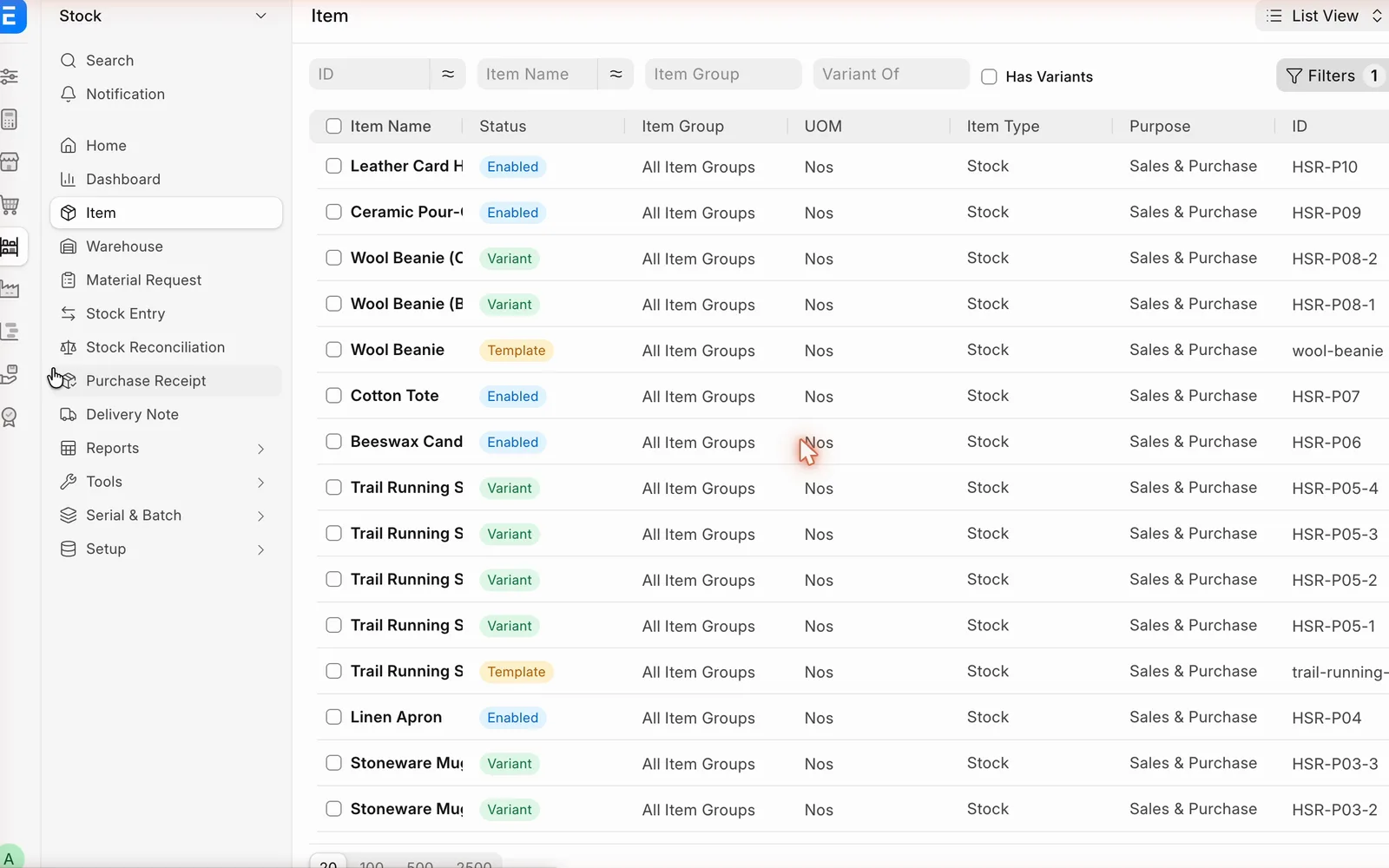
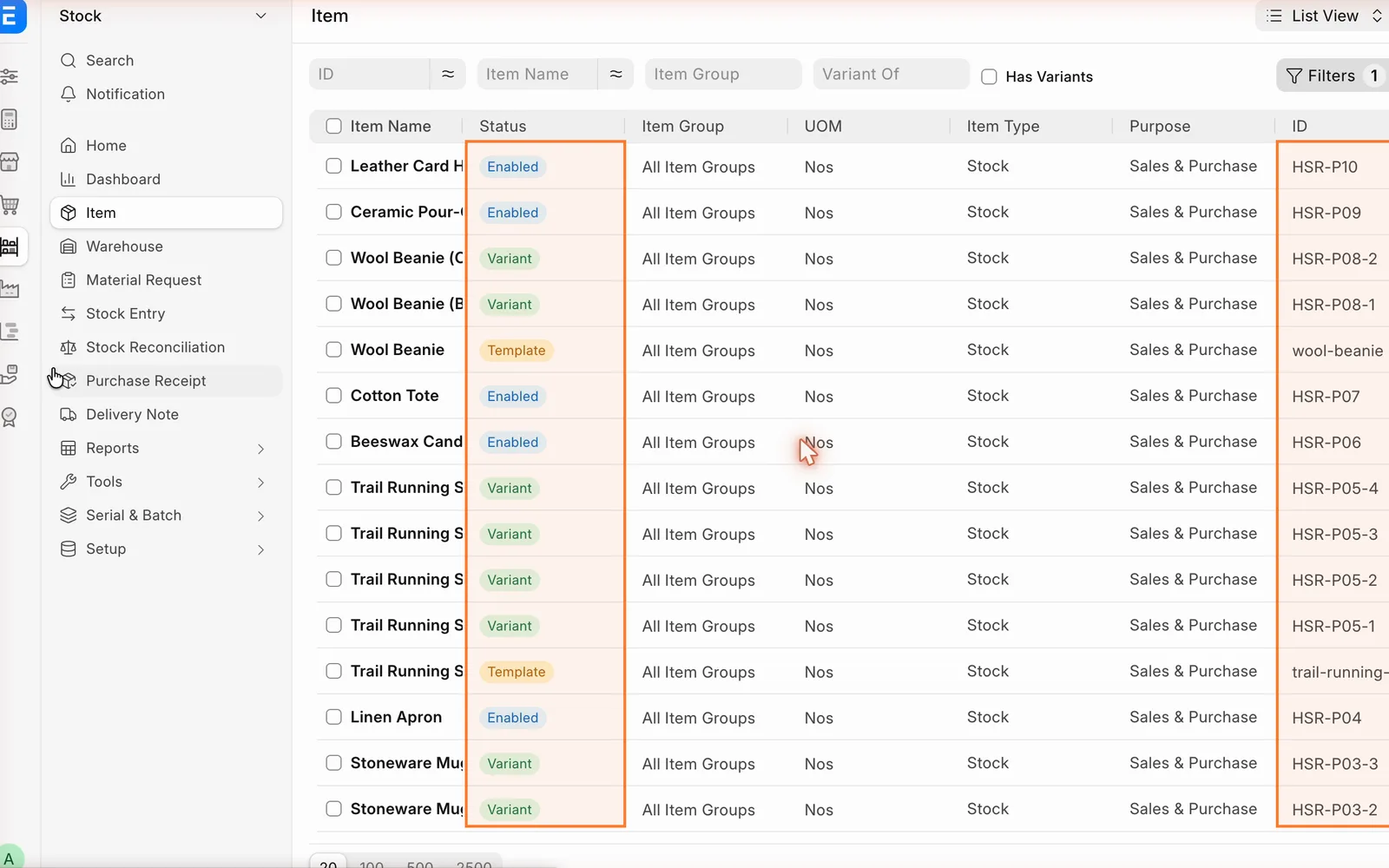
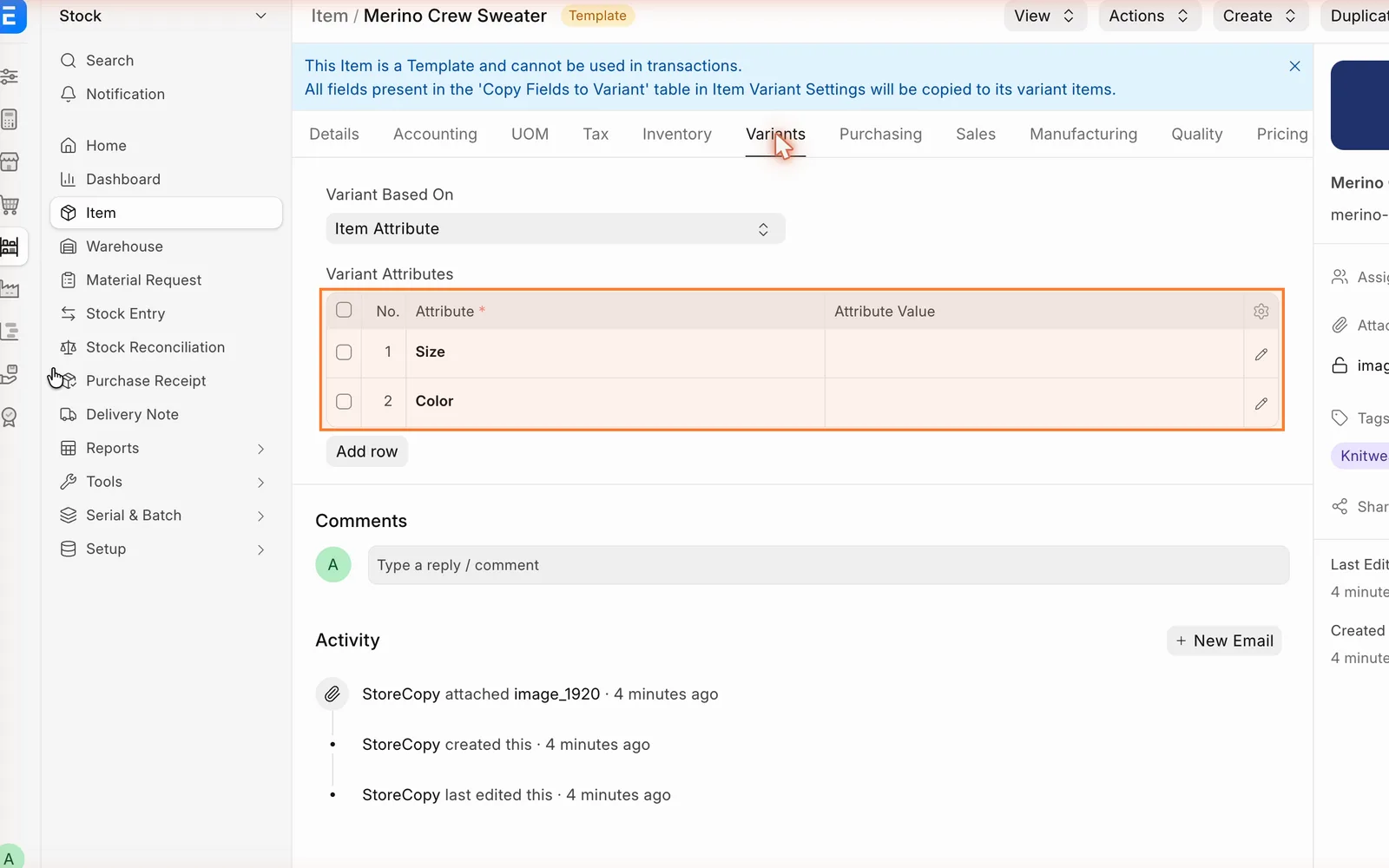
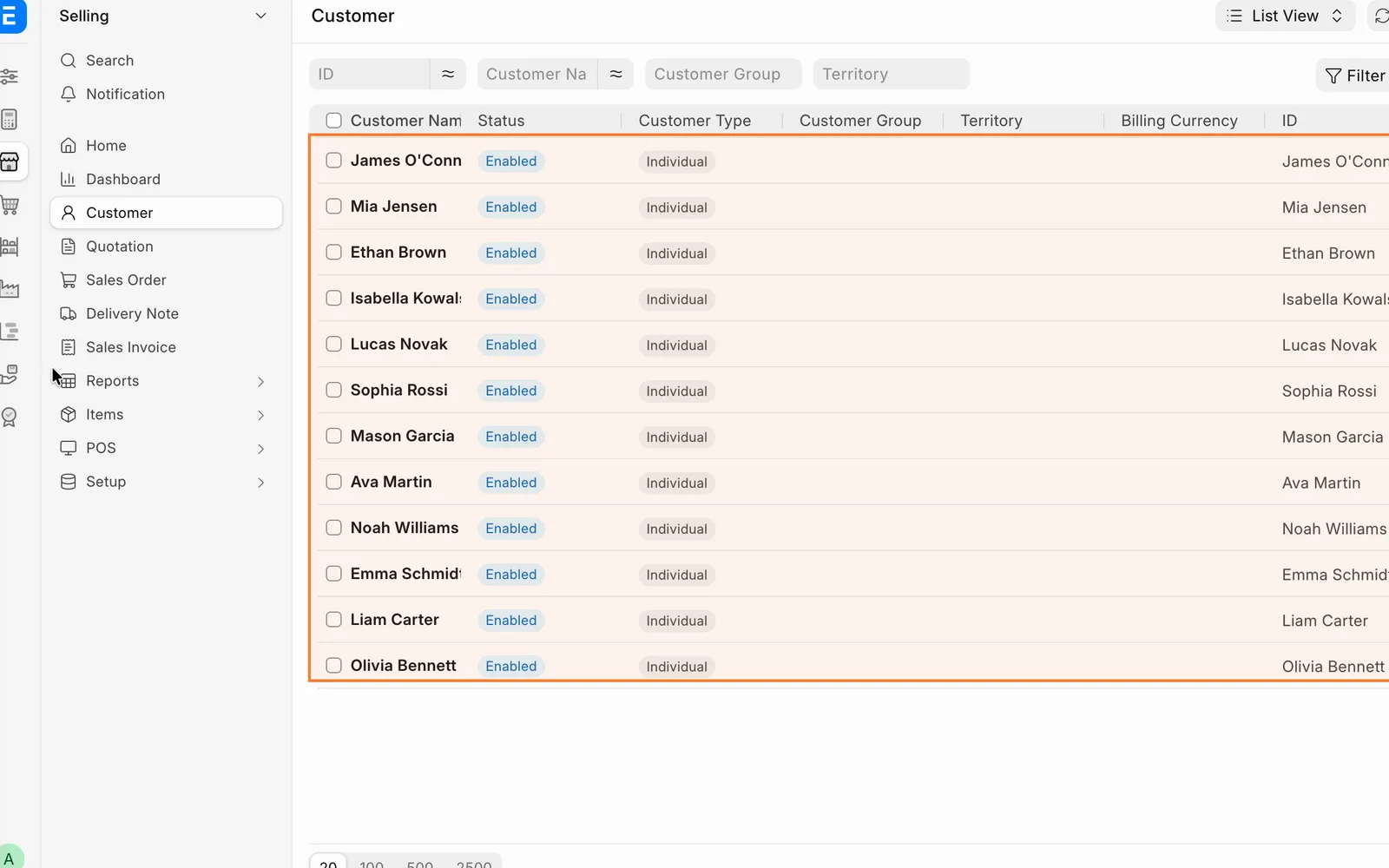
Open Stock, Item: every Odoo product is an Item, with its Odoo SKU as the item code, such as HSR-P10. A product with options is an Item Template with one Variant per combination.
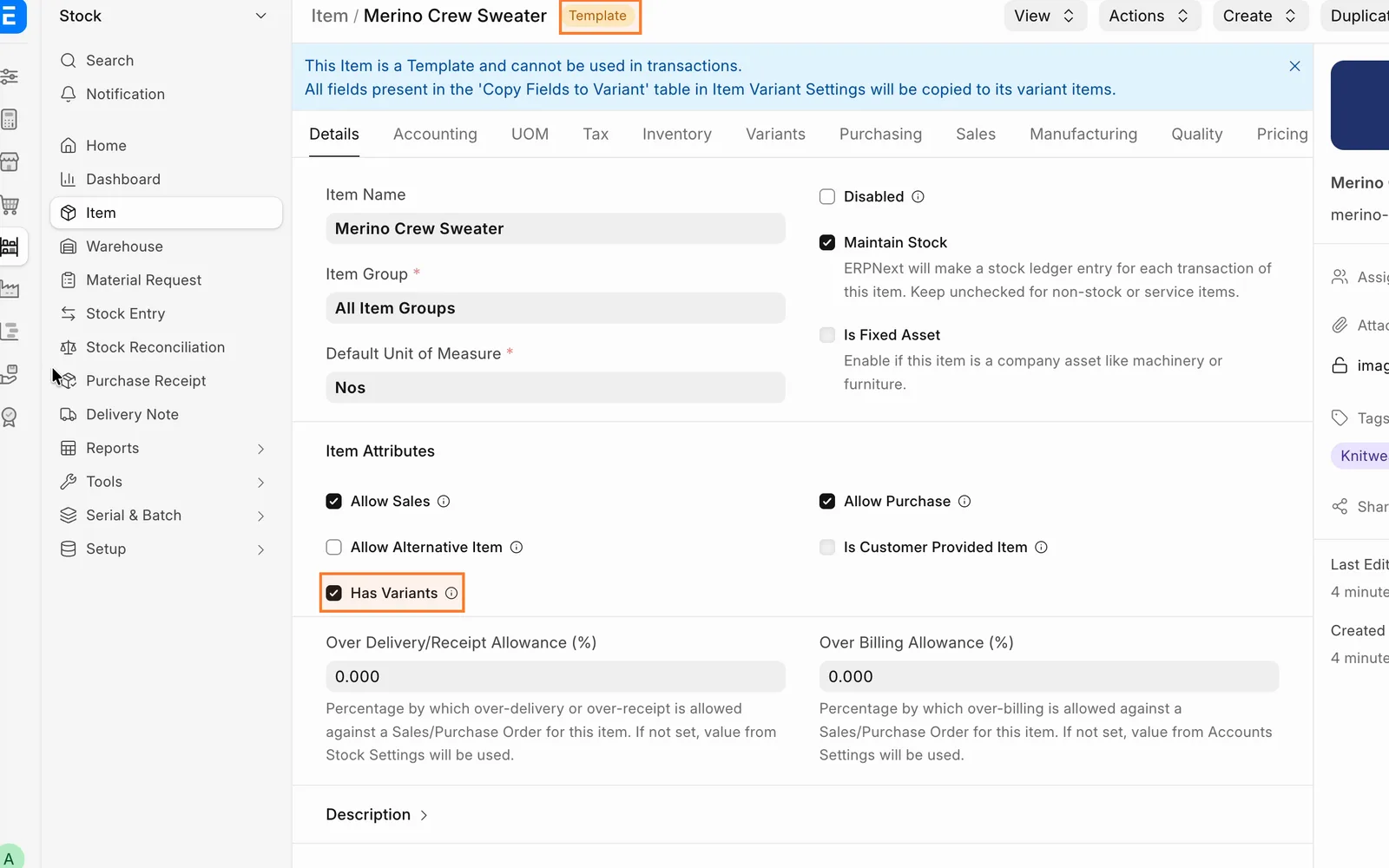
Open a template, here Merino Crew Sweater: Has Variants is on, and the Variants tab lists its Size and Color attributes. Its Odoo tags came over too.
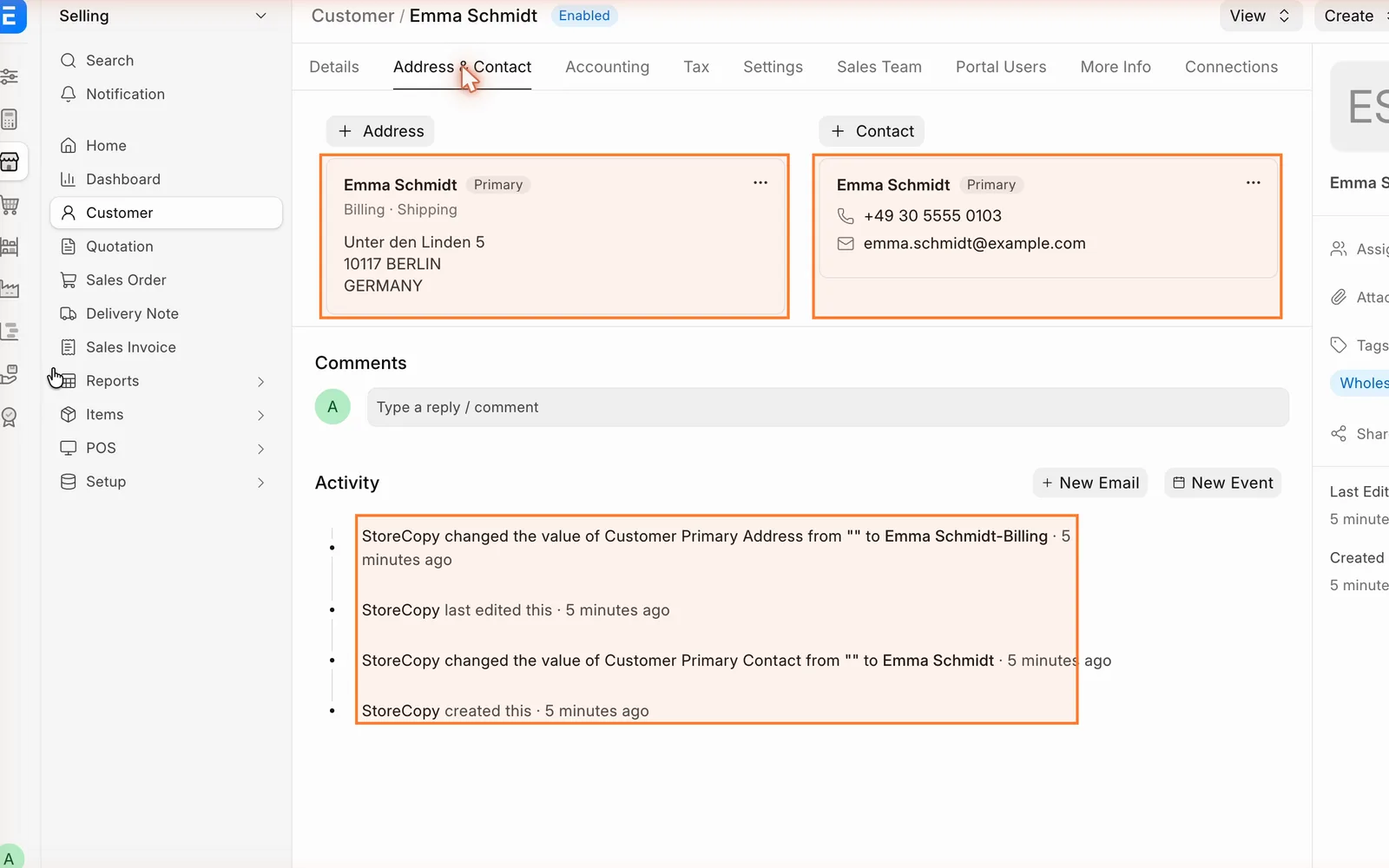
Open Selling, Customer, here Emma Schmidt: under Address & Contact are her Berlin address, phone and email, and the activity shows StoreCopy created them.
TipOpen a few demo items and customers and compare them with Odoo. That is where a migration shows its quality.
Run the full migration, or roll the demo back
Happy with the demo? Click Continue to the Production step. The full migration copies everything else, orders included, and skips what the demo already created.
Want to start over? Go Back to the demo step and click Rollback Demo Migration. StoreCopy deletes only the records the demo created; what was in ERPNext before stays.
What moves from Odoo to ERPNext
Each Odoo record becomes its ERPNext counterpart, linked to the others. Products are created before the orders that sell them, and customers before their addresses and orders.
| Record | Becomes | Fields |
|---|---|---|
| Products | Items | Name, SKU as item code, Templates and variants with their attributes, Price, Image, Tags |
| Product categories | Item Groups | Name |
| Customers | Customers | Name, Address, Contact with phone and email, Tags |
| Discounts | Pricing Rules and Coupon Codes | Percentage or amount, Products or categories it applies to, Start and end date, Coupon code |
| Sales orders | Sales Orders | Lines with item and quantity, Taxes, Totals, Customer and addresses, Payment, when paid |
| Quotations | Quotations | Lines, Totals, Customer |
| CRM records | Leads, Opportunities, ToDos, Call Logs, Events, Comments | Leads, Opportunities, Tasks, Calls, Meetings, Notes |
Duplicates are linked, not copied
- An item whose code ERPNext already has, or a lead with the same email, is linked instead of created twice.
- An order number another order of the same customer already has is written with the Odoo order id next to it.
Read-only on Odoo
- StoreCopy never changes your Odoo data, so your team can keep working in it until the switch.
Why shops move to ERPNext with StoreCopy
A migration is only as good as its structure. StoreCopy keeps it.
- Connect Odoo with Allow
- No password and no API key to copy from Odoo: it asks once, you click Allow, and you can revoke it in Odoo.
- Variants stay variants
- A product with options becomes an ERPNext Item template with one variant per combination, not a pile of loose items.
- Customers stay whole
- Each customer keeps its address and contact, linked as ERPNext expects.
- Free estimate and demo
- See the counts, the price and up to 20 real records of each type in ERPNext before you pay.
- Revertable demo
- Rollback Demo Migration deletes what the demo created and nothing else.
- Native records
- Items, Customers, Pricing Rules and Sales Orders are created through the ERPNext API, the same as if your team had typed them.