Guide · Notion → Shopify
Run your Shopify catalog from Notion
Plan products where your team already works. StoreCopy Sync turns a Notion database into your Shopify catalog: titles, variants, prices and stock follow your edits within about a minute.
6 min read
- from a Notion edit to Shopify
- ≈1 min
- from a Notion edit to Shopify
- linked databases installed for you
- 5
- linked databases installed for you
- option levels per product, like Size and Color
- 3
- option levels per product, like Size and Color
The story
Why Lena stopped copy-pasting
Meet Lena, a shop owner like many we talk to. She runs Northbound Goods, a small bag brand. Every new product starts in Notion: the name, the story, the sizes and colors, what it costs and how many are on the shelf.
Then came the second shift. Copy the title into Shopify. Rebuild the variants by hand. Retype prices and stock, and hope nothing slipped. One wrong digit meant a tote sold out online while ten sat in the back room.
This guide follows Lena launching her new Cotton Market Tote with StoreCopy Sync. She creates it once, in Notion, and Shopify follows. Every screenshot below is from that real setup, start to finish.
What you'll set up
- A ready-made StoreCopy workspace in Notion for products, variants and customers
- Your existing Shopify products copied into Notion, each linked to its Shopify ID
- New products and variants created in Notion and published to Shopify automatically
- Edits in Notion (type, vendor, price, SKU, stock) reflected in Shopify within about a minute
You'll need
- A Shopify store you can install apps on
- A Notion account (an empty workspace is fine)
- About 10 minutes
Step by step
How to sync Notion to Shopify
Install StoreCopy Sync in Shopify
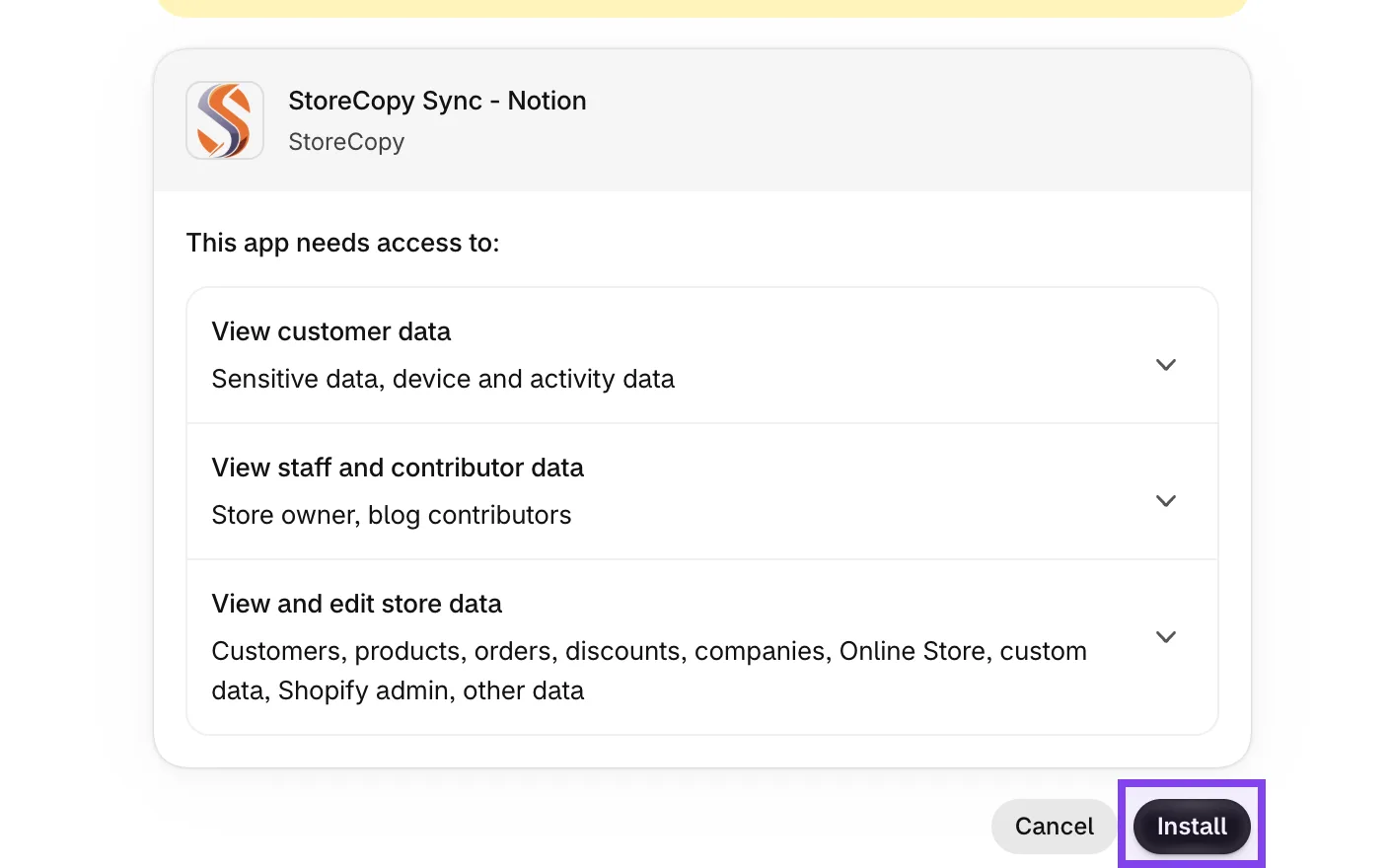
Open the StoreCopy Sync install link from your Shopify admin. Shopify lists the access the app needs to read and write your catalog and customers.
Review it and click Install. The app opens right inside your Shopify admin.
Connect Notion and get the template
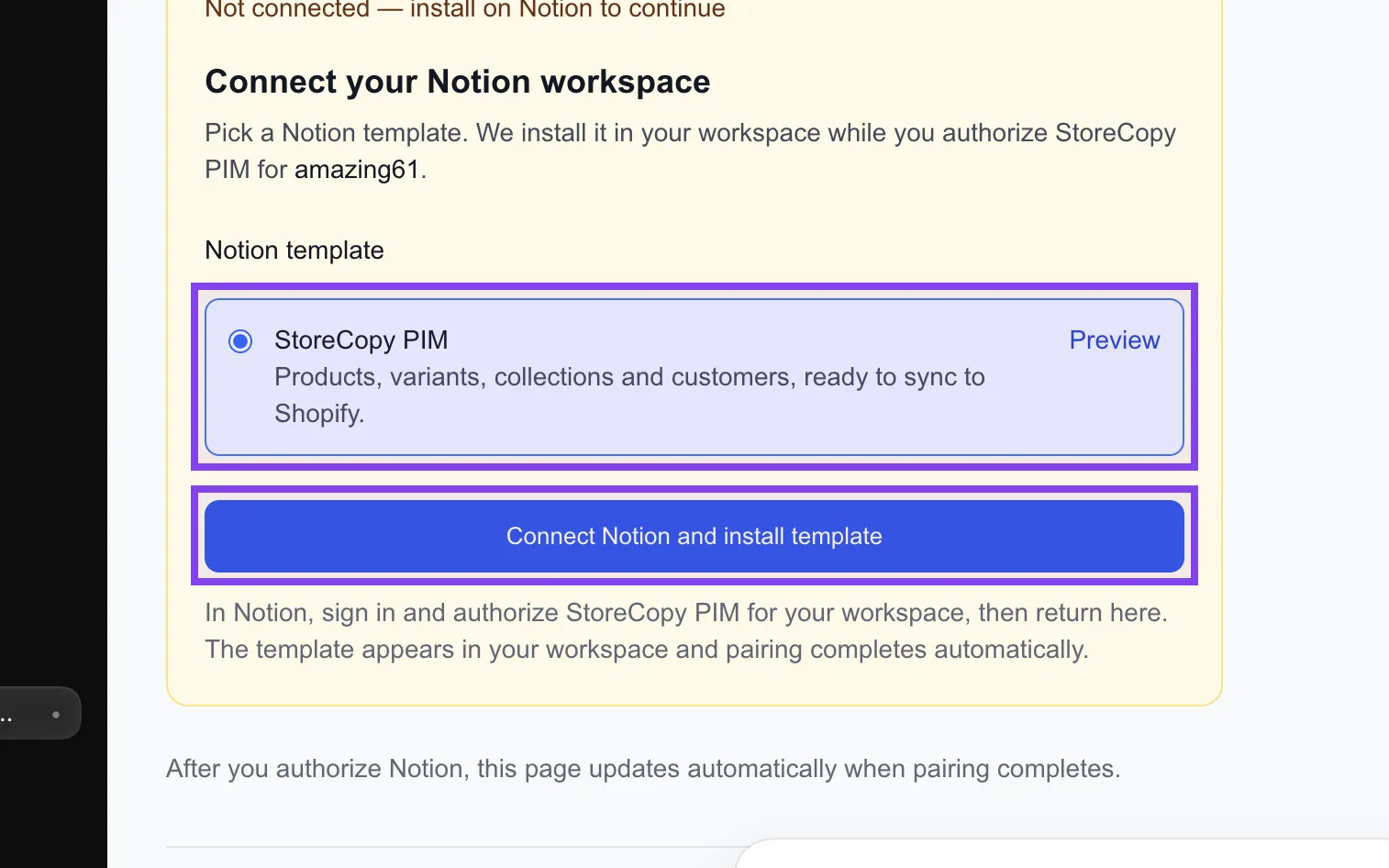
In the app, keep StoreCopy PIM selected as your Notion template. It brings products, variants, collections and customers, ready to sync.
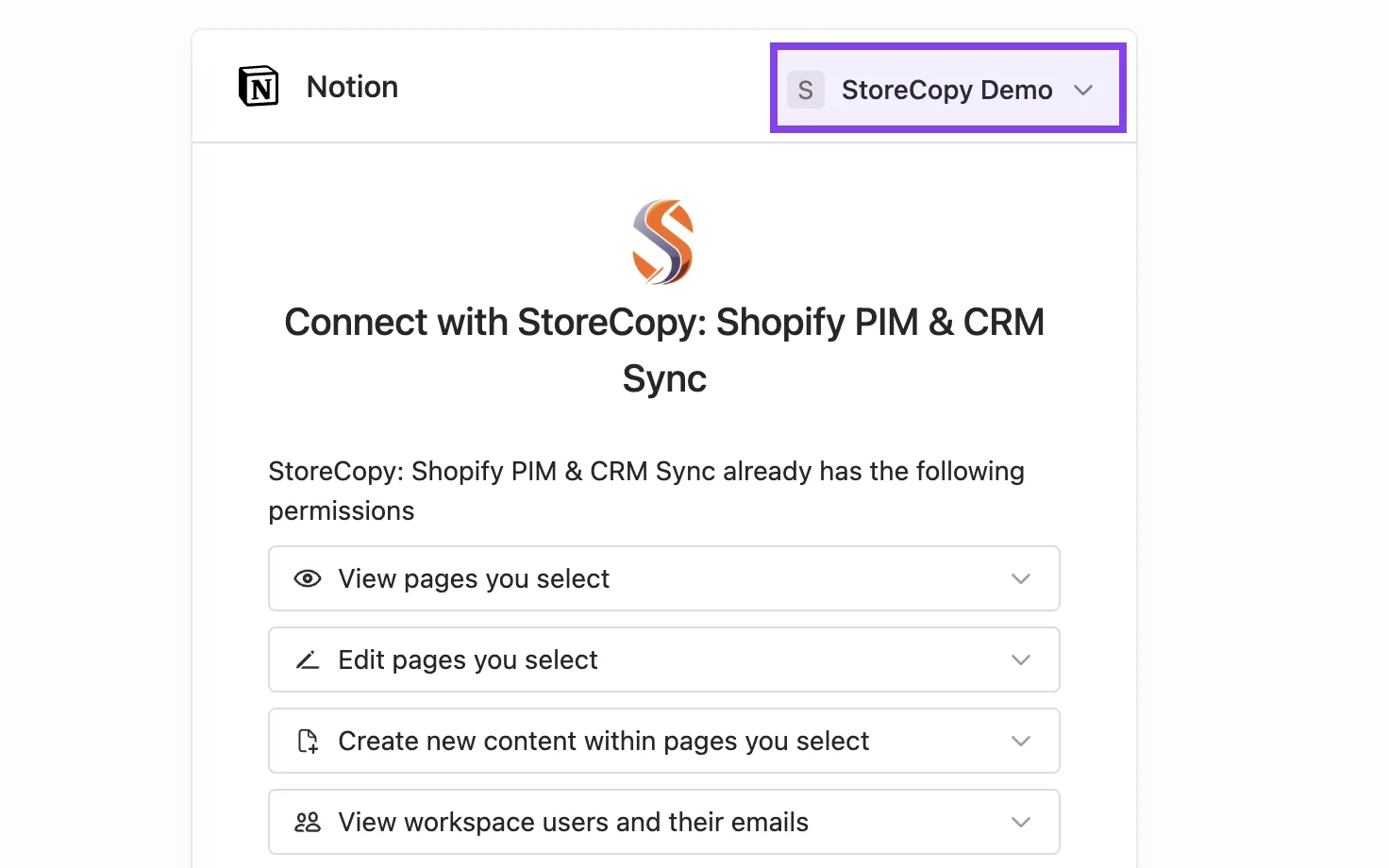
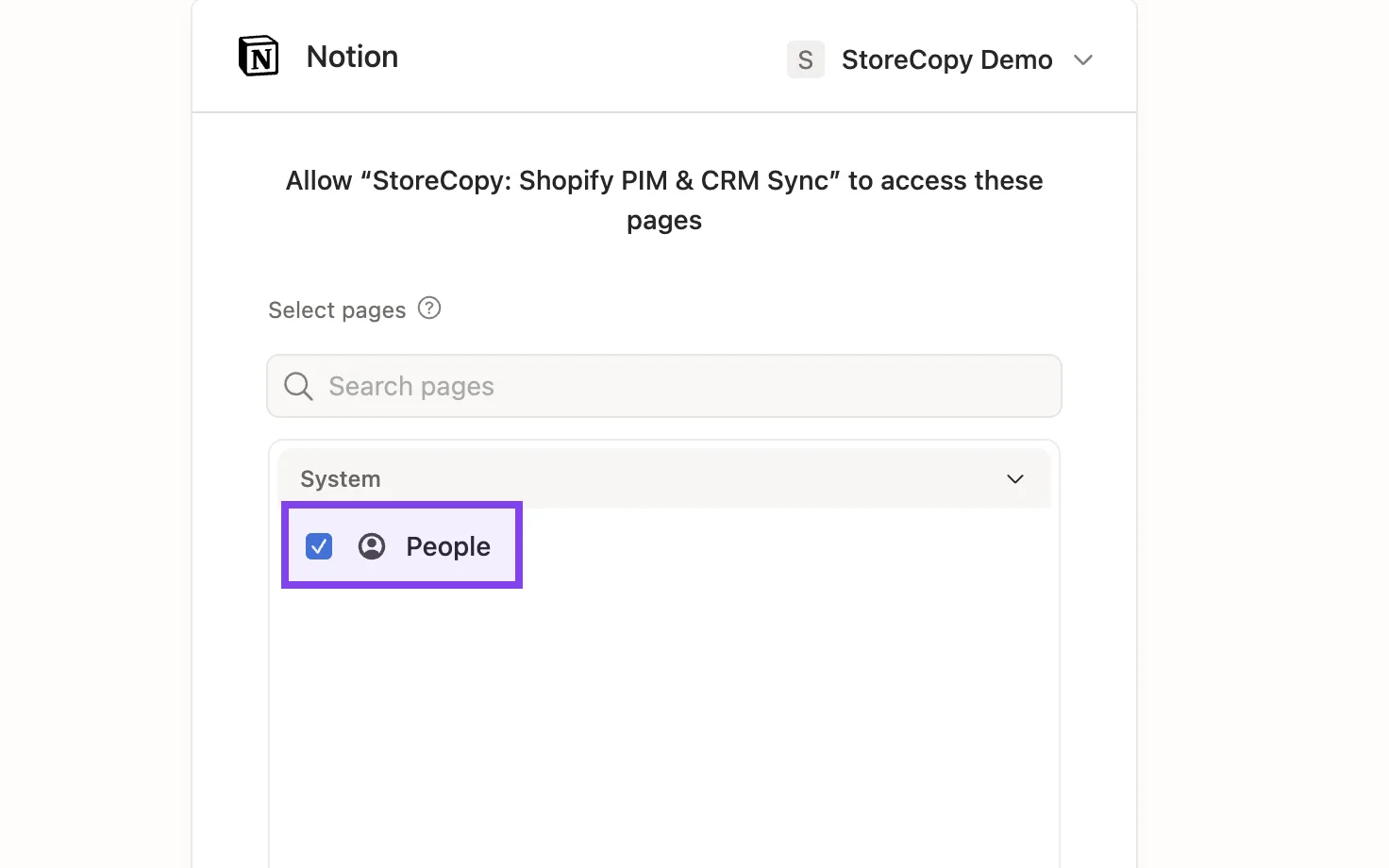
Click Connect Notion and install template. In Notion, choose your workspace in the picker at the top, then click Select pages and Allow access.
Meet your new StoreCopy workspace
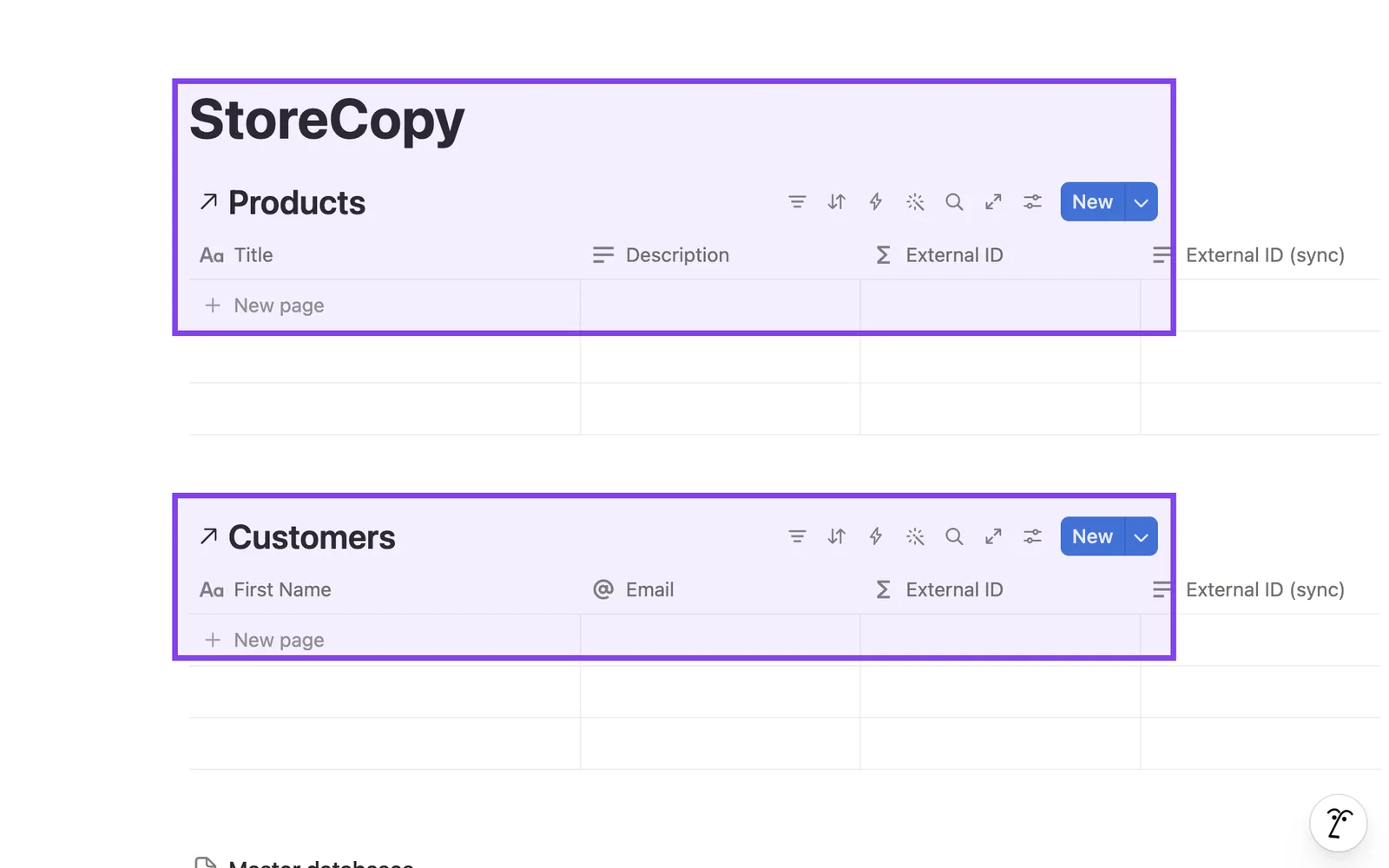
About a minute later a StoreCopy page appears in Notion. It holds Products and Customers databases, plus master databases for variants, media and addresses, all wired together.
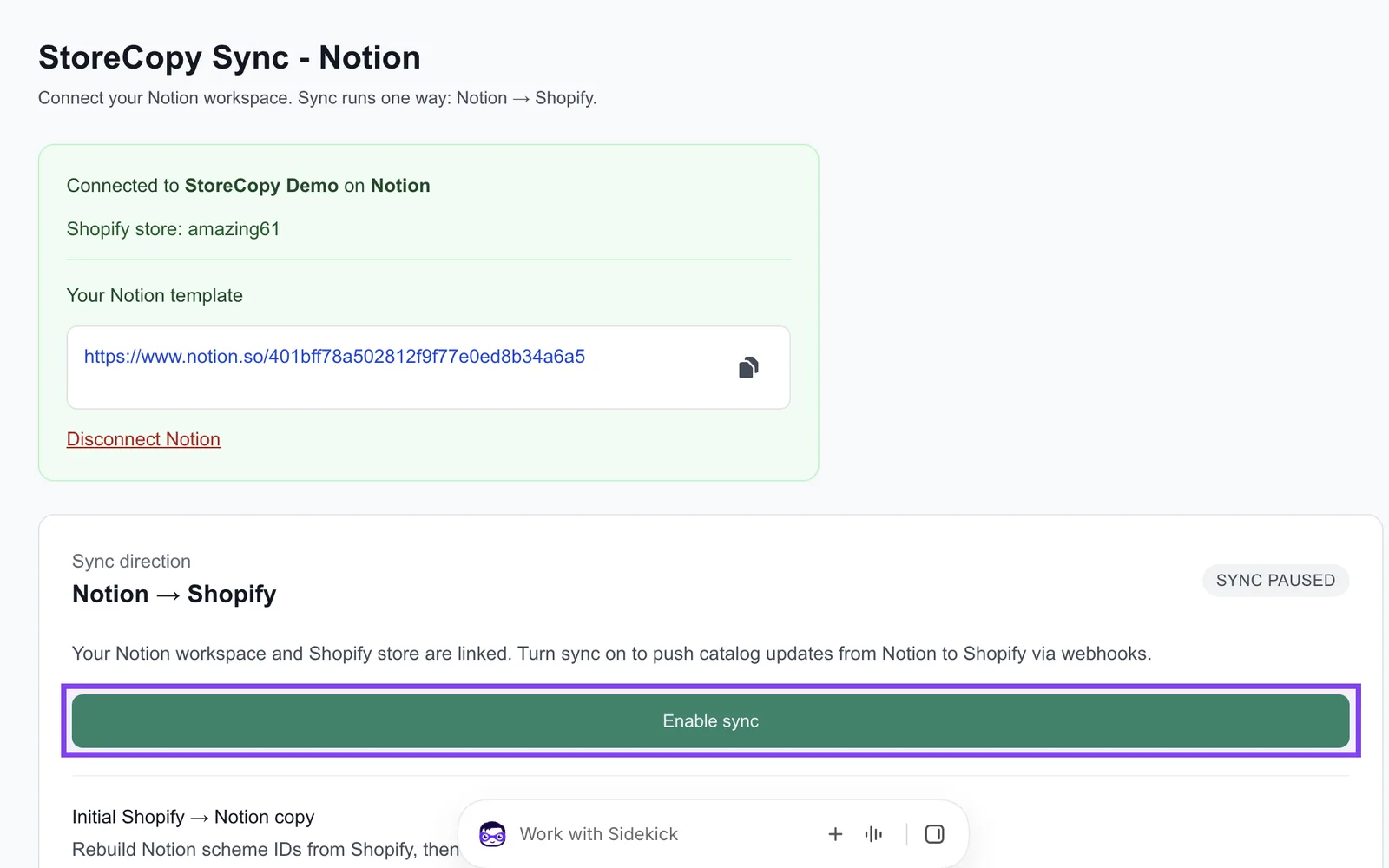
Back in Shopify, the app shows it is connected and links to your copy of the template. Sync stays paused until you turn it on.
Bring your existing products into Notion
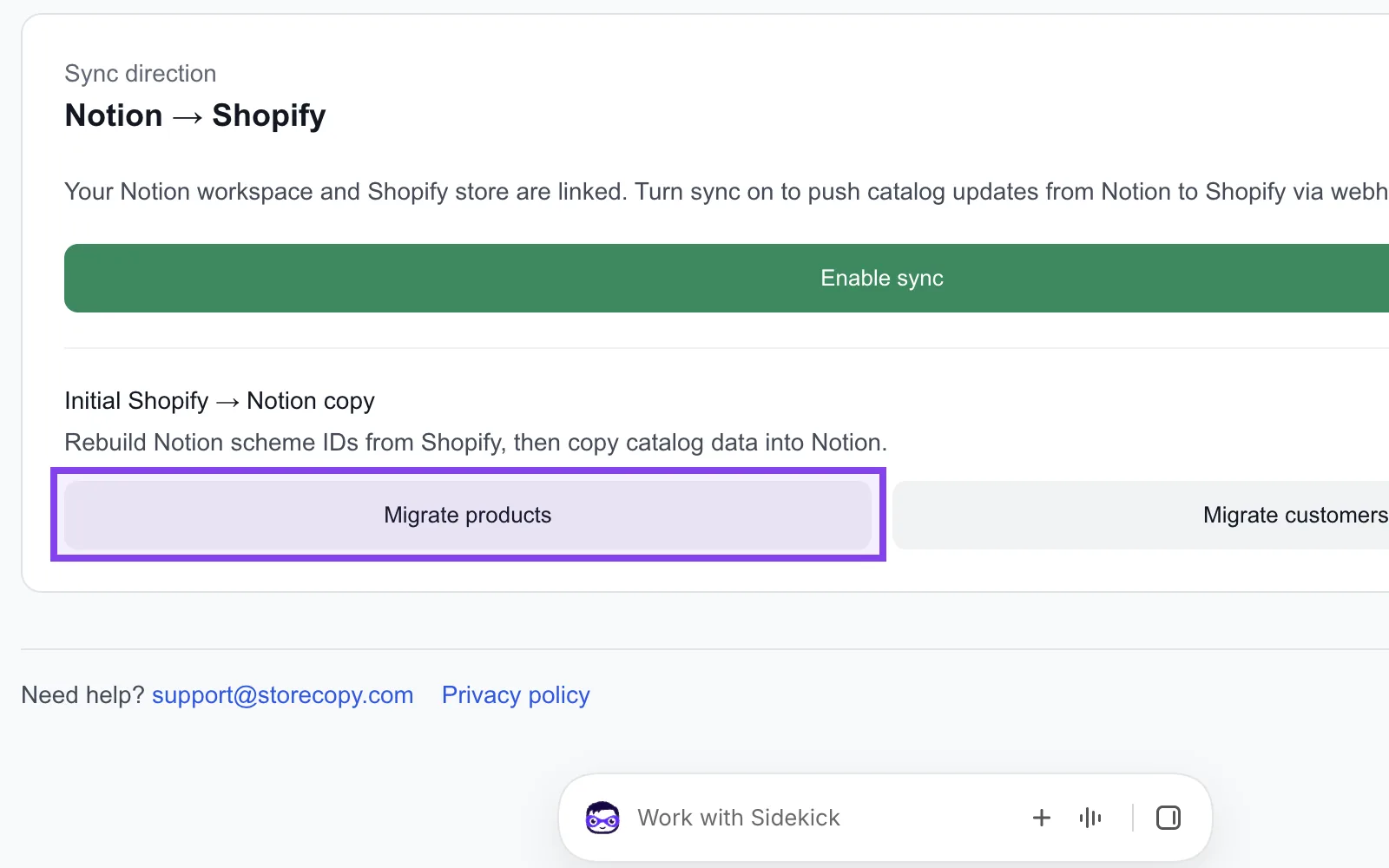
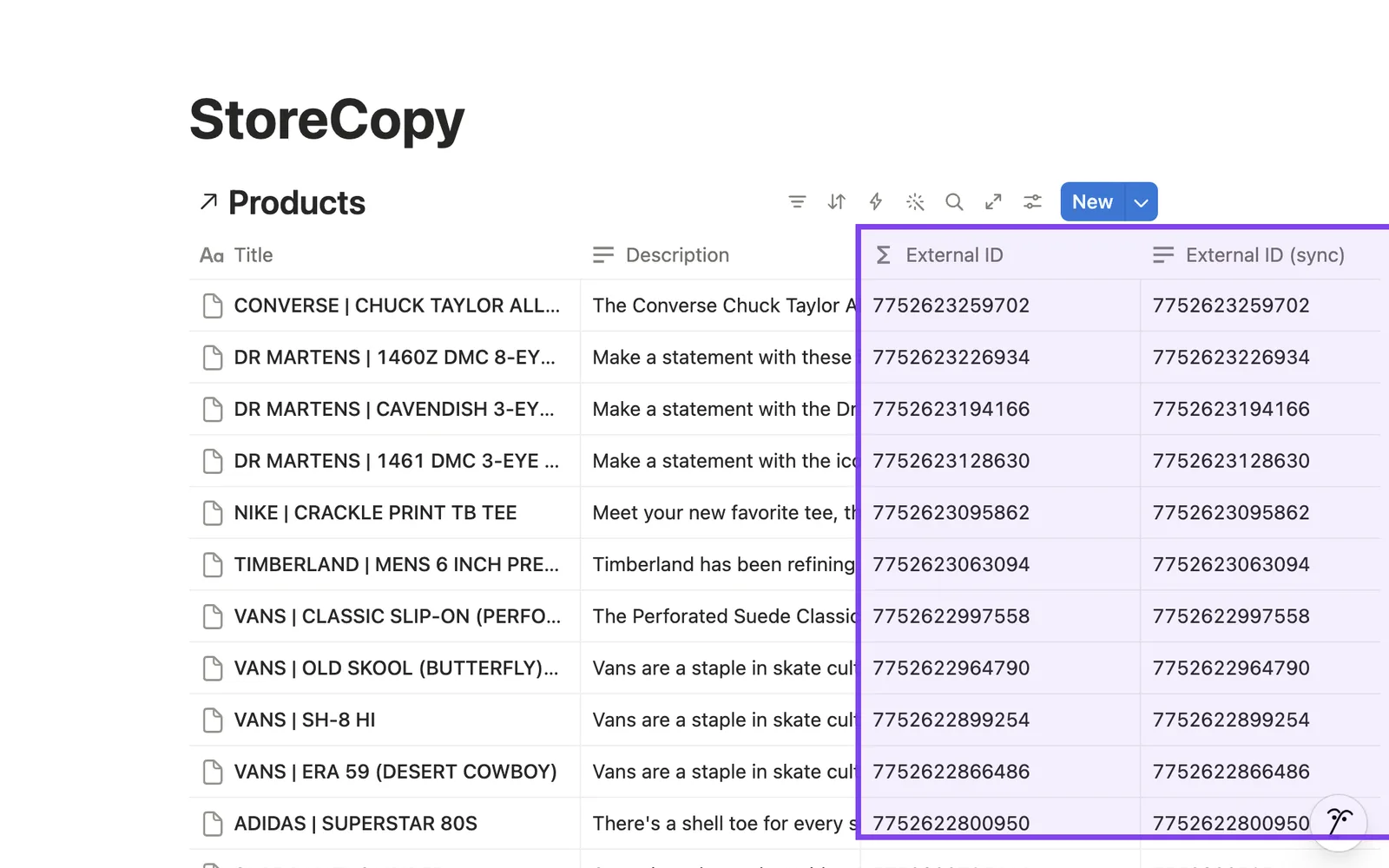
Already selling? Click Migrate products once. StoreCopy copies your Shopify catalog into Notion and links every row to its Shopify product through the External ID.
Turn on sync
Click Enable sync. From now on, changes you make in Notion are pushed to Shopify automatically.
Sync runs one way, from Notion to Shopify, so Notion stays the single place where your catalog is decided.
Halfway there. The next product you launch can start and finish in Notion.
Start syncingCreate a product with variants in Notion
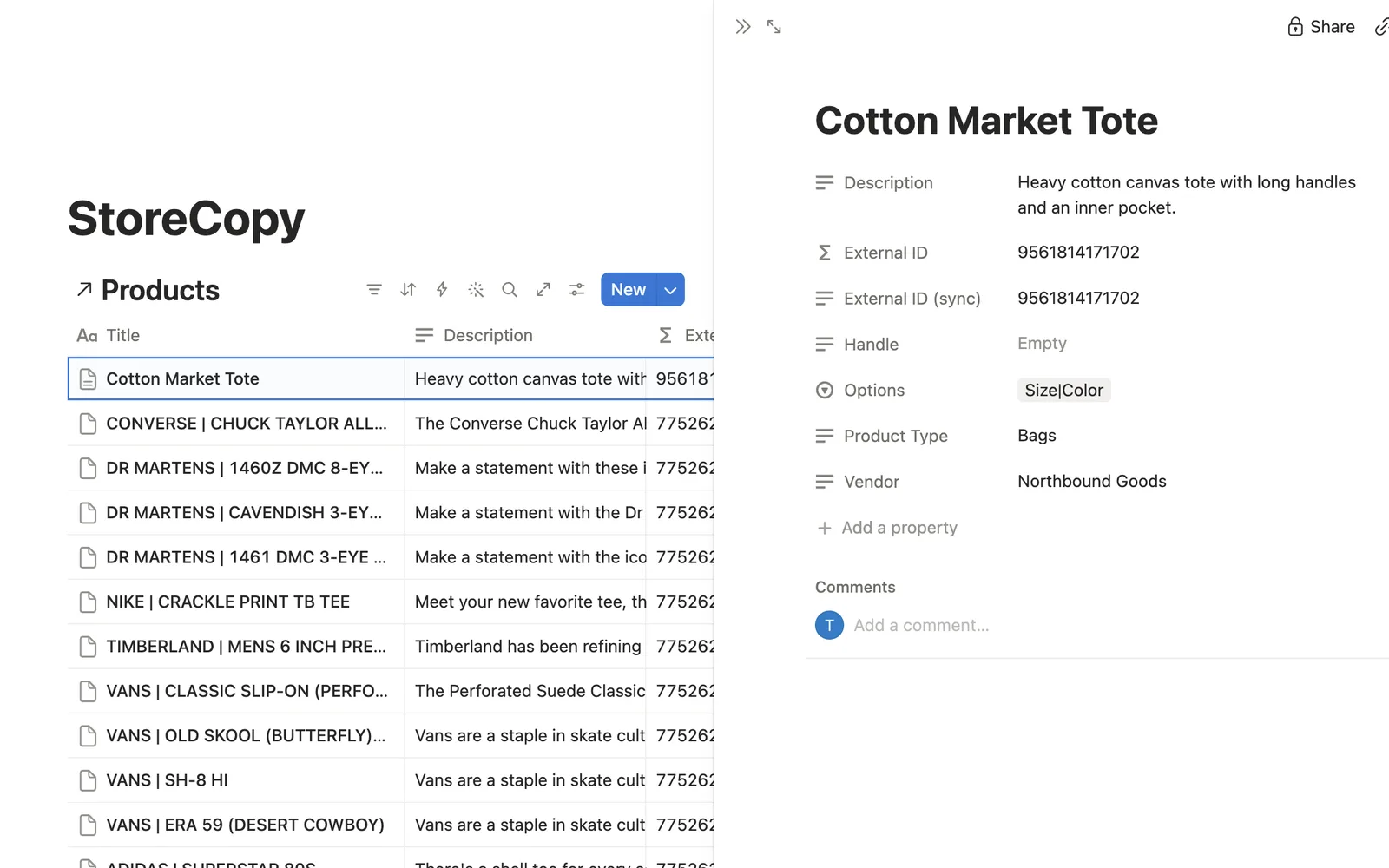
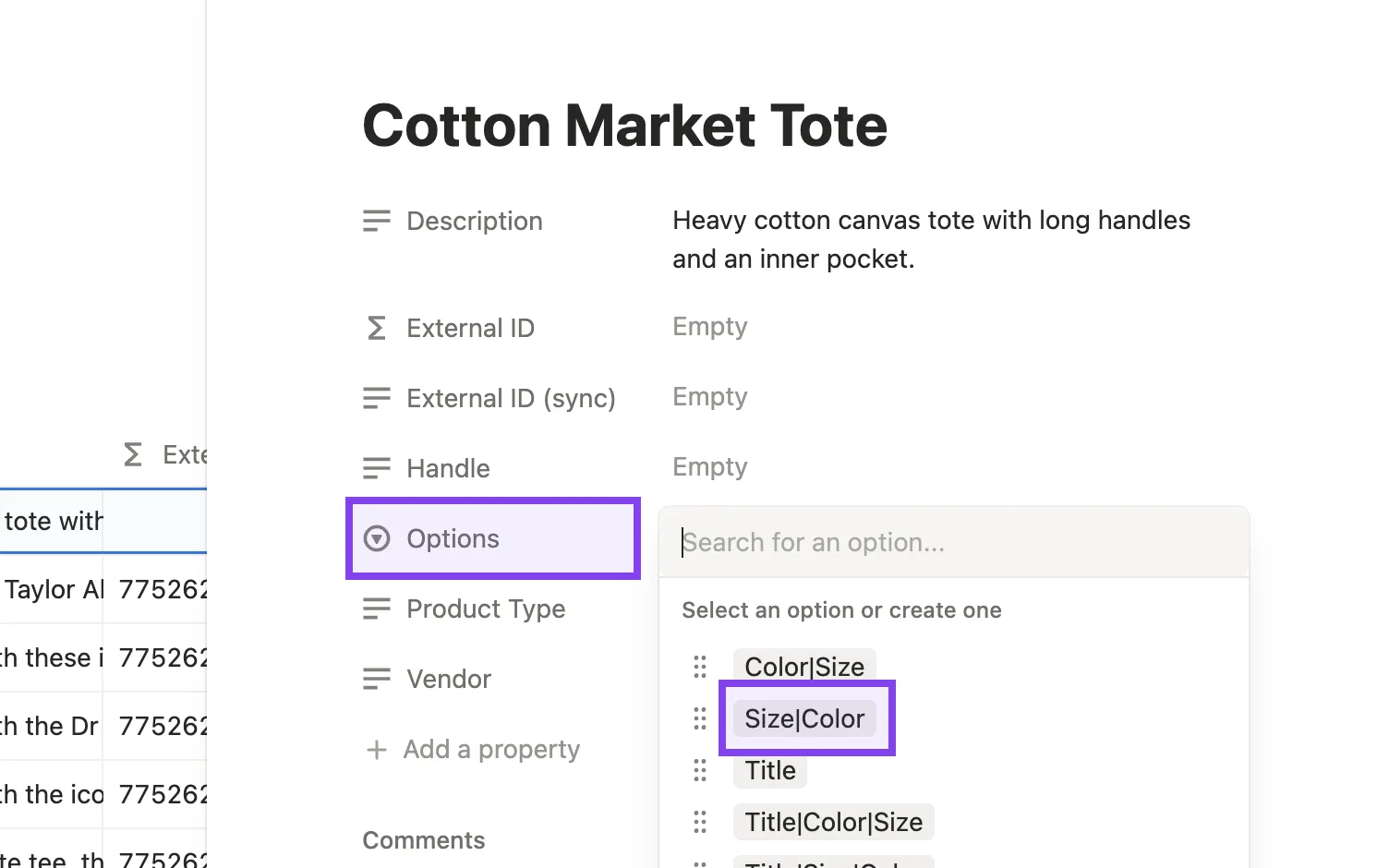
In Products, click New, type a title and a description. In Options, pick the option set, here Size|Color.
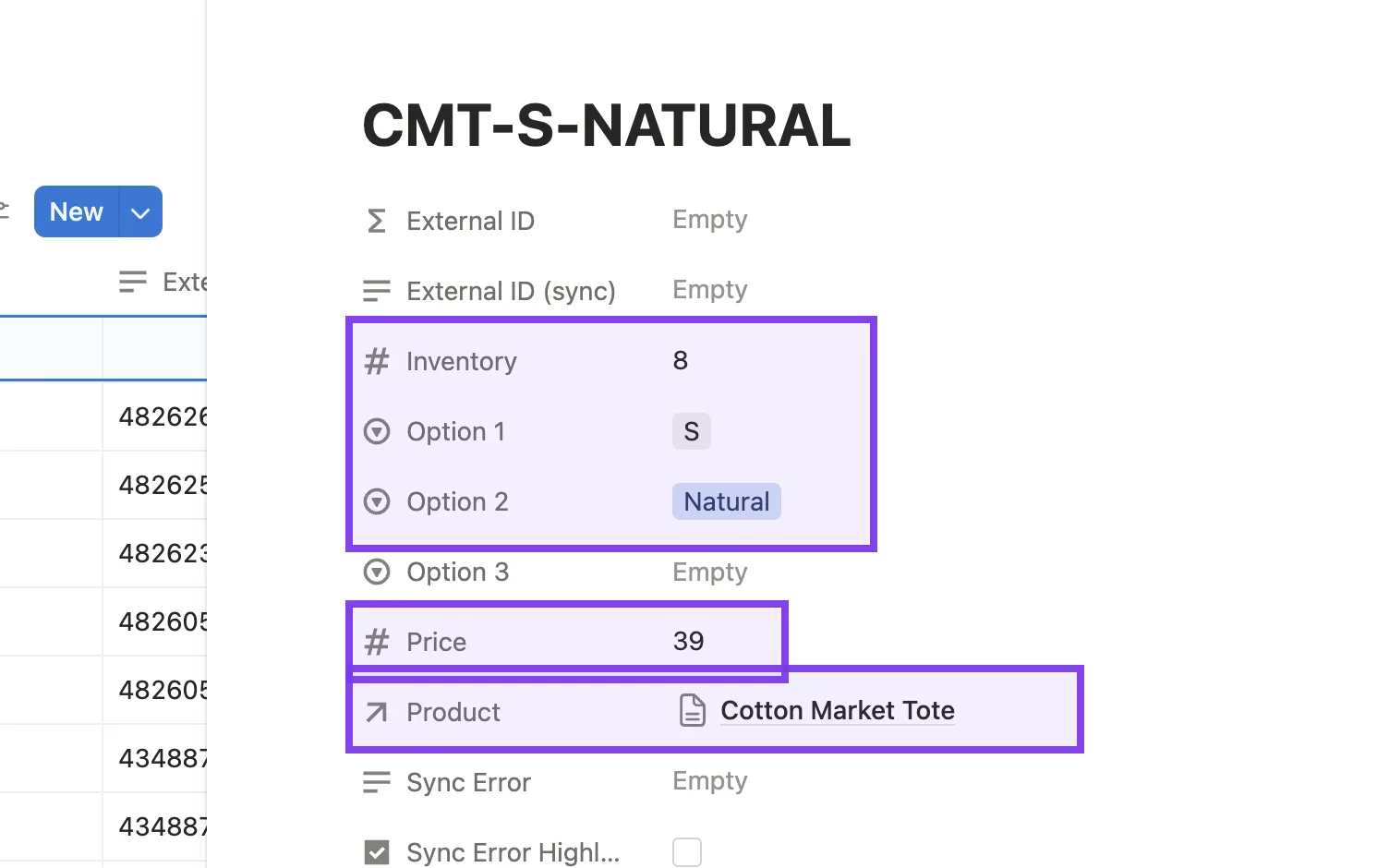
Then add each variant in Variants: SKU, Inventory, Option 1 and Option 2, Price, and link it to the product in the Product field.
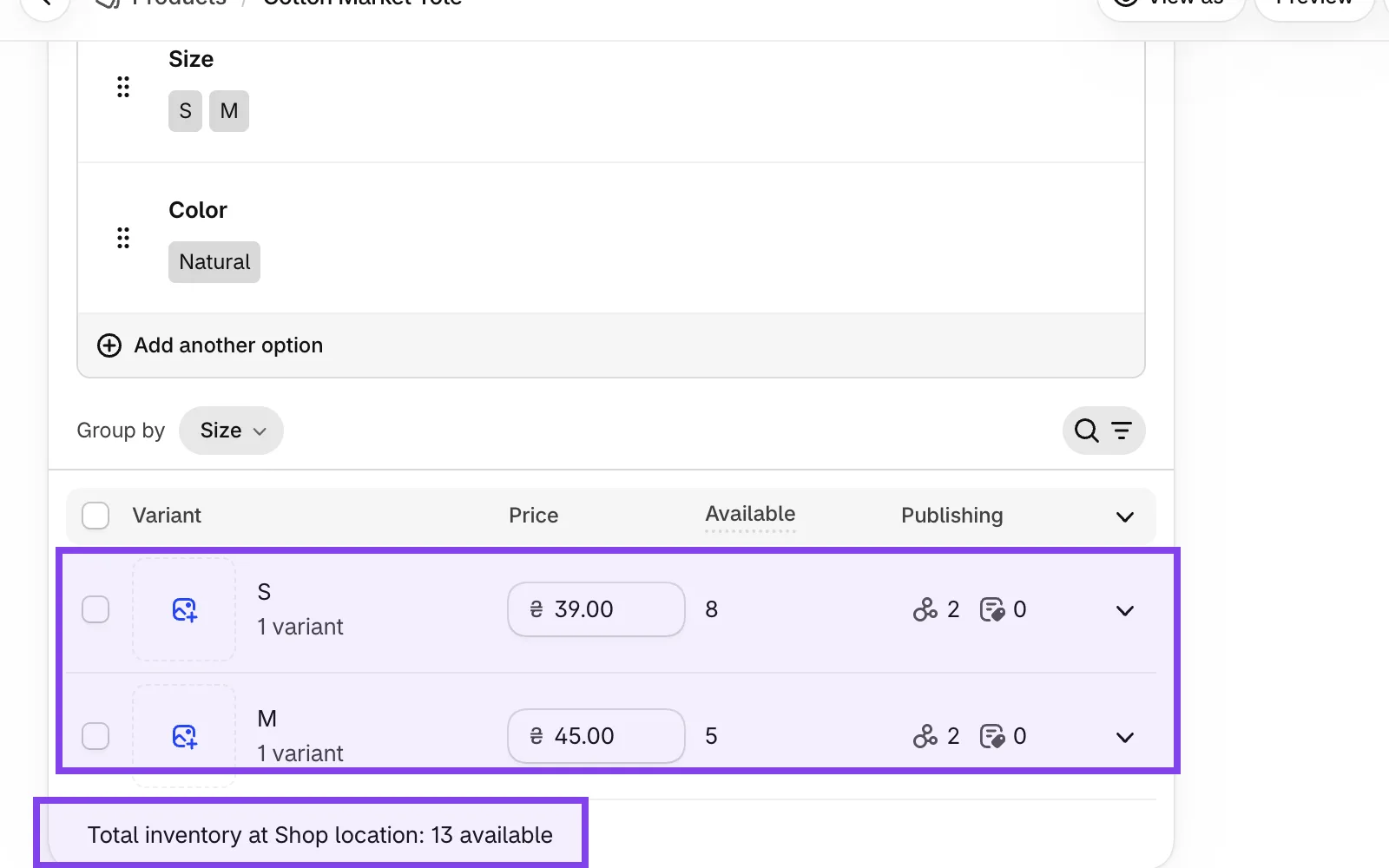
Within a minute the product appears in Shopify with both variants, their prices and stock.
Edit in Notion, watch Shopify follow
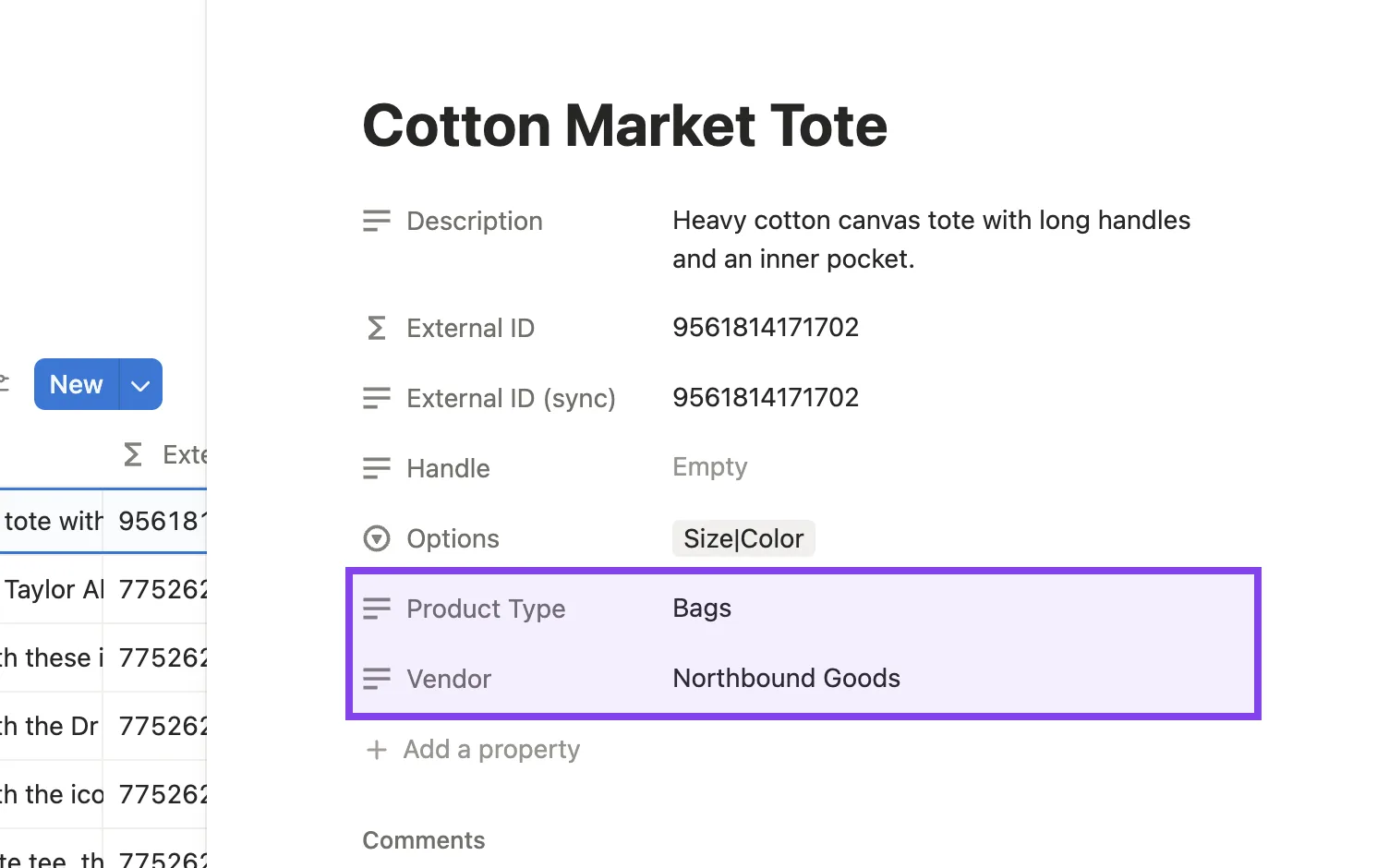
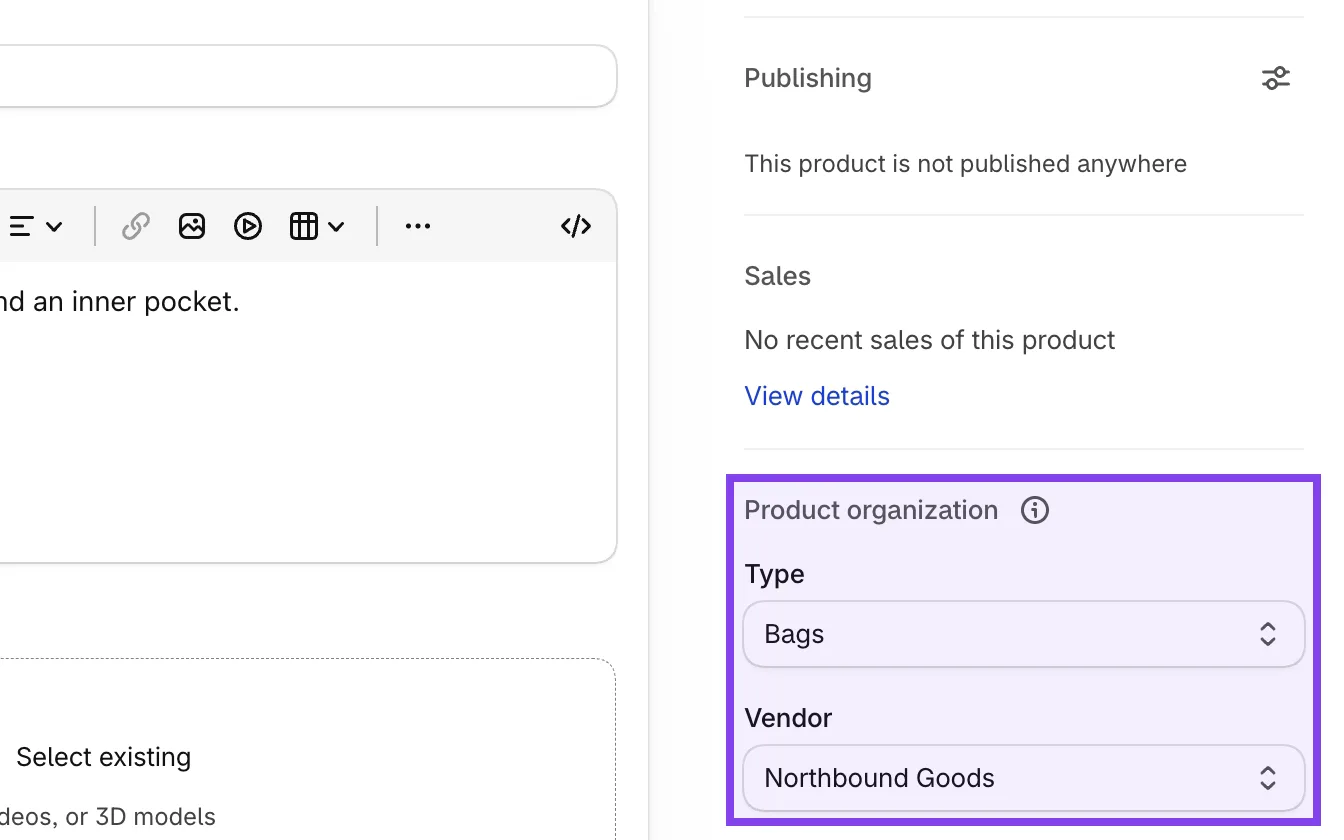
To update a product, just edit it in Notion. Lena sets Product Type to Bags and Vendor to Northbound Goods.
A moment later Shopify shows the new type and vendor. Price, SKU and stock changes on variants sync the same way.
Disconnect any time
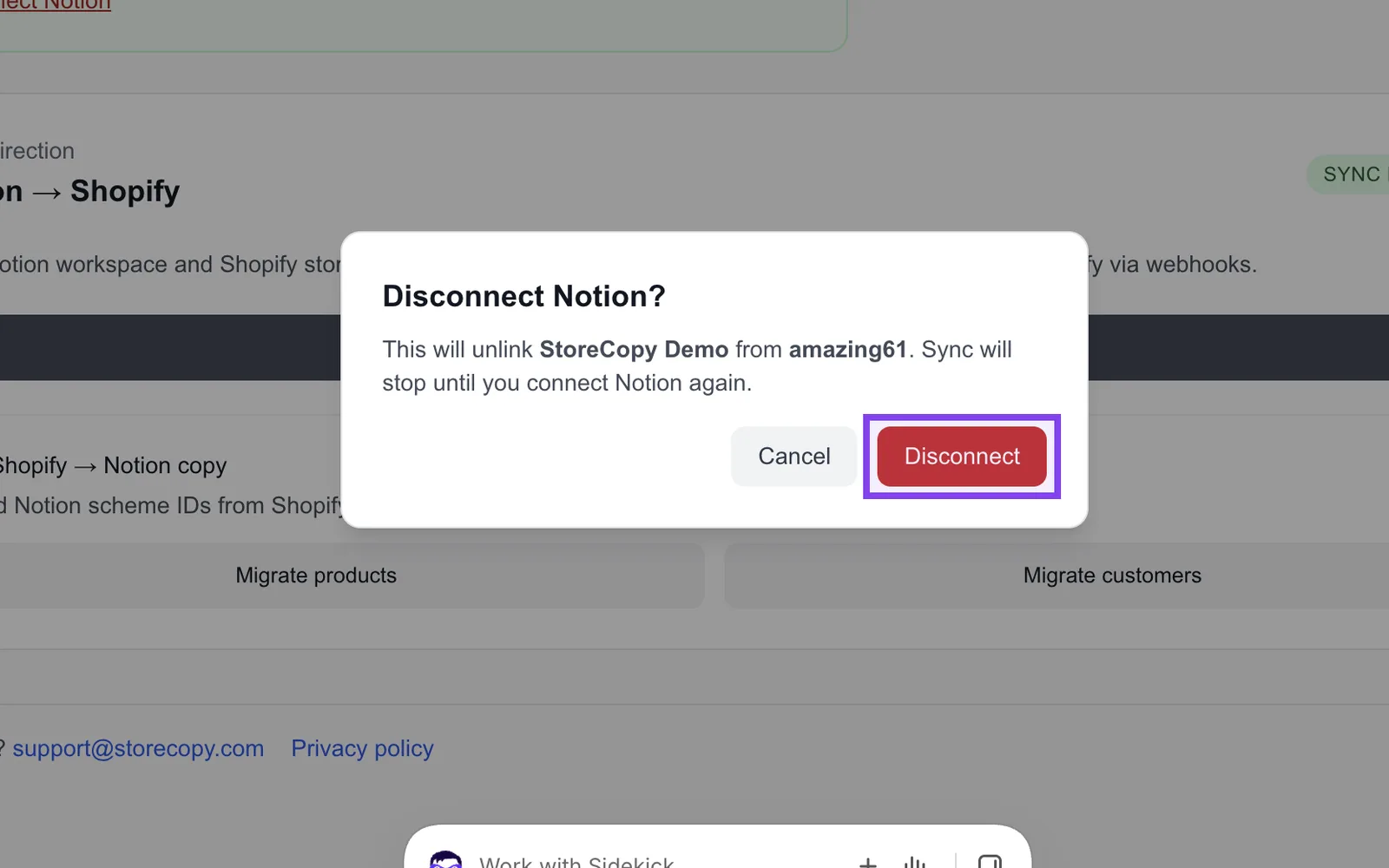
Want to stop syncing? Open the app and click Disconnect Notion, then confirm. Your Notion pages and Shopify products stay exactly as they are, and you can reconnect from the same screen.
What StoreCopy Sync does for you
Built for teams that already think in Notion and sell on Shopify.
A template that fits Shopify
Products, variants, media, customers and addresses arrive pre-linked in your workspace.
One-click catalog import
Copy your current Shopify products and customers into Notion before you start.
Real variants
Options like Size and Color, with a price, SKU and stock level for every variant.
Changes in about a minute
Notion edits reach Shopify automatically. No exports, no CSVs, no second shift.
Always linked
Shopify IDs are written back into Notion, so every row knows its product.
Safe to stop
Disconnecting never deletes your Notion pages or Shopify products.
Questions, answered
Does StoreCopy Sync work both ways?
Sync runs one way, from Notion to Shopify. Migrate products copies your Shopify catalog into Notion once, so you start from what you already sell.
Which fields sync to Shopify?
Product title, description, options, product type and vendor, plus variants with their option values, price, SKU and inventory.
How fast do changes show up in Shopify?
Usually within about a minute of your edit in Notion.
I already have products in Shopify. Do I start over?
No. Click Migrate products once before you start editing and your catalog is copied into Notion, each row linked to its Shopify product.
Do I need to set up Notion first?
No. An empty workspace works; StoreCopy installs the template for you while you connect.
What happens if I disconnect?
Sync stops. Your Notion pages and Shopify products stay as they are, and you can reconnect at any time from the app.
Make Notion your catalog.
Install StoreCopy Sync, connect your workspace and publish your next product from Notion.
