Guide · Odoo → ActiveCampaign
Move your Odoo CRM to ActiveCampaign, history included
StoreCopy copies companies, contacts, opportunities, sales orders and every task, call, meeting and note from Odoo into ActiveCampaign, linked the way they were. Free estimate, free demo, then one full run.
8 min read
- record types, linked to each other
- 8
- record types, linked to each other
- records of each type in the free demo
- 20
- records of each type in the free demo
- click on Allow to connect Odoo
- 1
- click on Allow to connect Odoo
The story
Why Ruth stopped retyping her pipeline
Meet Ruth, a marketing lead like many we talk to. Her team sells analytics workshops and hardware to businesses such as Kestrel Analytics, Blue Harbor Hotels and Northwind Supply, and for years their pipeline lived in Odoo CRM.
They chose ActiveCampaign to send email from the same place they track deals. The hard part was the move: a CSV export loses which contact works where, which call belonged to which opportunity and what the notes said.
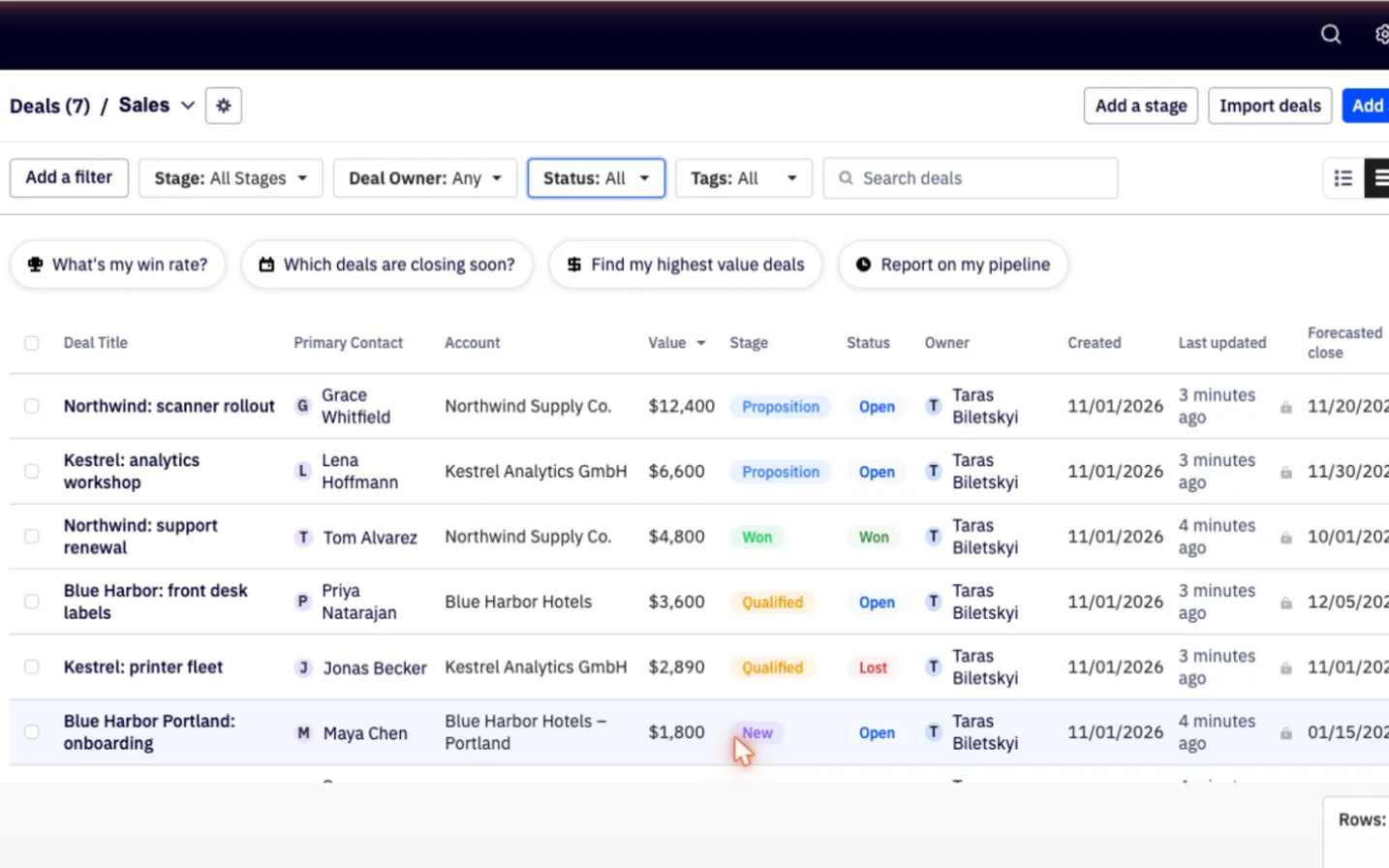
This guide follows Ruth moving her Odoo CRM to ActiveCampaign with StoreCopy. Every screenshot is from that run, from opening the wizard to finding the Northwind: scanner rollout deal in ActiveCampaign with its account, contact and open task.
What you'll set up
- Odoo connected with one click on Allow, no password or API key to copy from Odoo
- A free estimate of every record type in your Odoo CRM
- A free demo with up to 20 records of each type, checked in ActiveCampaign before you pay
- Your full CRM in ActiveCampaign: deals in their stages, contacts on their accounts, activities and notes on the right records
You'll need
- Odoo 17, 18 or 19 with the CRM app and the free StoreCopy Migration app from Odoo Apps
- An ActiveCampaign account and its API URL and key (Settings, Developer)
- About 20 minutes, plus run time for large databases
Step by step
How to migrate Odoo CRM to ActiveCampaign
- 01Open the migration wizard
- 02Pick Odoo as the source and ActiveCampaign as the destination
- 03Connect Odoo with one Allow
- 04Connect ActiveCampaign with its API URL and key
- 05Check the free estimate
- 06Run the free demo migration
- 07Check your data in ActiveCampaign
- 08Run the full migration, or roll the demo back
Open the migration wizard
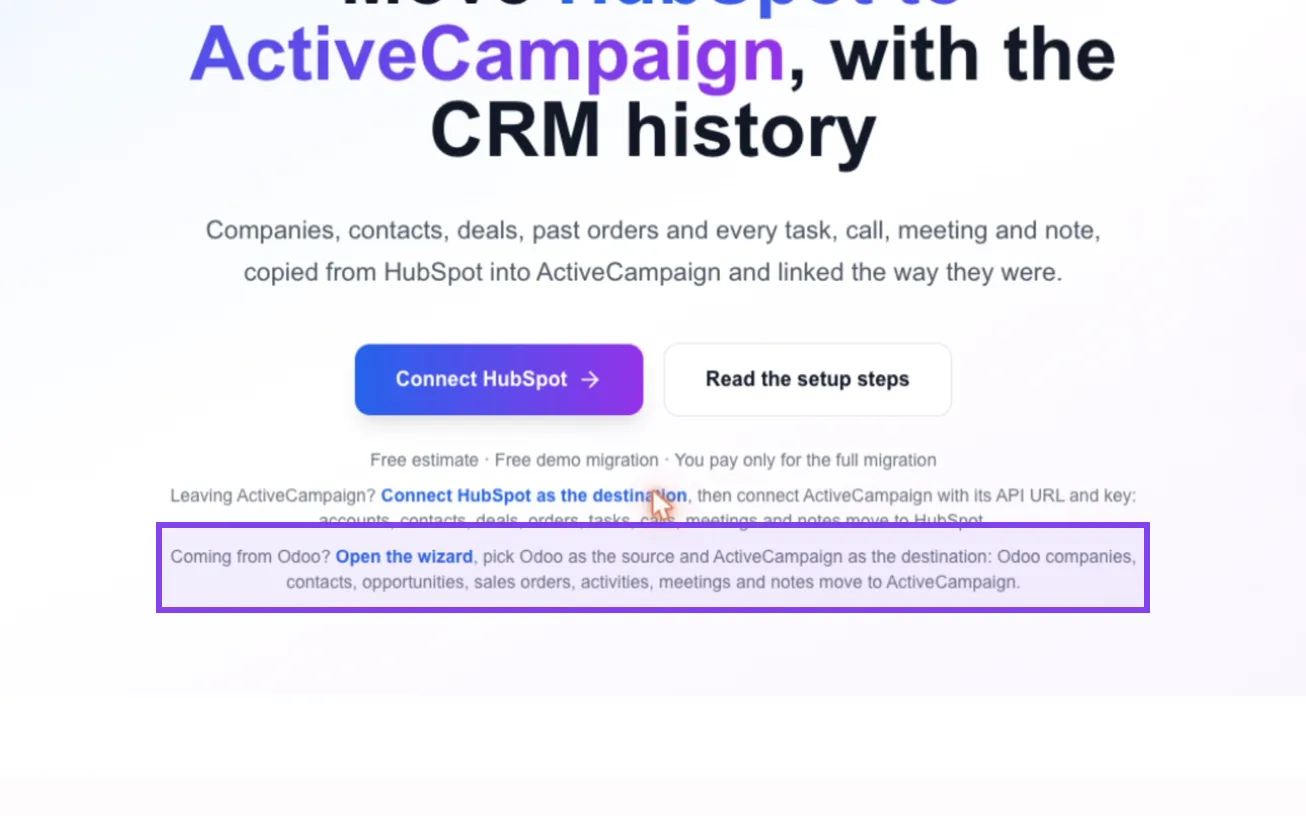
Go to the StoreCopy ActiveCampaign page. Under Coming from Odoo?, click Open the wizard.
Pick Odoo as the source and ActiveCampaign as the destination
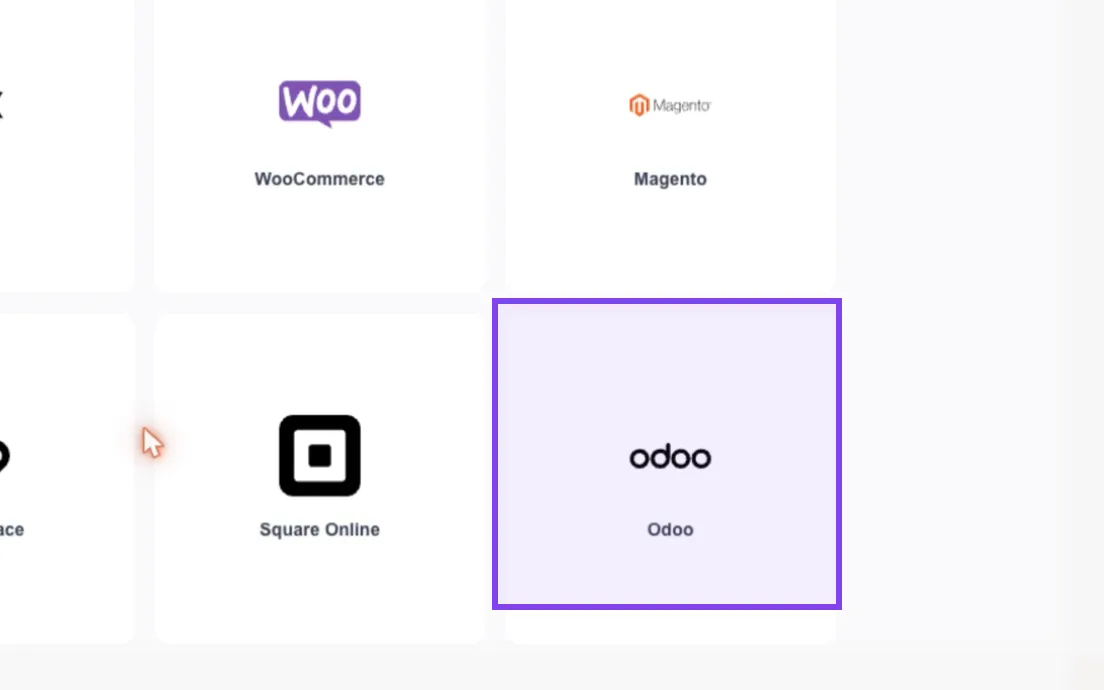
The wizard opens on Platforms. Under Select Source Platform, click Odoo.
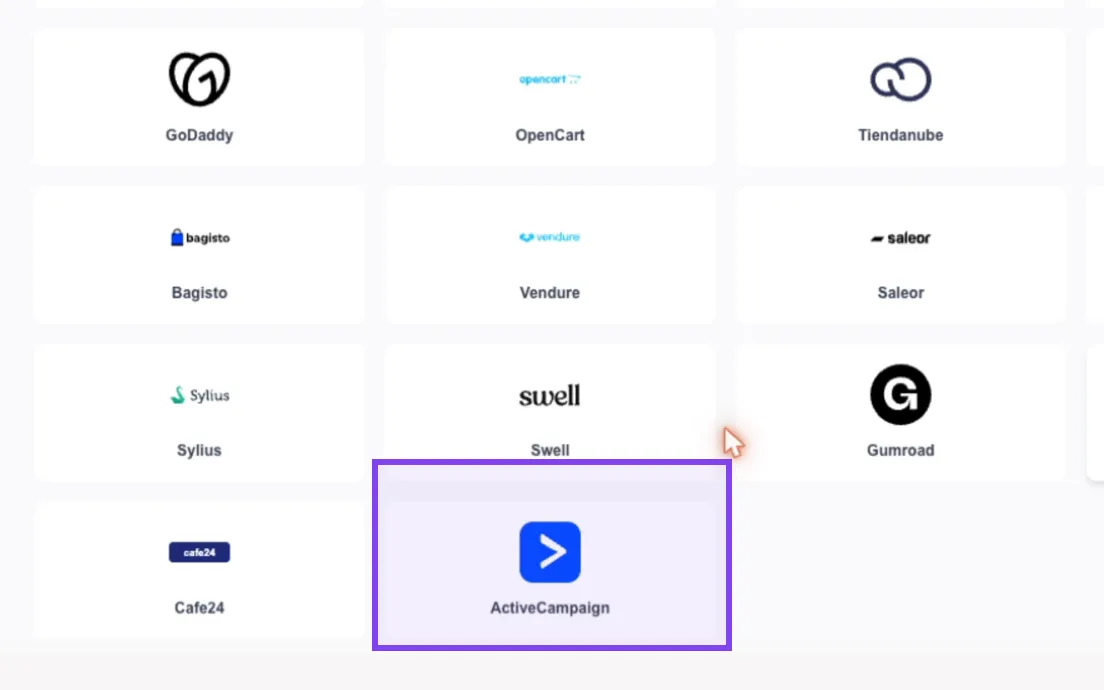
The list changes to Select Destination Platform. Scroll down and click ActiveCampaign. Each side now has its own connect form.
Connect Odoo with one Allow
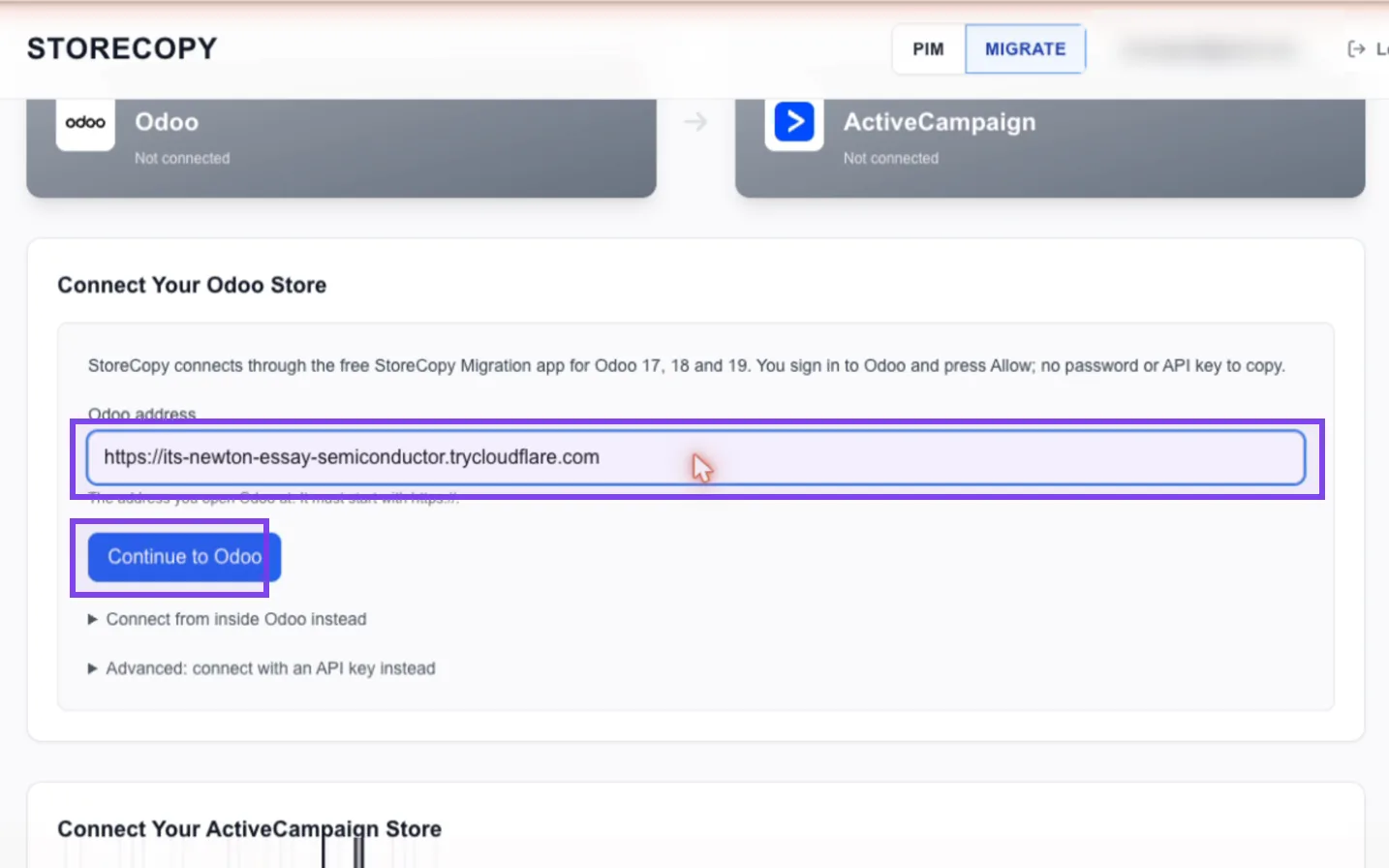
Under Connect Your Odoo Store, type the address you open Odoo at, for example https://mycompany.odoo.com, and click Continue to Odoo.
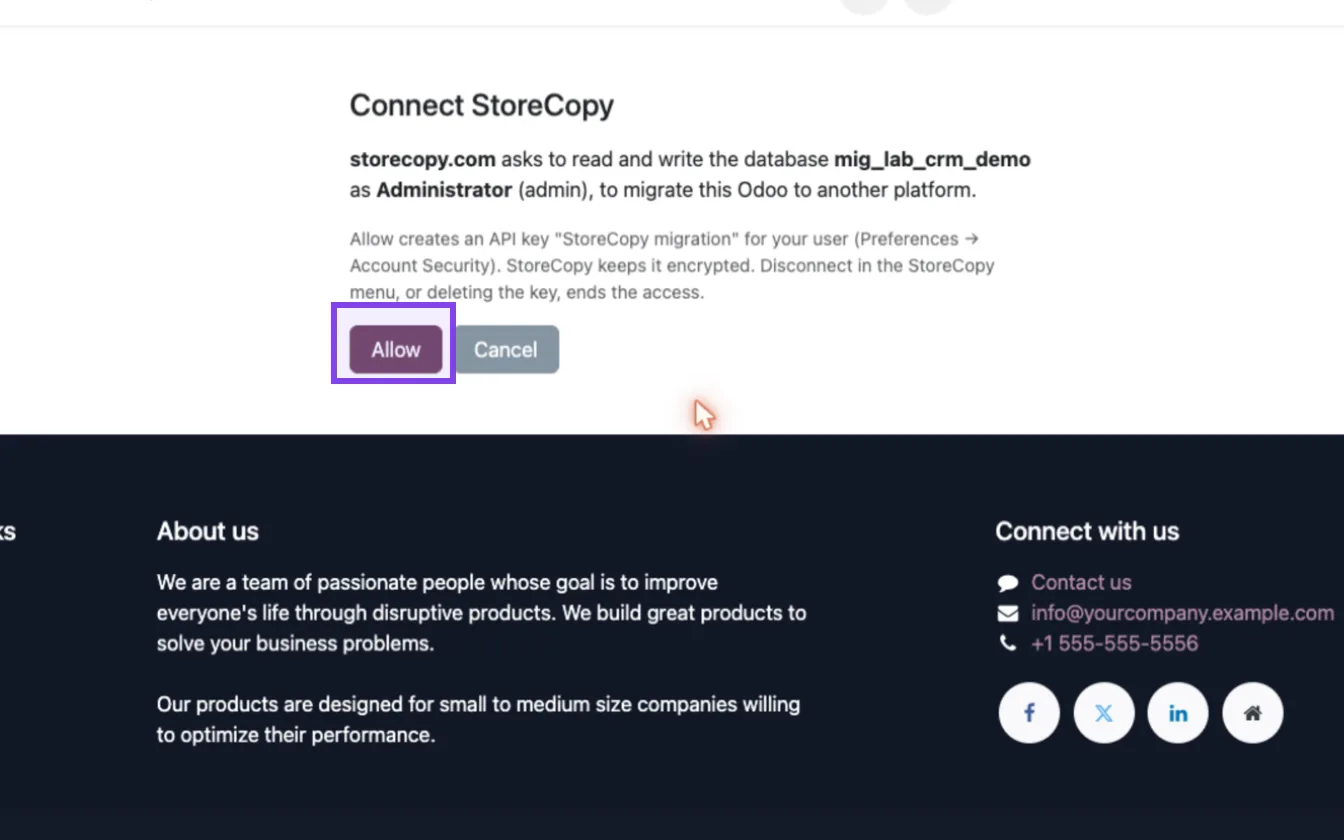
Odoo shows Connect StoreCopy: which database StoreCopy asks to read and write, and as which user. Click Allow. Odoo creates an API key named StoreCopy migration for your user and sends you back to the wizard with Odoo connected.
Connect ActiveCampaign with its API URL and key
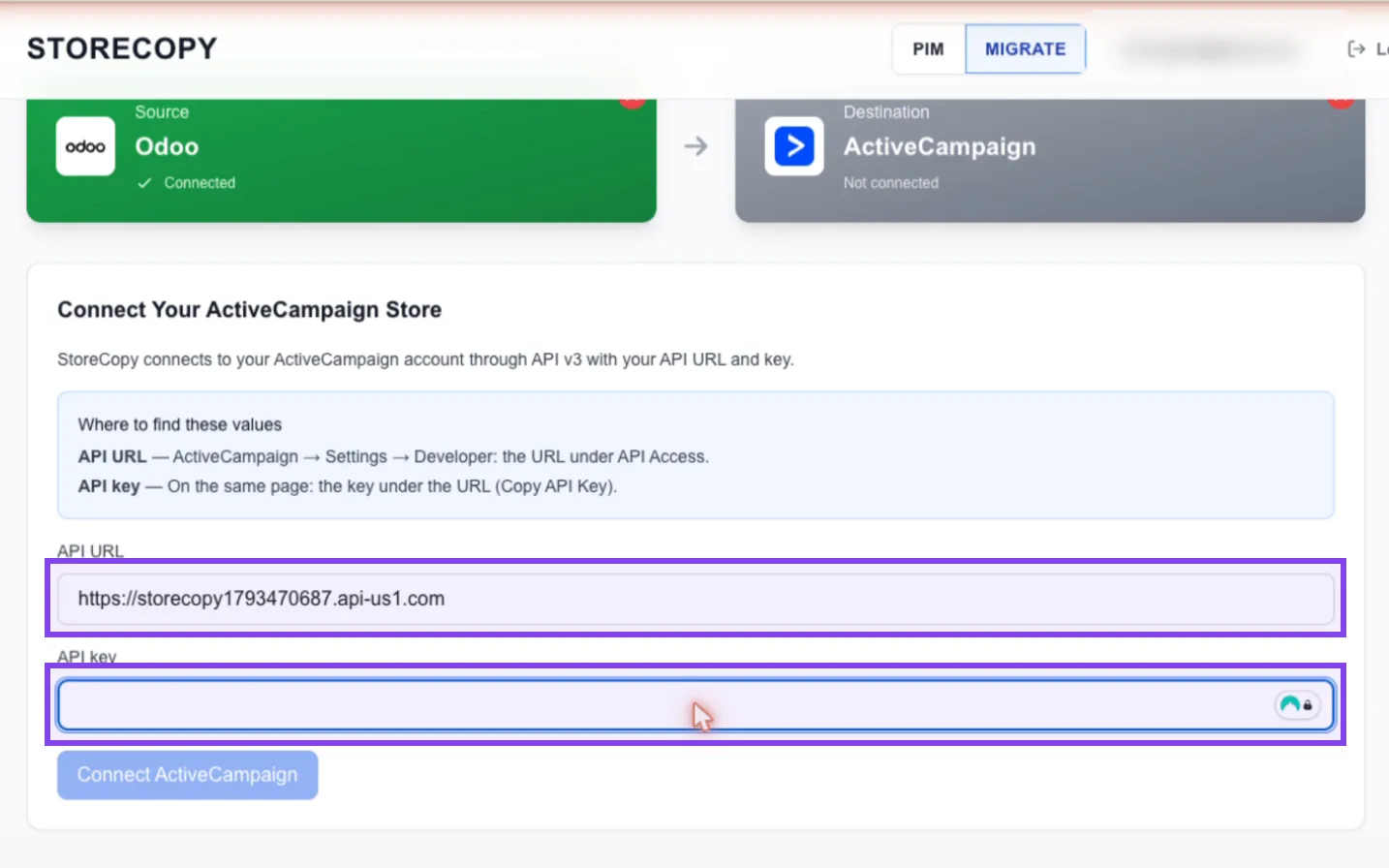
In ActiveCampaign, open Settings, Developer. Copy the URL under API Access and the key under it.
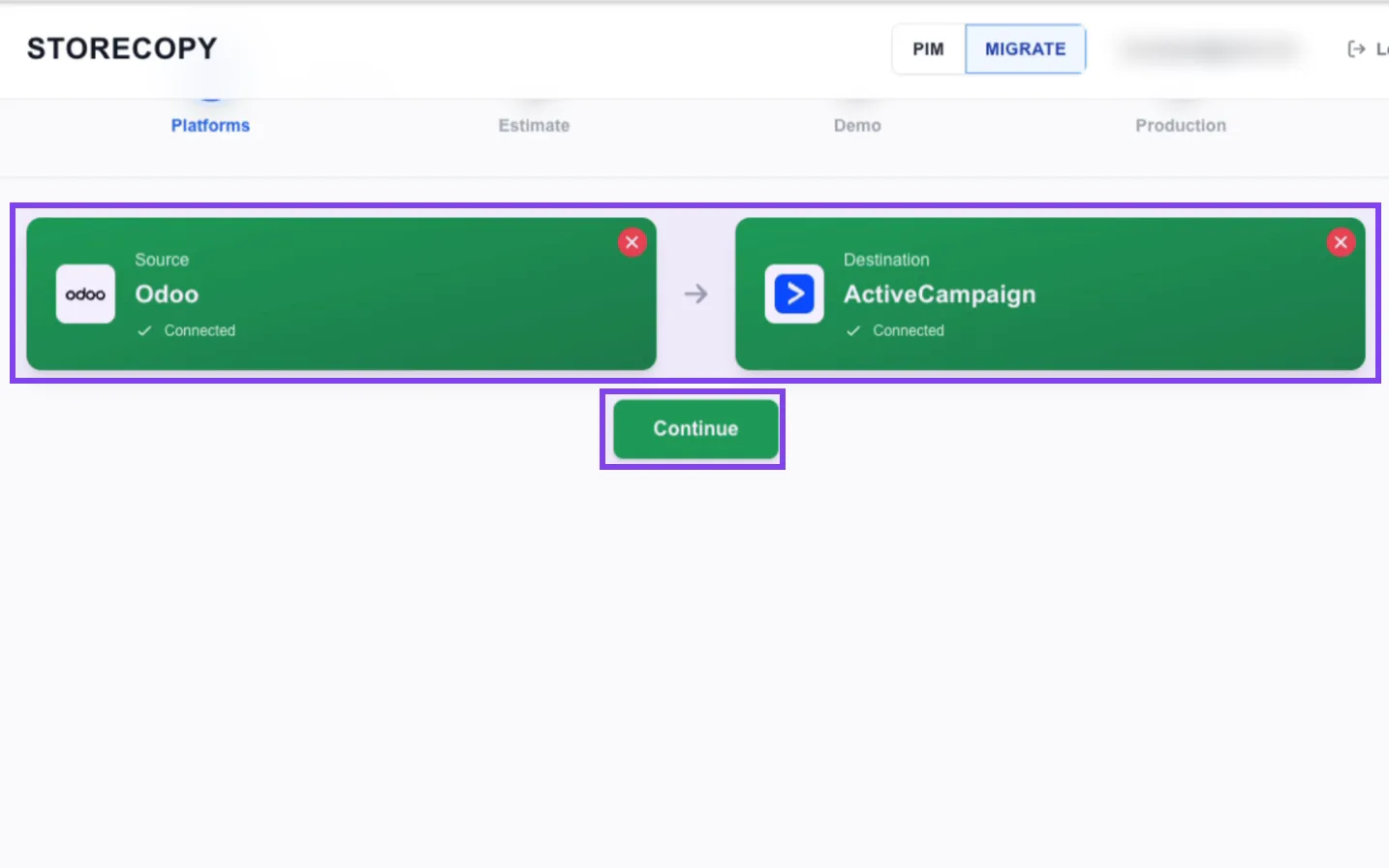
Back in the wizard, if the destination is empty after the Odoo step, click ActiveCampaign again. Paste the API URL and API key, then click Connect ActiveCampaign. Both cards turn green.
Check the free estimate
Click Continue, then Estimate Full Migration. StoreCopy counts what your Odoo CRM holds: companies, contacts, deals, orders, tasks, calls, meetings and notes.
The table shows each count next to its free quota and the price of the full migration. Nothing is charged at this step.
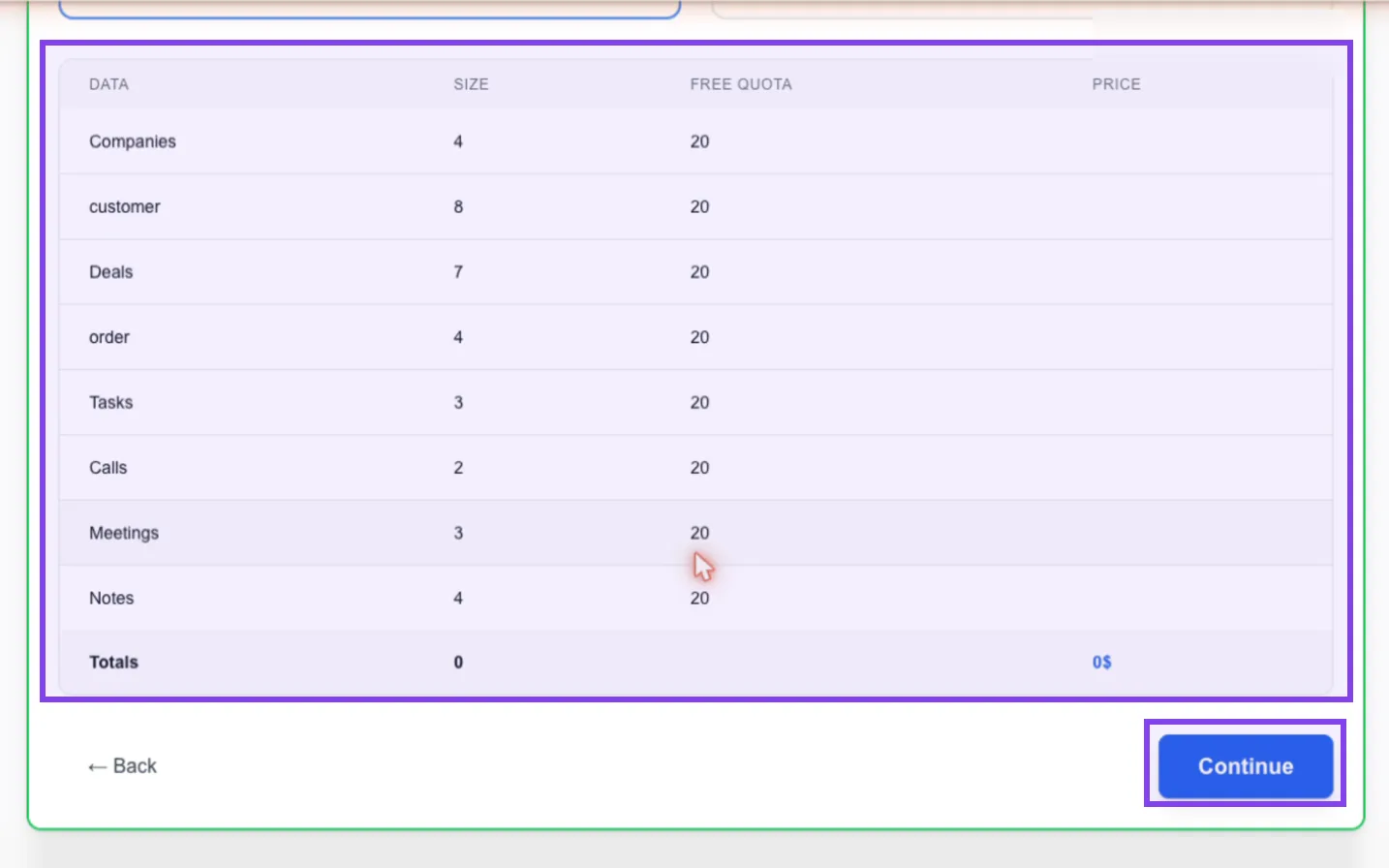
The estimate and the demo are free. Try it on your own Odoo data before you decide.
Open the wizardRun the free demo migration
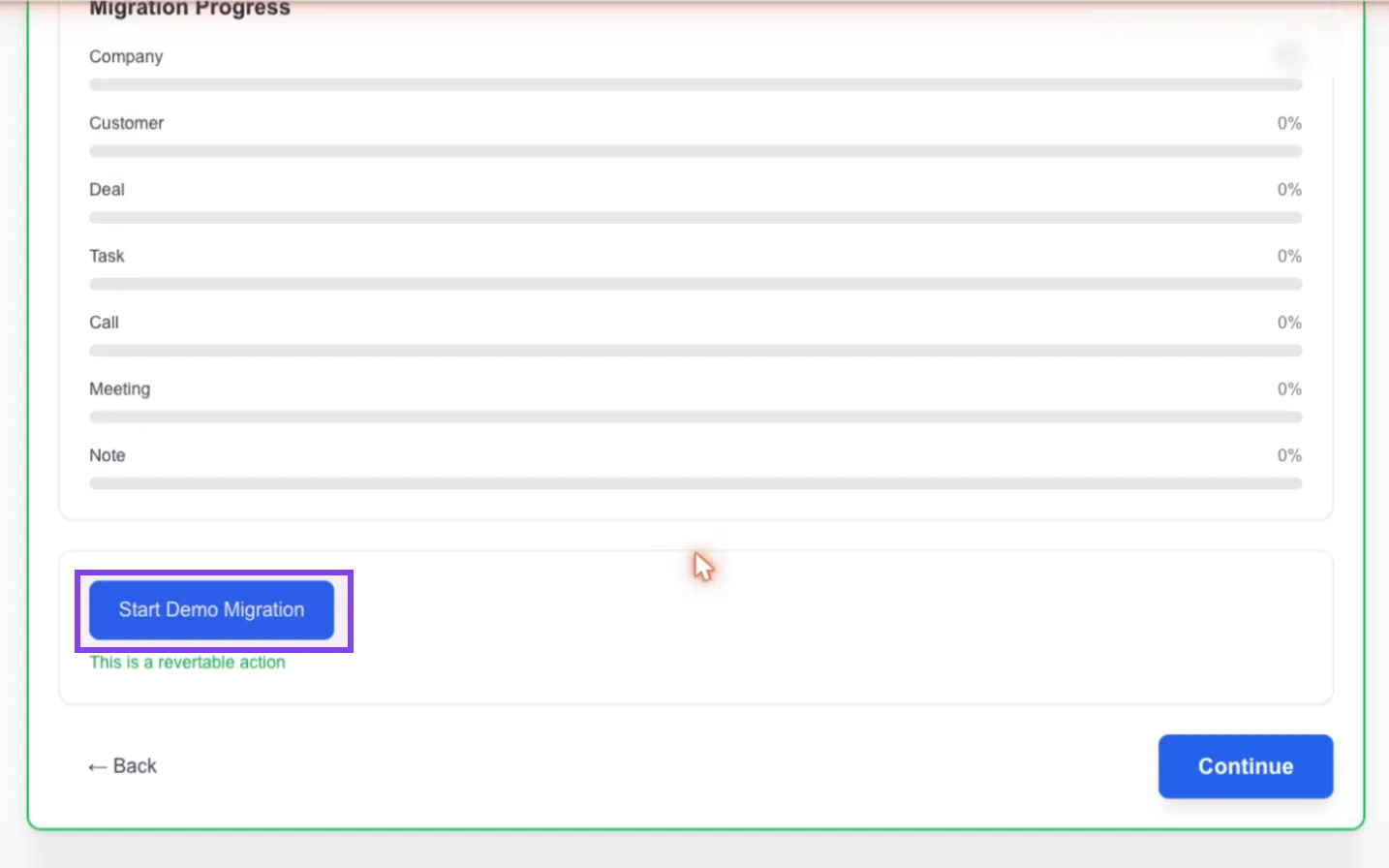
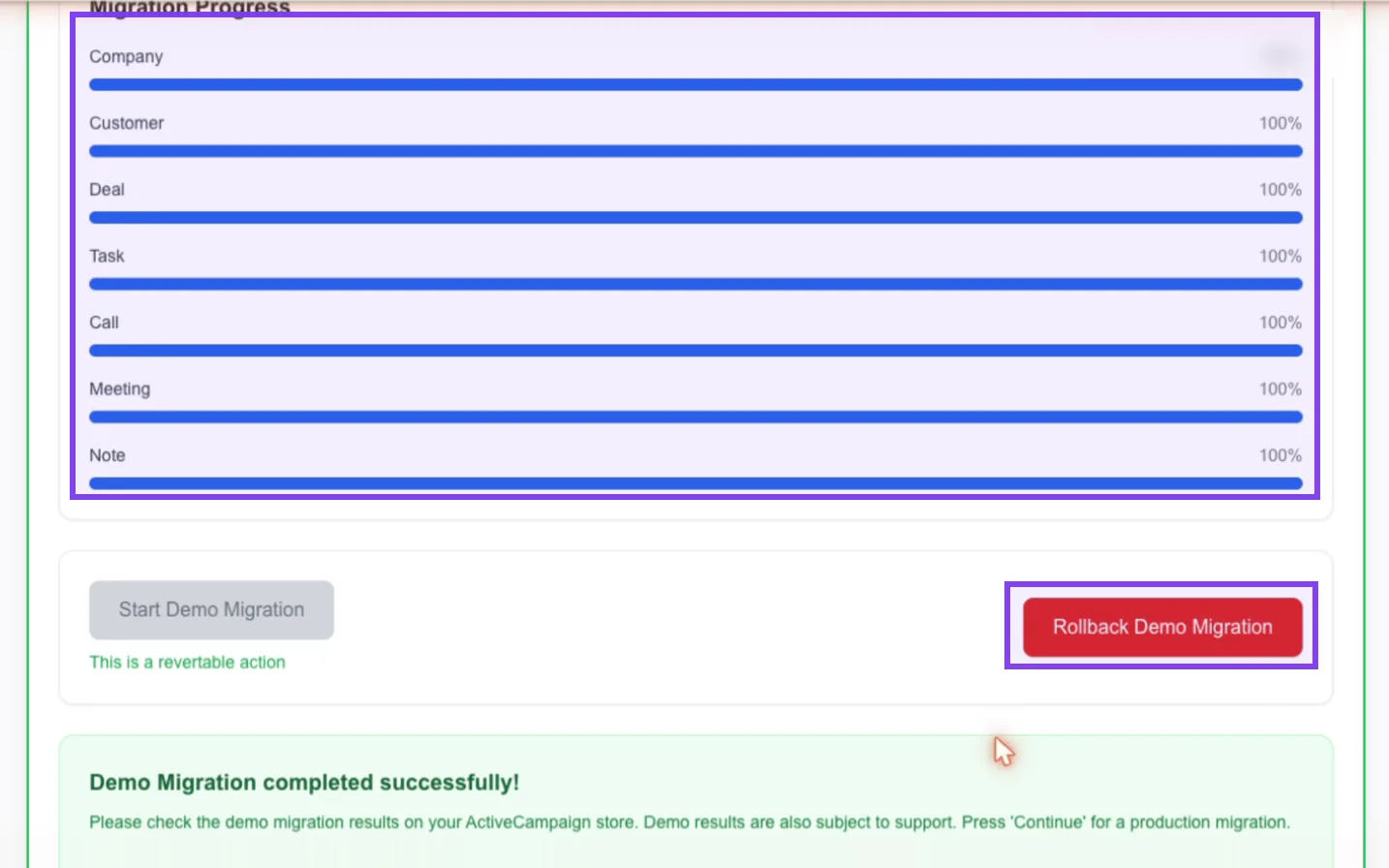
Click Continue and Start Demo Migration. Up to 20 records of each type are copied into ActiveCampaign, companies first, then contacts, deals and their activities, so every record links to the ones it belongs to. Orders wait for the full migration.
Each bar fills as its records are created. When Demo Migration completed successfully! appears, open ActiveCampaign and look.
Check your data in ActiveCampaign
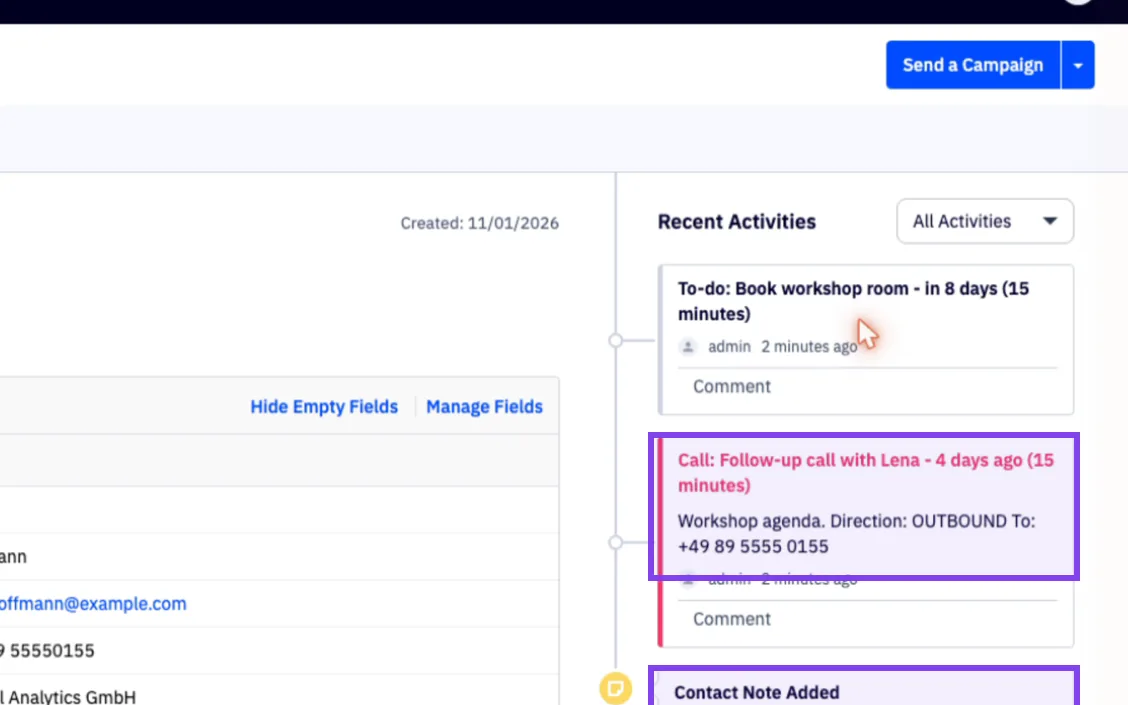
Open a contact, here Lena Hoffmann: her account, job title and phone came over, her planned call is a call task with its agenda, and her Odoo note is on her record.
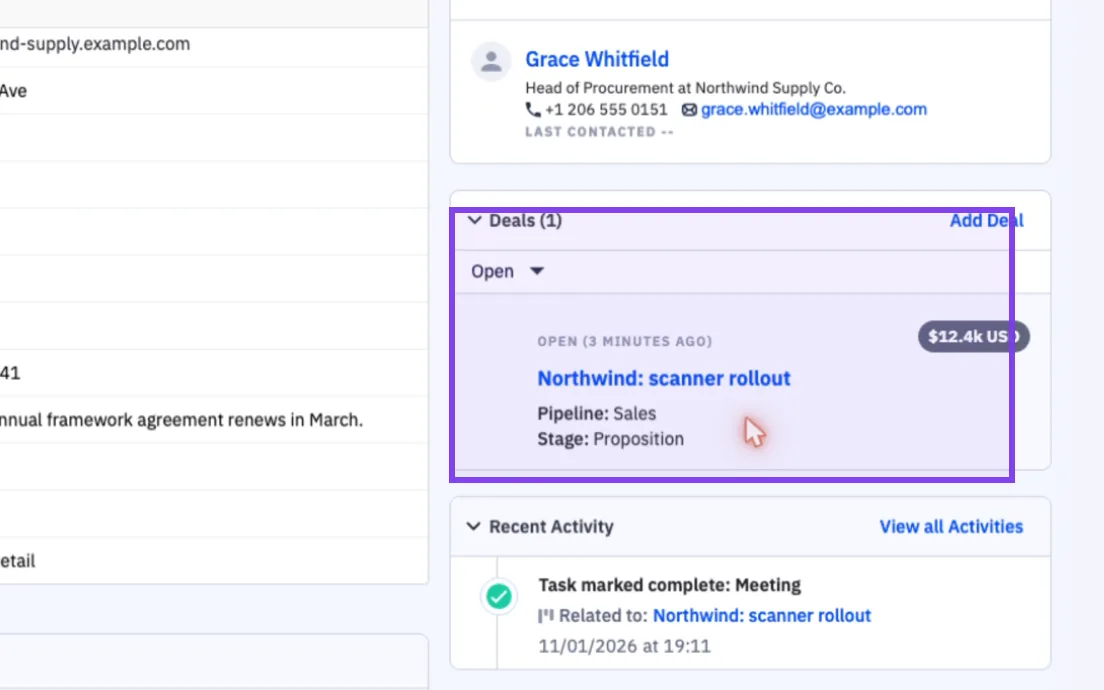
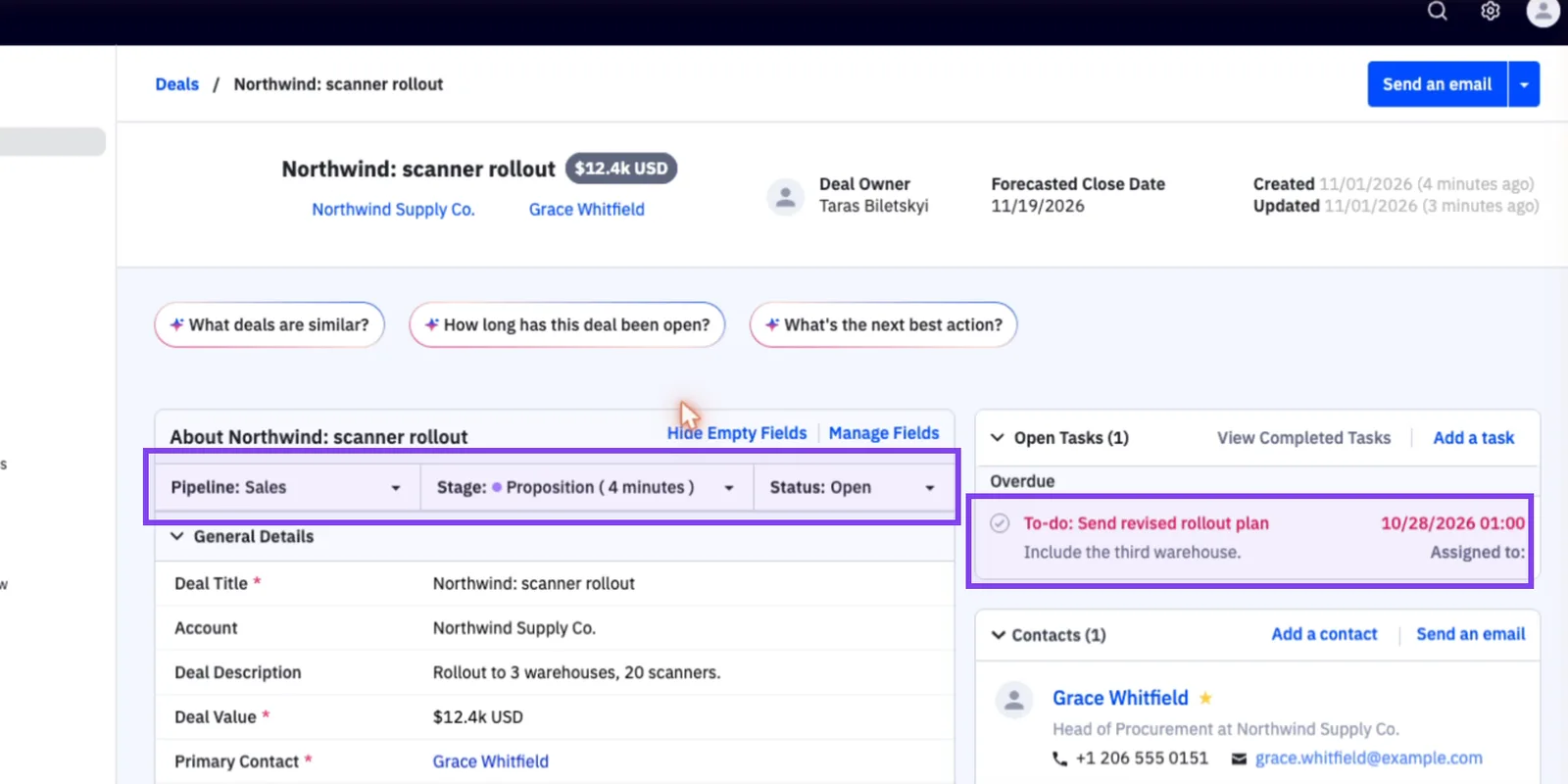
Open an account, here Northwind Supply Co.: address, website, description, both contacts and its deal. The deal keeps its value, close date, contact, pipeline, stage and open task.
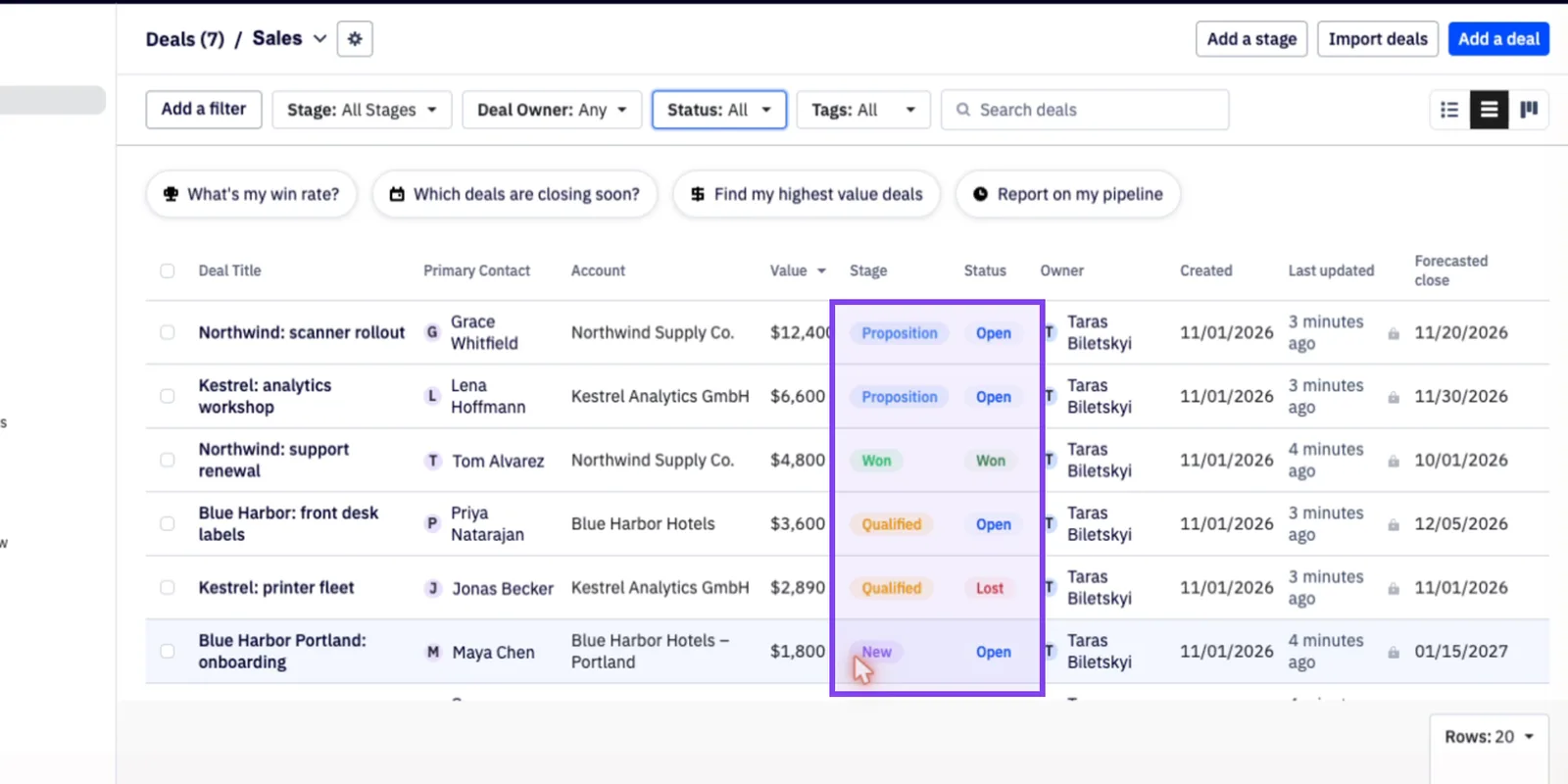
Under Deals, set Status to All: every Odoo opportunity is in the matching stage, and won and lost deals keep their status.
Run the full migration, or roll the demo back
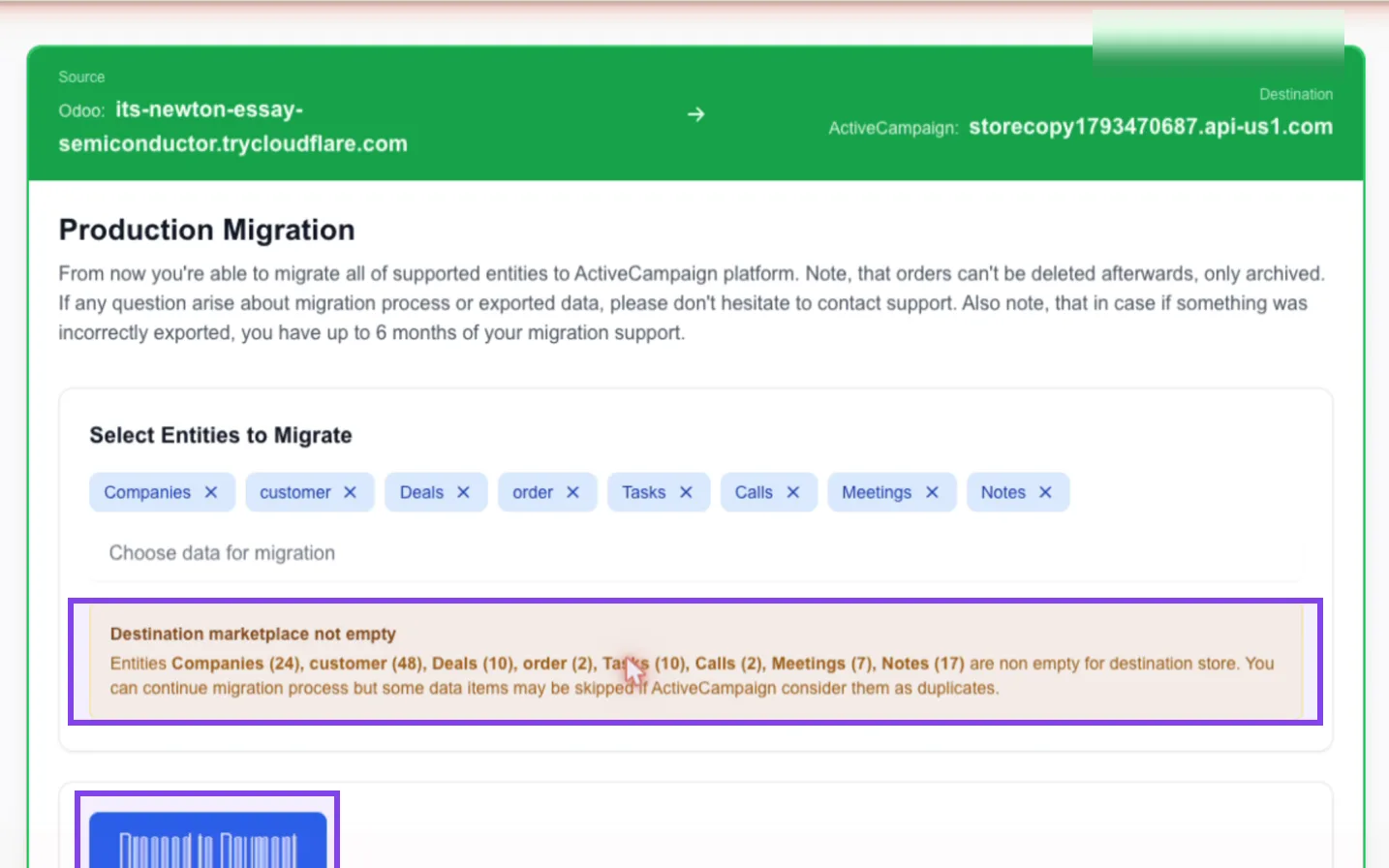
Happy with the demo? Click Continue, then Proceed to Payment. After payment the full migration copies everything else, orders included, and skips what the demo already created.
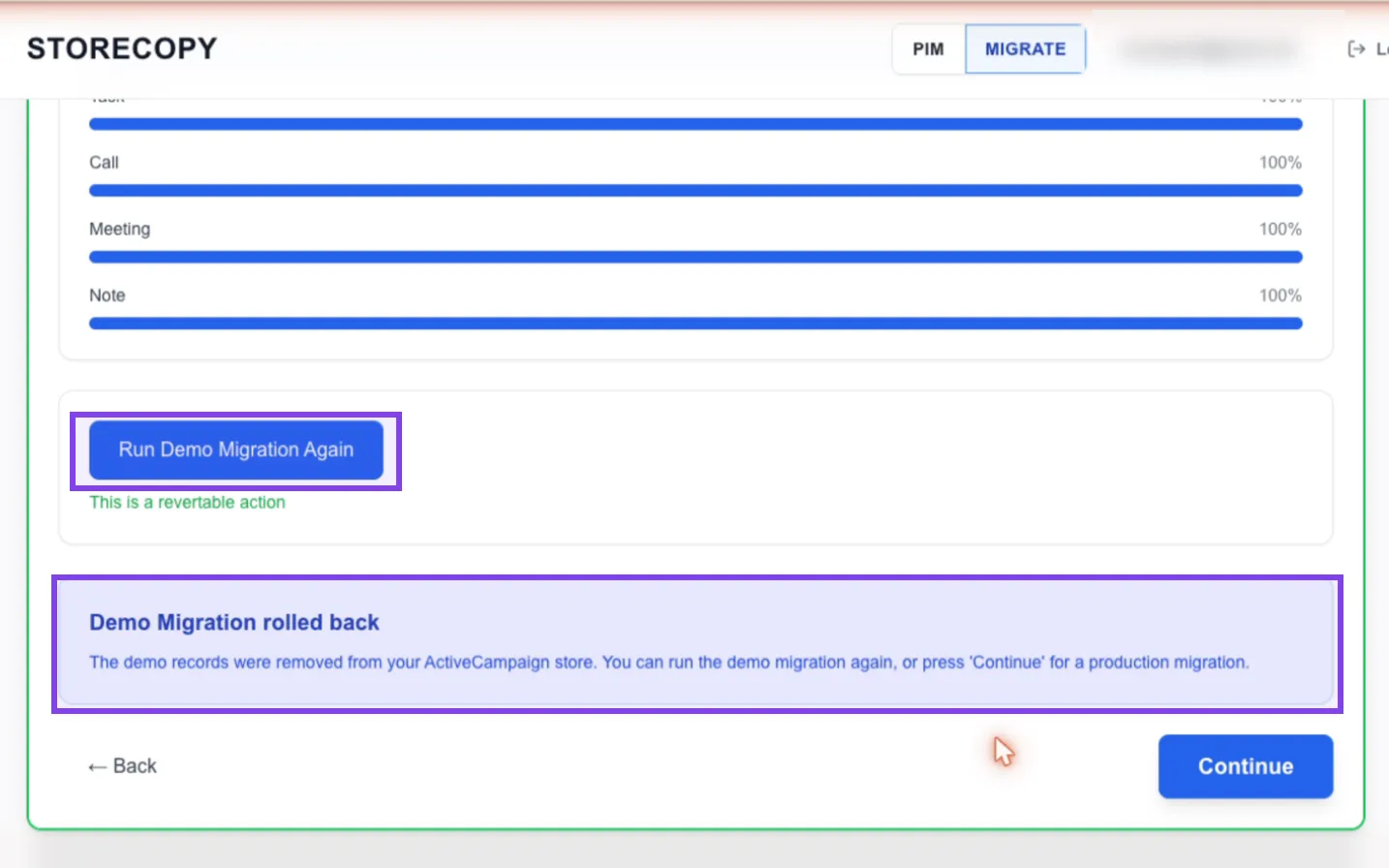
Want to start over? Go Back and click Rollback Demo Migration. StoreCopy deletes only the records the demo created; what was in ActiveCampaign before stays.
Field by field
What moves from Odoo to ActiveCampaign
Eight record types, each written to its ActiveCampaign counterpart and linked to the others. Companies are created first, so contacts and deals can point to them.
Companies
Accounts
- Name
- Website
- Phone
- Full address
- Industry
- Tax ID
- Description
Contacts
Contacts
- First and last name
- Phone
- Account and job title
- Full address
- Language
- Tags
- Notes
Opportunities
Deals
- Title
- Value and currency
- Pipeline and stage
- Open, won or lost
- Probability
- Expected close date
- Priority
- Description
- Contact and account
Sales orders
Deep Data orders
- Order number
- Products
- Total, tax and discount
- Currency
- Order date
- Customer email
To-dos
Deal and contact tasks
- Title
- Note
- Due date
- Done or open
- Deal or contact
Calls
Call tasks
- Title
- Note
- Direction and phone number
- Due date
- Deal or contact
Meetings
Meeting tasks
- Title
- Agenda
- Start and end
- Location
- Video call link
- Deal or contact
Notes
Notes
- Text, as plain text
- Contact, account or deal
No emails to your contacts
- Orders are imported as historical Deep Data orders, which start no automations.
- Contacts are not added to your lists, so no opt-in or autoresponder emails go out.
What stays behind
- Email threads from the Odoo chatter.
- A to-do planned on a company with no deal or contact: ActiveCampaign tasks belong to a deal or a contact.
Why teams move to ActiveCampaign with StoreCopy
A CRM migration is only as good as its links. StoreCopy keeps them.
Connect Odoo with Allow
No password and no API key to copy: Odoo asks once, you click Allow, and you can revoke it in Odoo.
Linked, not flattened
Contacts stay on their accounts, tasks, calls and meetings on their deals, notes on the record they belong to.
Free estimate and demo
See the counts, the price and up to 20 real records of each type in ActiveCampaign before you pay.
Your pipeline, as it was
Opportunities land in the stage with the same name; won and lost deals keep their status.
Revertable demo
Rollback Demo Migration deletes what the demo created and nothing else.
Read-only on Odoo
StoreCopy never changes your Odoo CRM, so your team can keep working in it until the switch.
Questions, answered
Do I need to install anything in Odoo?
Yes, the free StoreCopy Migration app from Odoo Apps, for Odoo 17, 18 and 19. Odoo Online can’t install third-party apps; on its Custom plan, use Advanced: connect with an API key instead in the wizard.
Does StoreCopy see my Odoo password?
No. You click Allow in Odoo, which creates an API key for StoreCopy. Delete that key in Odoo to end the access.
Will my deals, contacts and activities stay linked?
Yes. Accounts are created first, then contacts and deals linked to them, then tasks, calls, meetings and notes on the right deal or contact.
Will my contacts get emails during the migration?
No. Contacts are not added to lists, and orders are imported as historical orders that start no automations.
How much does it cost?
The estimate and the demo migration are free. The estimate shows the price of the full migration before you pay; you pay once per migration.
What happens with the demo records when I run the full migration?
They stay, and the full migration skips them, so nothing is created twice. You can also roll the demo back first.
Bring your Odoo CRM to ActiveCampaign.
Open the wizard, connect Odoo and ActiveCampaign, and see your own deals in ActiveCampaign with the free demo today.
