Guide · HubSpot, Zoho CRM, Odoo → Pipedrive
Move your CRM to Pipedrive, history included
StoreCopy copies organizations, people, products, leads, deals and every task, call, meeting and note into Pipedrive, linked the way they were. Free estimate, free demo, then one full run.
8 min read
- record types, linked to each other
- 9
- record types, linked to each other
- records of each type in the free demo
- 20
- records of each type in the free demo
- CRMs in, and the same three out
- 3
- CRMs in, and the same three out
The story
Why Marco stopped exporting CSVs
Meet Marco, a sales lead like many we talk to. His team of five sells analytics workshops and hardware to businesses such as Kestrel Analytics, Blue Harbor Hotels and Northwind Supply. For years the pipeline lived in Odoo CRM.
The team picked Pipedrive for its pipeline view. Moving was the hard part: CSV exports lose who belongs to which company, which call went with which deal and what was said in the notes. Rebuilding that by hand would cost weeks of selling time.
This guide follows Marco moving his Odoo CRM into Pipedrive with StoreCopy. Every screenshot below is from that run, from installing the app to finding Kestrel Analytics in Pipedrive with its deals and calls attached.
What you'll set up
- StoreCopy Migration installed in Pipedrive with the access it needs, nothing more
- A free estimate of every record type in your current CRM
- A free demo with up to 20 records of each type, checked in Pipedrive before you pay
- Your full CRM in Pipedrive: deals in their stages, people in their organizations, activities and notes on the right records
You'll need
- A Pipedrive company where you can install apps
- Access to the CRM you are leaving: HubSpot, Zoho CRM or Odoo
- About 20 minutes, plus run time for large accounts
Install StoreCopy Migration in Pipedrive
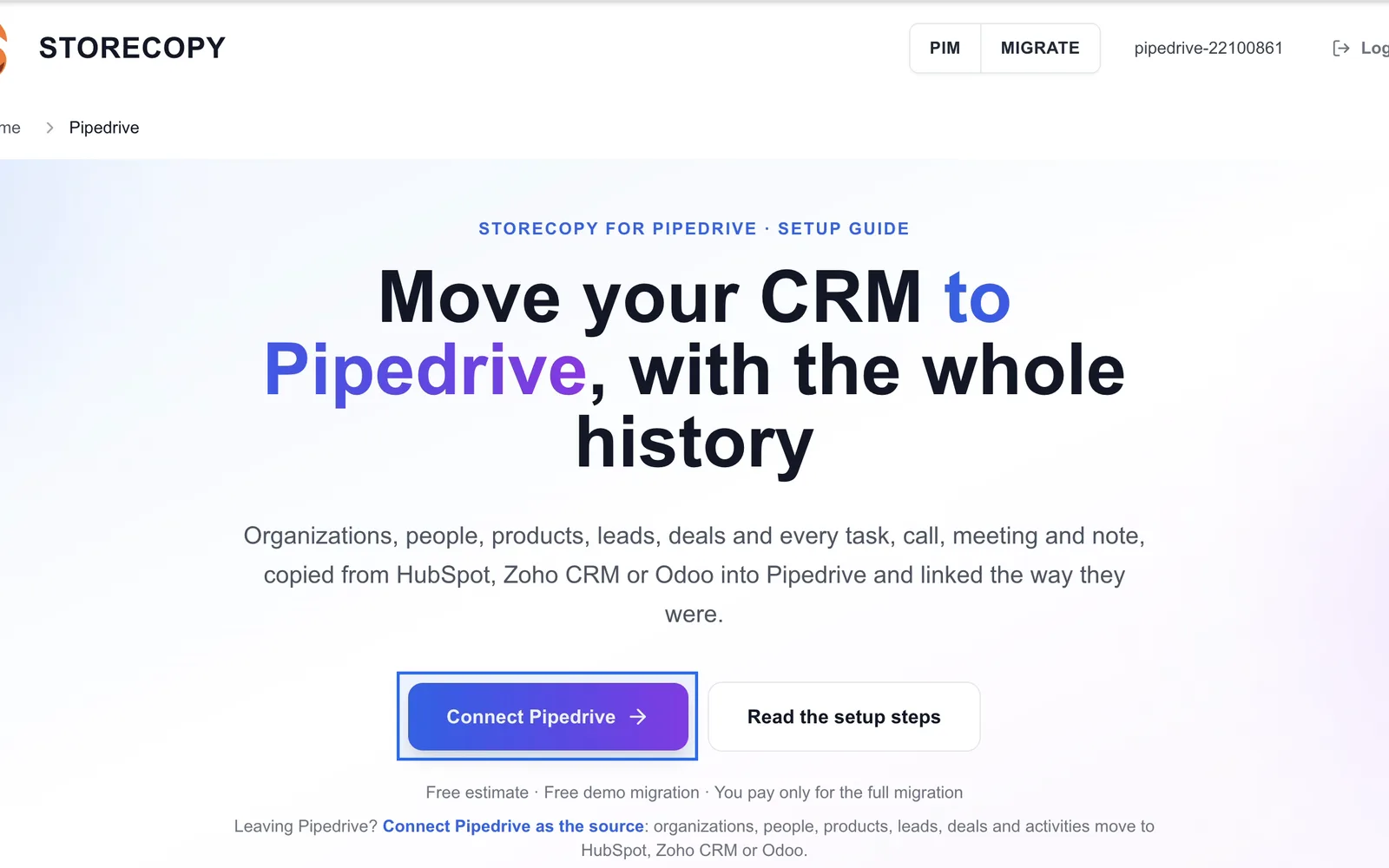
Click Connect Pipedrive on storecopy.com, or install StoreCopy Migration from the Pipedrive Marketplace. Both open the same Pipedrive screen.
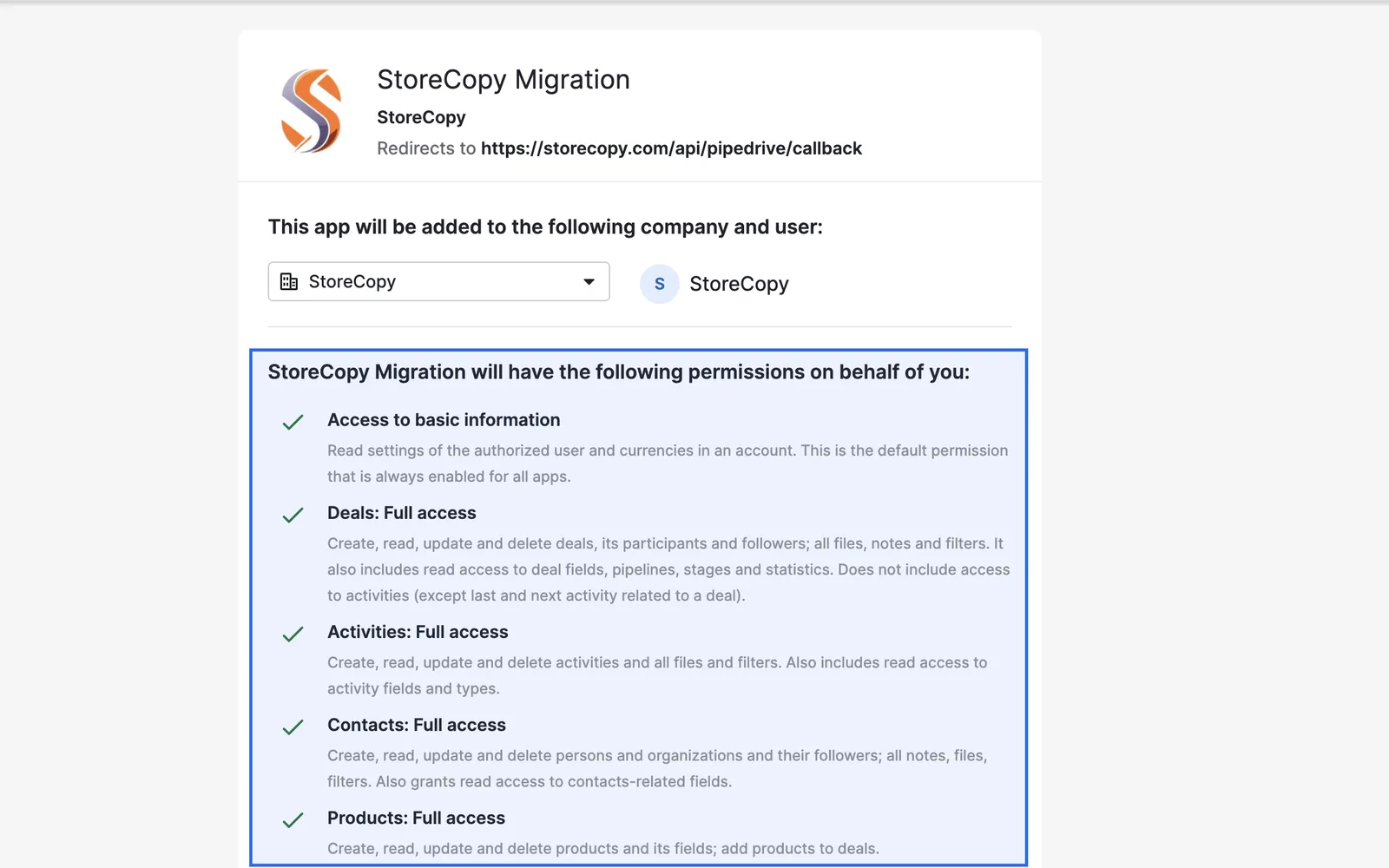
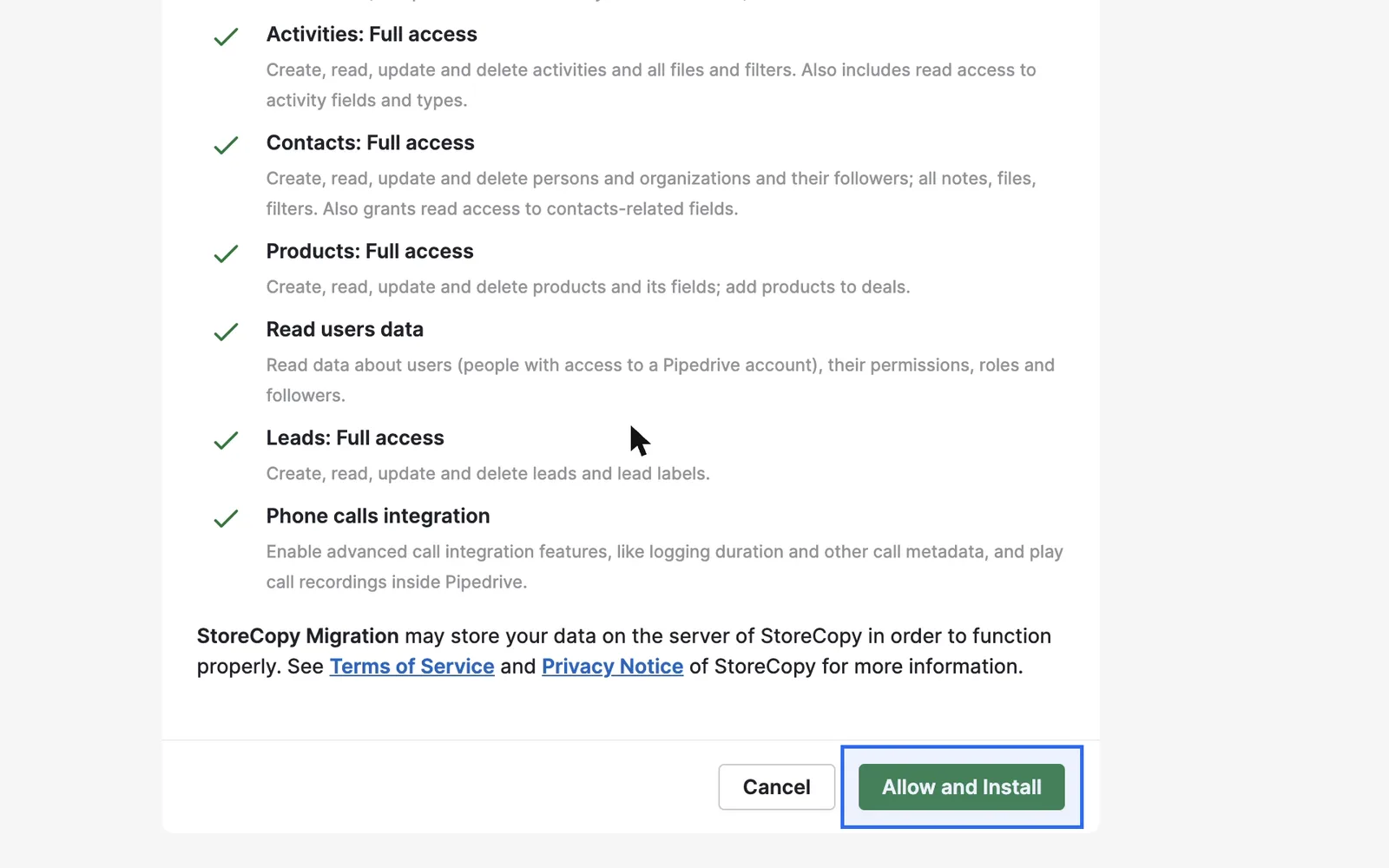
Pipedrive lists what the app may do: create and read deals, activities, contacts, products and leads, read your users to assign owners, and log calls. Check the company at the top, then click Allow and Install.
Connect the CRM you are leaving
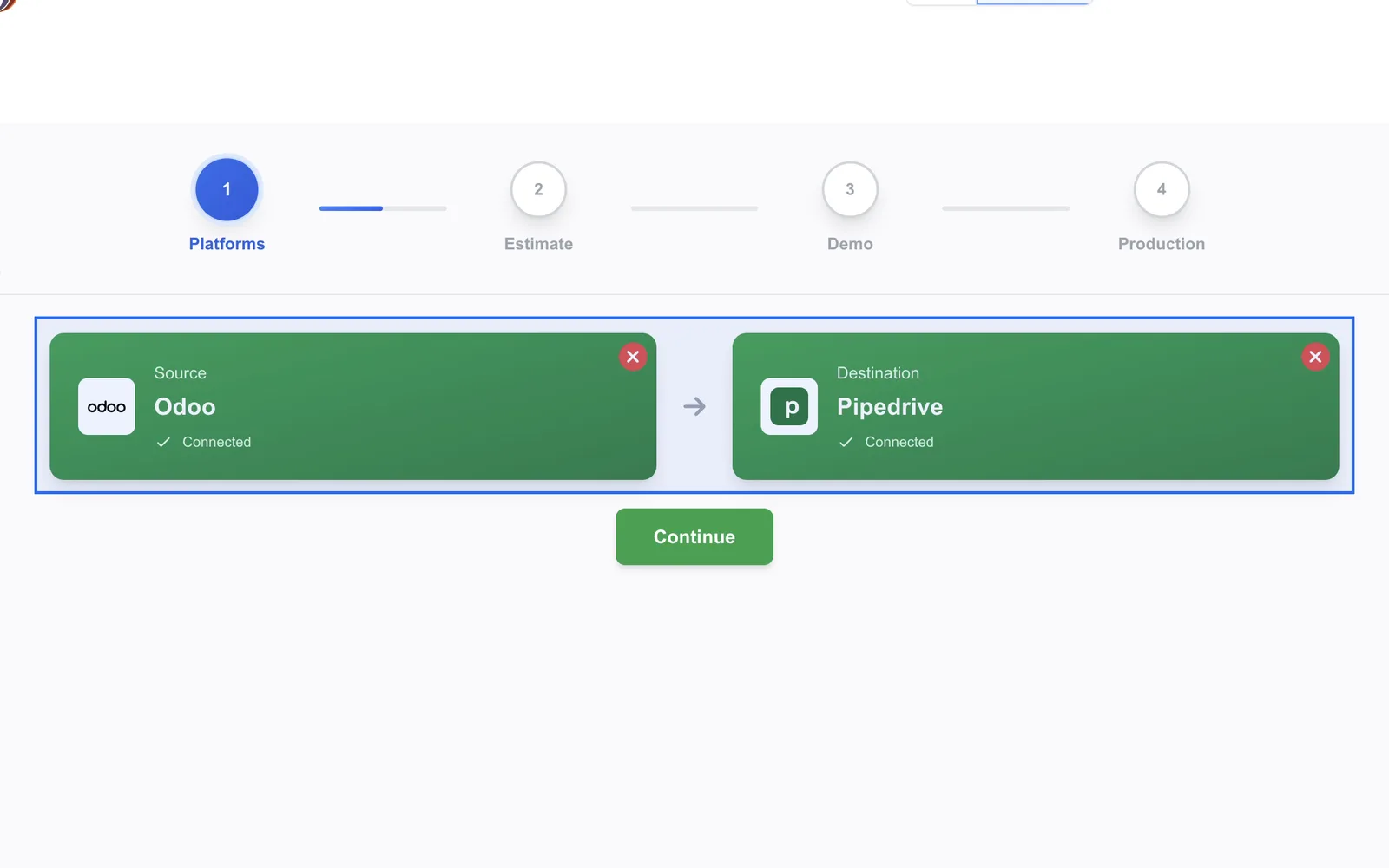
Pipedrive sends you to the StoreCopy wizard, already signed in, with Pipedrive connected as the destination.
Choose your source: HubSpot and Zoho CRM ask you to sign in and approve StoreCopy; Odoo connects through the StoreCopy Migration app in Odoo. StoreCopy only reads from the source and changes nothing there.
Check the free estimate
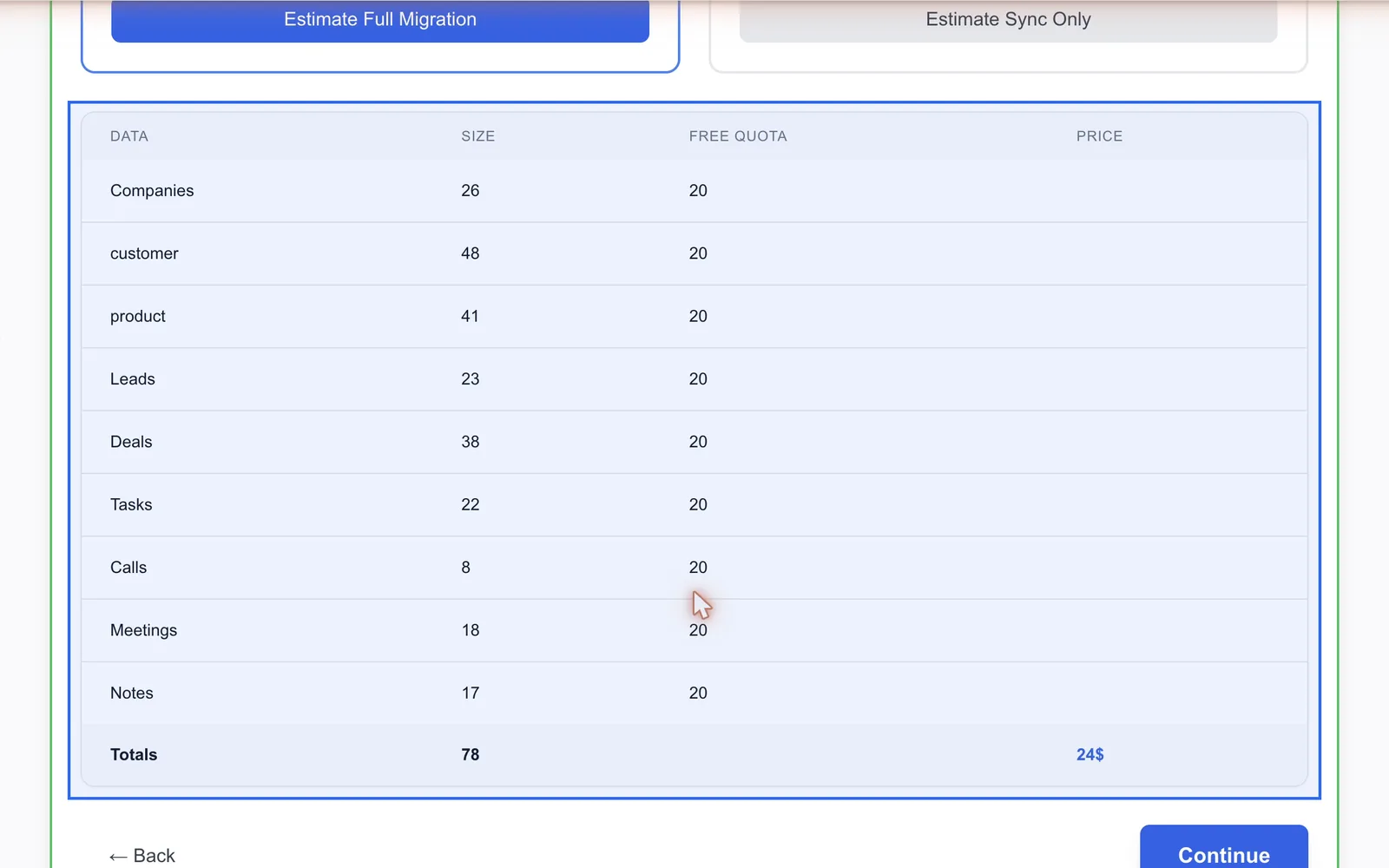
Click Continue, then Estimate Full Migration. StoreCopy counts what your CRM holds: companies, people, products, leads, deals, tasks, calls, meetings and notes.
The table shows each count next to its free quota and the price of the full migration. Nothing is charged at this step.
Run the free demo migration
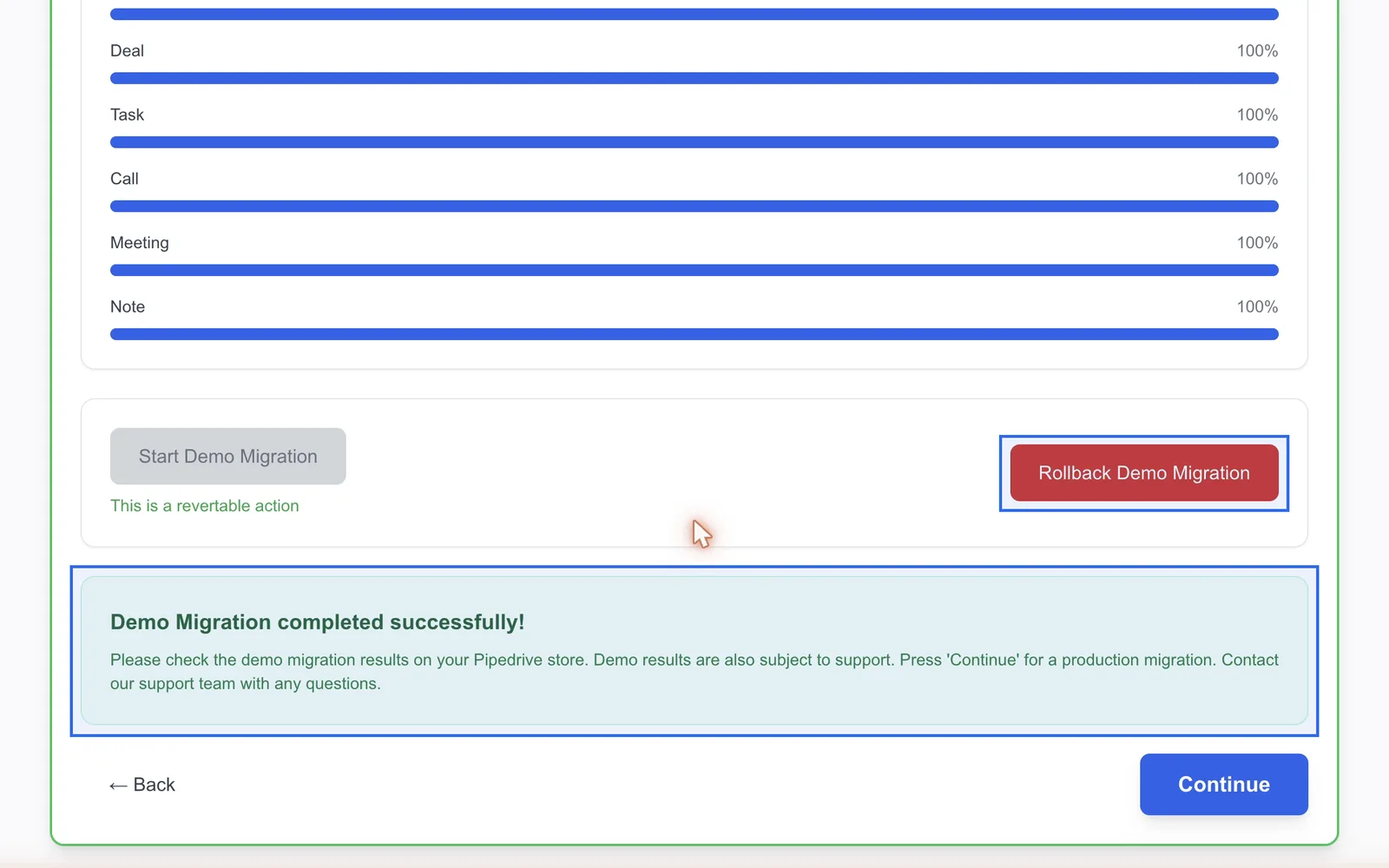
Click Continue and Start Demo Migration. Up to 20 records of each type are copied into Pipedrive, with their links, so you can open them and check.
Not what you expected? Rollback Demo Migration removes what the demo created.
Run the full migration
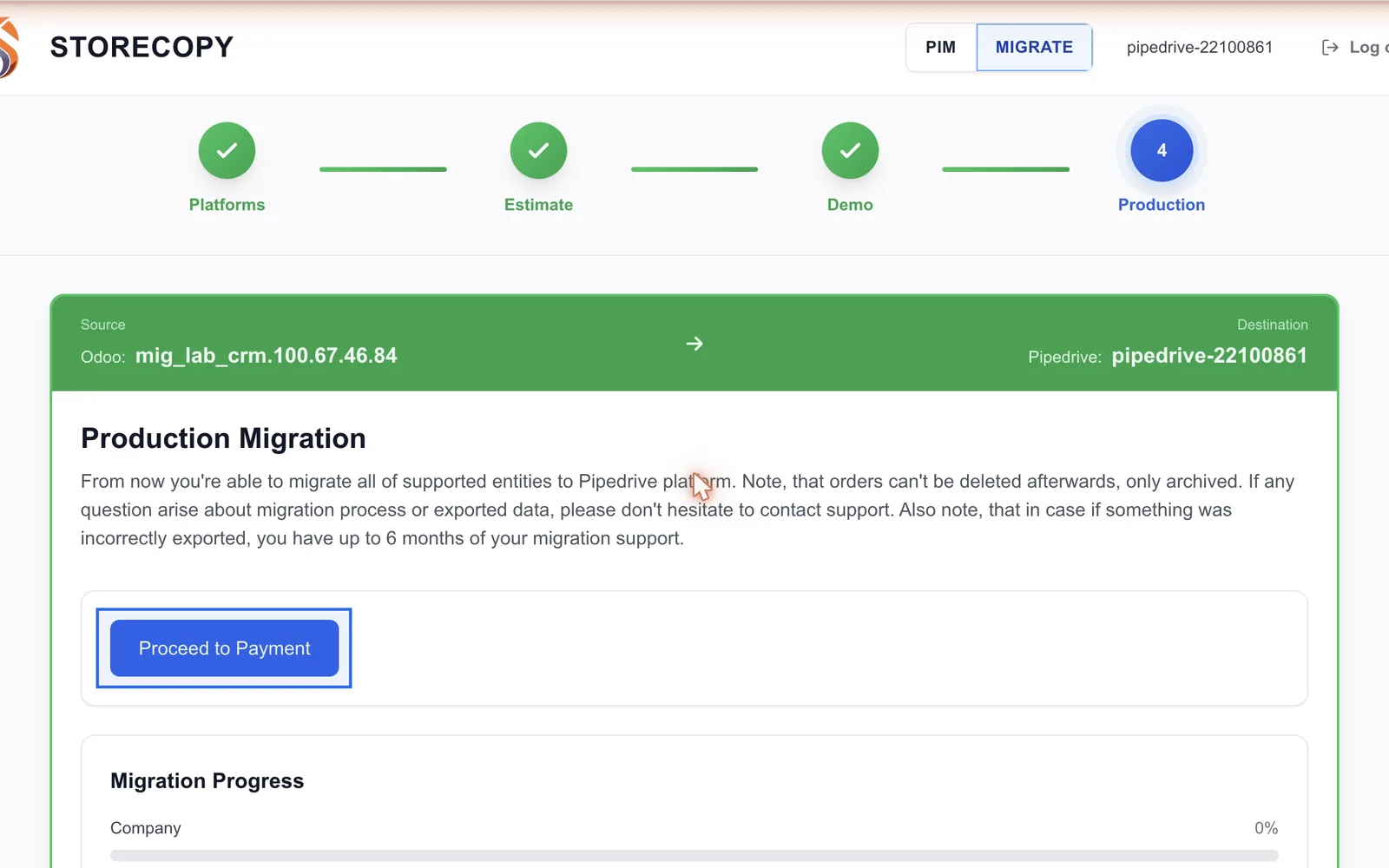
Happy with the demo? Click Continue, then Proceed to Payment. After payment the full migration copies everything else, and skips what the demo already created.
Progress shows per record type. You can close the tab: the migration runs on our servers. If your Pipedrive daily API budget runs out, it pauses and resumes by itself.
The estimate and the demo are free. Try it on your own data before you decide.
Connect PipedriveFind your data in Pipedrive
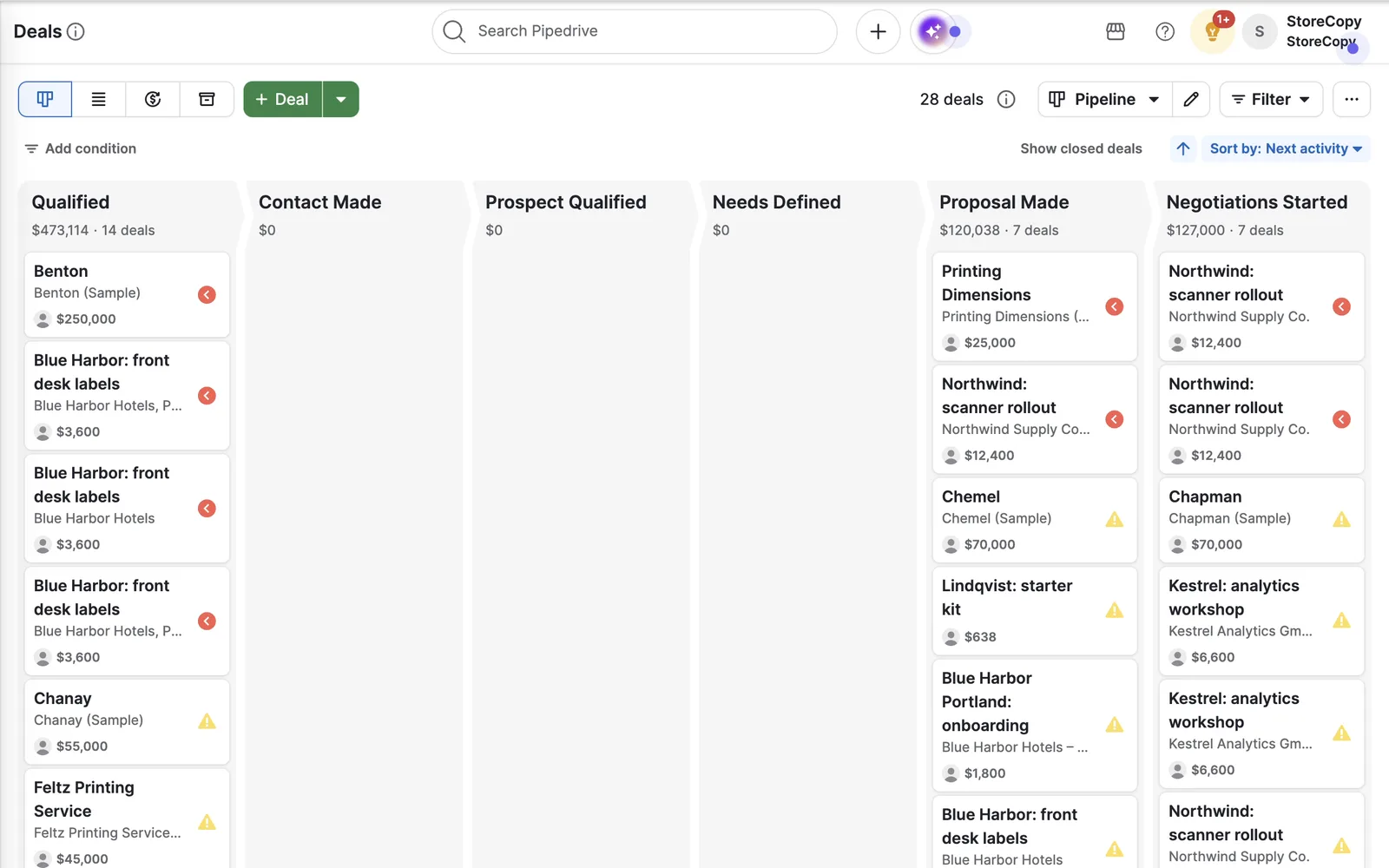
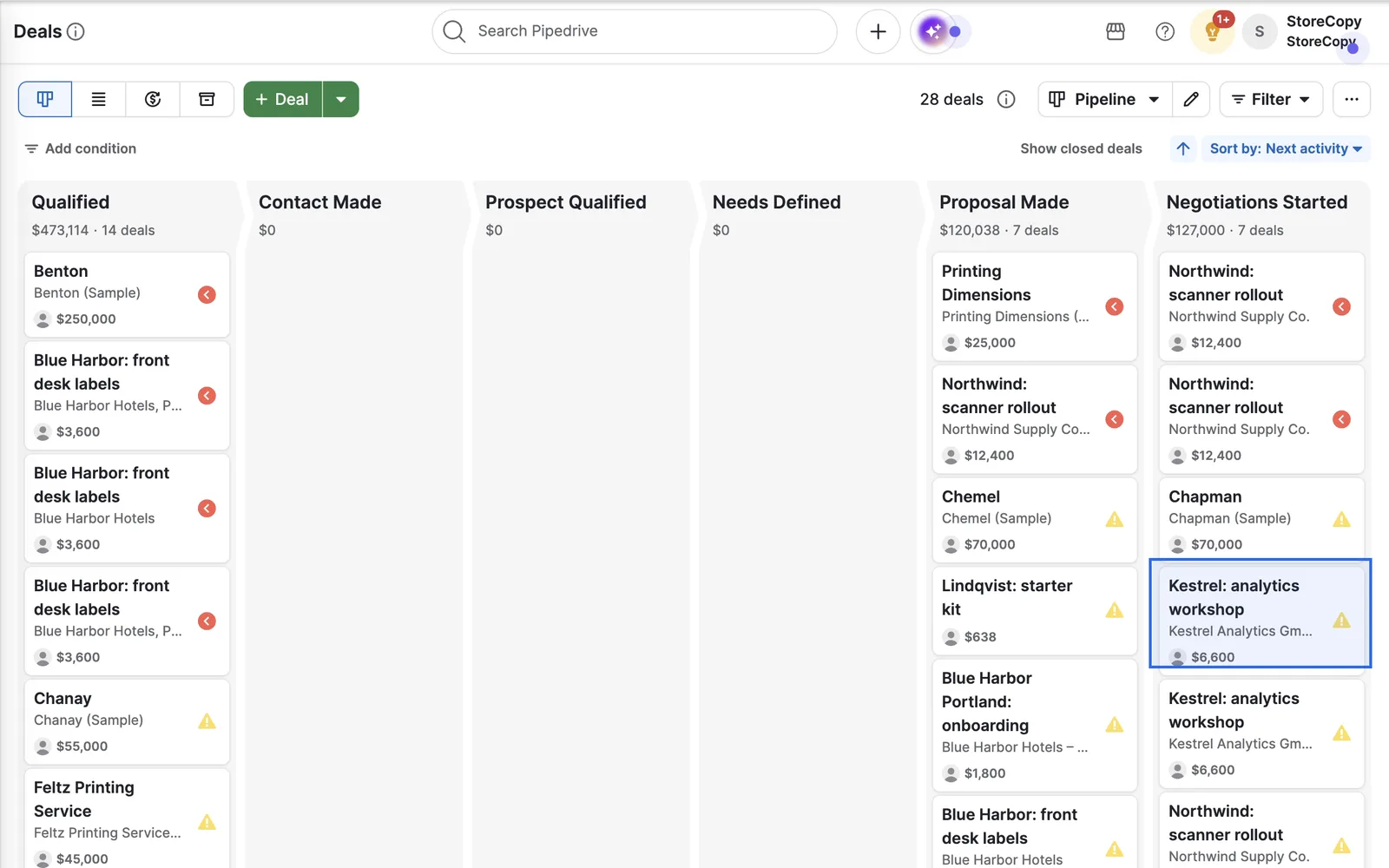
Open Deals: every deal sits in the matching pipeline stage with its value, organization and contact person. Won and lost deals keep their status.
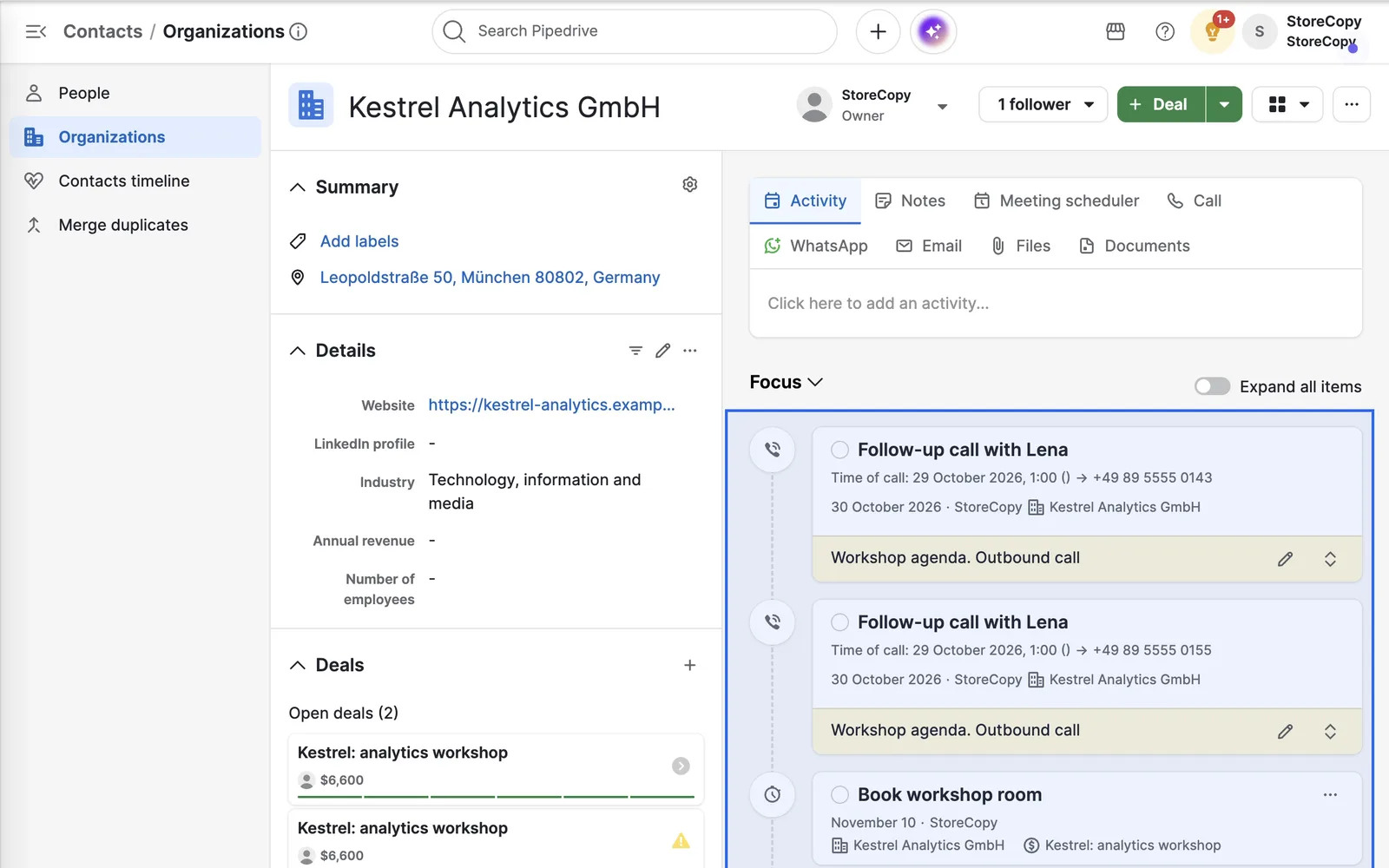
Open an organization, here Kestrel Analytics GmbH: its address, people, deals, calls, meetings, tasks and notes are all there, in one timeline.
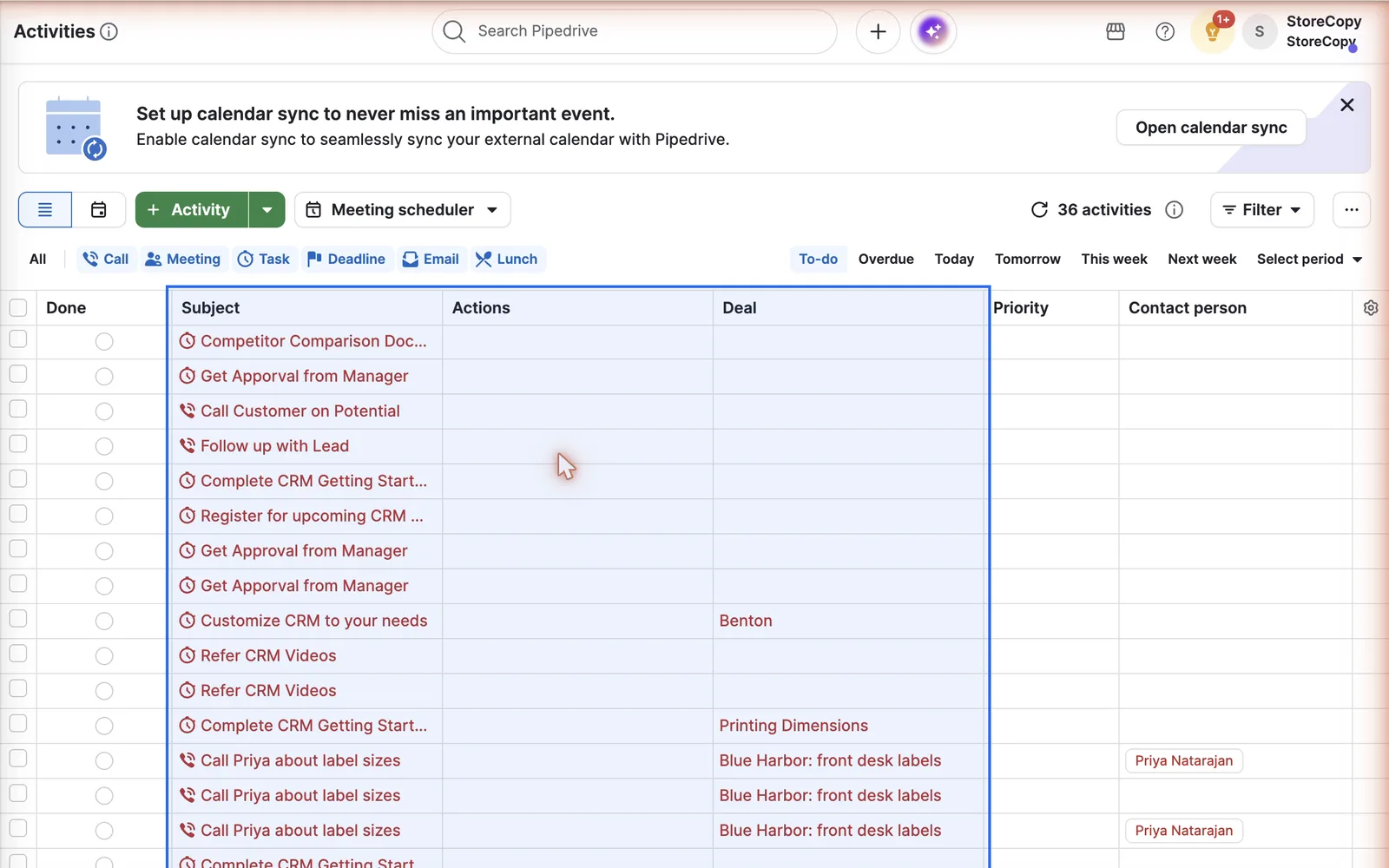
Activities lists every migrated task, call and meeting, linked to its deal and contact.
Uninstall when you are done
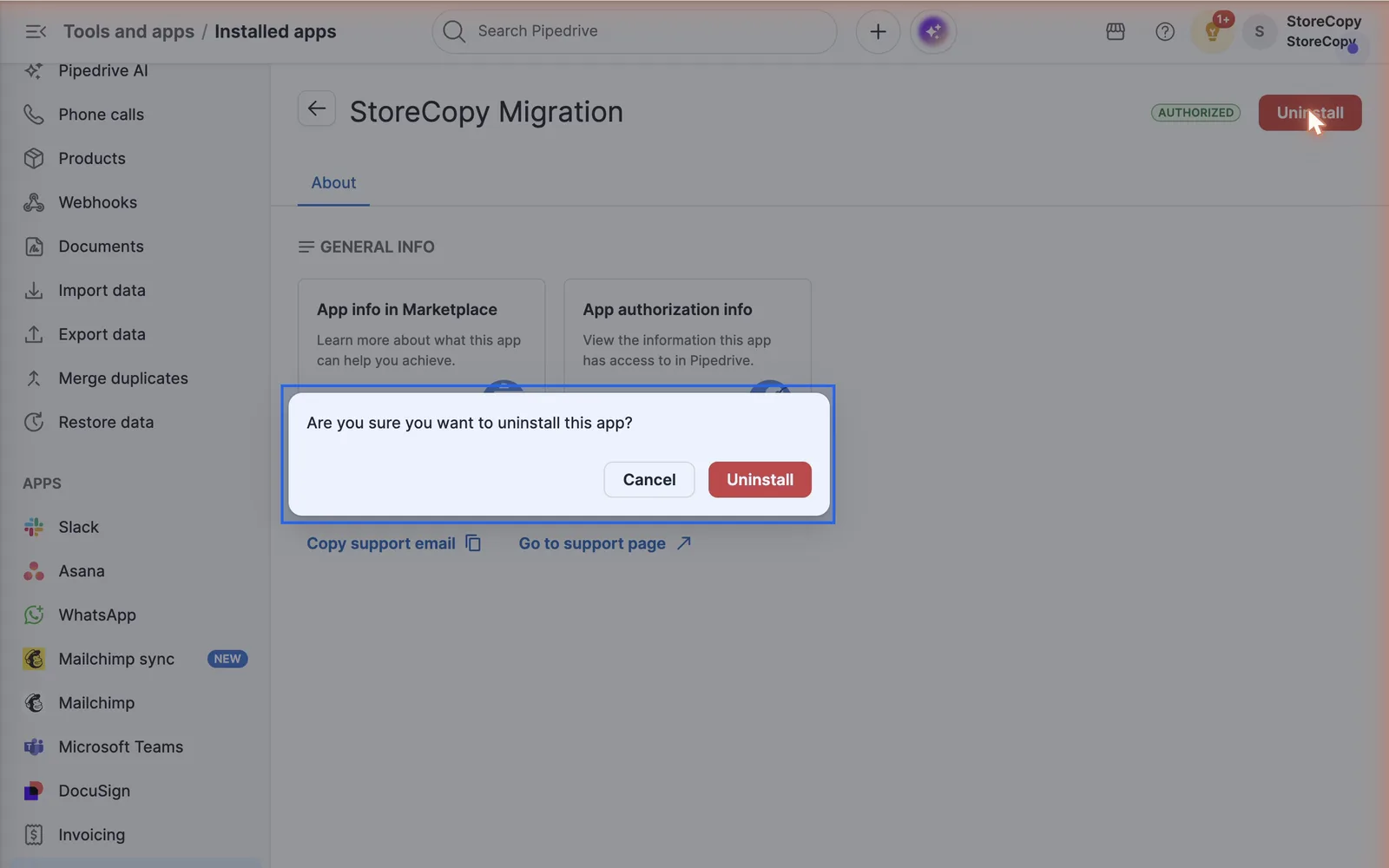
In Pipedrive, open Tools and apps, Installed apps, choose StoreCopy Migration and click Uninstall. StoreCopy loses access to your Pipedrive company at once. Everything it migrated stays in Pipedrive.
Field by field
What moves into Pipedrive
Nine record types, each written to its Pipedrive counterpart and linked to the others. Owners are matched to your Pipedrive users by email; labels, industries and other options are matched by name.
Companies
Organizations
- Name
- Website
- Industry
- Annual revenue range
- Number of employees
- Full address
- Parent organization
- Owner
- Created date
Contacts
People
- First and last name
- Phone
- Mobile
- Organization
- Labels
- Owner
Products
Products and variations
- Name
- Description
- SKU as product code
- Price
- Category
- Variants as variations with their price
Leads
Leads
- Title
- Person and organization
- Lead label
- Owner
- A new person and organization from the lead’s own name, email, phone and company when it has none
Deals
Deals and deal products
- Title
- Value and currency
- Pipeline and stage
- Open, won or lost
- Lost reason
- Probability
- Expected close date
- Person and organization
- Product lines with price, quantity and discount
- Owner
- Created date
Tasks
Activities
- Subject
- Note
- Type
- Done or open
- Priority
- Due date and time
- Deal, person, organization or lead
- Owner
Calls
Call activities and call logs
- Subject
- Note
- Date and time
- Duration
- From and to phone numbers
- Outcome
- Deal, person, organization or lead
Meetings
Meeting activities
- Title
- Start and end
- Location
- Video call link
- Outcome
- Notes
- Deal, person, organization or lead
Notes
Notes
- Text
- Author
- Date
- Deal, person, organization or lead
Leaving Pipedrive instead?
- The same nine record types move from Pipedrive to HubSpot, Zoho CRM or Odoo, linked the same way.
- StoreCopy only reads from Pipedrive: people with their postal address and job title, products with their variations, deals with their products, calls with their call log.
- Start from the Connect Pipedrive as the source link on the Pipedrive setup page.
What stays behind
- A person’s postal address, job title and birthday are not written into Pipedrive.
- Product images, stock and per-variant SKUs: Pipedrive variations hold a name and a price only.
- Quotes, invoices and tickets (Pipedrive’s API has no such objects), and email threads.
- Call recordings, and marketing status (a Campaigns add-on field).
Why teams move to Pipedrive with StoreCopy
A migration is only as good as its links. StoreCopy keeps them.
Linked, not flattened
People stay in their organizations, activities on their deals, notes on the record they belong to.
Free estimate and demo
See the counts, the price and up to 20 real records of each type in Pipedrive before you pay.
Your pipeline, as it was
Deals go to the stage with the same name, won and lost deals keep their status and reason.
Owners kept
Records are assigned to the Pipedrive user with the same email as their owner in the old CRM.
Read-only on the source
StoreCopy never changes the CRM you are leaving, so you can keep working in it until the switch.
Easy on your API budget
When Pipedrive’s daily API budget runs out, the run pauses and resumes on its own.
Questions, answered
Which CRMs can I migrate to Pipedrive?
HubSpot, Zoho CRM and Odoo. The same three work the other way too, if you are moving out of Pipedrive.
Will my deals, contacts and activities stay linked?
Yes. Organizations, people and products are created first, then leads and deals linked to them, then tasks, calls, meetings and notes on the right records.
How much does it cost?
The estimate and the demo migration are free. The estimate shows the price of the full migration before you pay; you pay once per migration.
Do I have to stop using my old CRM during the move?
No. StoreCopy only reads from the source, so your team can keep working there until you switch.
What happens with the demo records when I run the full migration?
They stay, and the full migration skips them, so nothing is created twice. You can also roll the demo back first.
Can I remove StoreCopy afterwards?
Yes. Uninstall StoreCopy Migration under Tools and apps in Pipedrive. Your migrated data stays where it is.
Bring your whole CRM to Pipedrive.
Install StoreCopy Migration, run the free estimate and demo, and see your own deals in Pipedrive today.
